Summary
This article explains how to manually add country and currency codes in the MemberPress > Settings > General section using custom code. This is useful when a customer needs a country or currency not yet officially supported by MemberPress.
It provides a temporary workaround that can be used until the desired codes are added in a future plugin release.
The purpose of this is to allow the country and currency codes to show. The payment provider must still be able to take payments from the country and accept this currency.
Troubleshooting
Missing Currency or Country Code Options
When MemberPress doesn’t include a specific currency symbol or country code that a customer needs, this can prevent proper site configuration and payment processing setup.
1) Issue: Required Currency Symbol Missing from Dropdown
The currency symbol needed by the customer is not available in the Dashboard > MemberPress > Settings > General dropdown menu.
Requirements:
- A child theme or the WPCode plugin;
- Access to the WordPress backend;
- The desired currency symbol and country code to insert;
How to Test/Fix:
1. Navigate to Dashboard > WPCode > Code Snippets, or open your child theme’s functions.php file.
2. Click Add New and then click Use Snippet under “Add Your Custom Code (New Snippet)”.
3. Add a title for your snippet (e.g., “Add Custom Currency Symbol”).
4. Paste the following code snippet:
// MemberPress Custom Currency Symbol
// Replace '৳' with your desired currency symbol
function mepr_currency_symbols($codes) {
  $new_code = array('[[CURRENCY_SYMBOL]]'); // Replace with actual symbol
  array_splice( $codes, 4, 0, $new_code ); // Adjust 4 to control position in dropdown
  return $codes;
}
add_filter('mepr-currency-symbols', 'mepr_currency_symbols');
5. Replace [[CURRENCY_SYMBOL]] with your actual currency symbol (e.g., ‘৳’, ‘¤’, etc.).
6. Adjust the number 4 in the array_splice function to control where the symbol appears in the dropdown.
7. Set Code Type to PHP Snippet and Location to Run Everywhere.
8. Click Save Snippet and toggle the switch to Active.
2) Issue: Required Currency Code Missing from Dropdown
The currency code (like BDT, INR, etc.) needed by the customer is not available in the MemberPress General Settings.
How to Test/Fix:
1. In the same WPCode snippet or in your child theme’s functions.php file, add the following code:
// MemberPress Custom Currency Code
// Replace 'BDT' with your desired currency code
function mepr_currency_codes($codes) {
  $new_code = array('[[CURRENCY_CODE]]'); // Replace with actual code (e.g., BDT, INR)
  array_splice( $codes, 4, 0, $new_code );
  return $codes;
}
add_filter('mepr-currency-codes', 'mepr_currency_codes');
2. Replace [[CURRENCY_CODE]] (as shown in the code example above) with your actual ISO 4217 currency code (e.g., ‘BDT’, ‘INR’, ‘ZAR’).
3. Save and activate the snippet.
4. Navigate to Dashboard > MemberPress > Settings > General to verify the new options appear in the dropdown menus.
3) Issue: Code Snippet Not Working
The custom currency code or symbol doesn’t appear in the MemberPress General Settings after adding the code.
How to Test/Fix:
1. Verify the code syntax is correct and there are no PHP errors.
2. Check that WPCode shows the snippet as Active.
3. Clear any caching plugins and refresh the MemberPress Settings page.
4. Verify the filter hook names match exactly: ‘mepr-currency-symbols’ and ‘mepr-currency-codes’.
5. If using a child theme, ensure the functions.php file has proper opening and closing PHP tags.
Code Example with Visual Results
Here’s a complete example using Bangladeshi Taka:
// Complete example: Adding Bangladeshi Taka (BDT) support
function mepr_currency_symbols($codes) {
  $new_code = array('৳'); // Bangladeshi Taka symbol
  array_splice( $codes, 4, 0, $new_code );
  return $codes;
}
add_filter('mepr-currency-symbols', 'mepr_currency_symbols');

function mepr_currency_codes($codes) {
  $new_code = array('BDT'); // Bangladeshi Taka code
  array_splice( $codes, 4, 0, $new_code );
  return $codes;
}
add_filter('mepr-currency-codes', 'mepr_currency_codes');
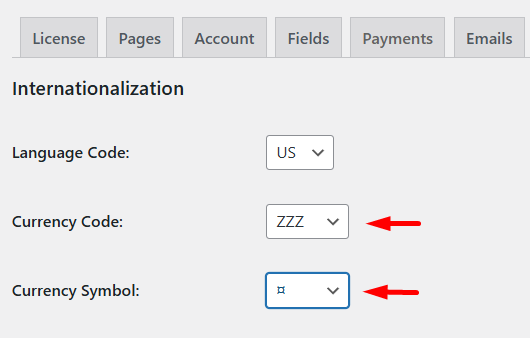
For this example, ZZZ was used for the Currency Code and ¤ for the Currency Symbol.