Author: Predrag

  • How to Protect BuddyPress Individual Profiles While Keeping Members Directory Public

    Summary

    By default, MemberPress integration with BuddyPress provides an all-or-nothing approach to profile protection. Users can either protect all BuddyPress profile content or leave it completely open to the public.

    This article provides a solution for protecting individual member profiles while keeping the members directory publicly accessible. The solution uses MemberPress Rules with Regular Expression (regex) patterns to create selective protection for BuddyPress content.

    Troubleshooting

    BuddyPress Profile Protection Configuration

    Issue: Need Selective Protection for BuddyPress Content

    The default BuddyPress integration settings in MemberPress do not provide granular control over which BuddyPress pages are protected. This limitation prevents site administrators from creating a public members directory while protecting individual member profiles.

    How to Test/Fix: Create a custom MemberPress Rule using Regular Expressions to protect only individual profile pages while leaving the members directory accessible.

    Implementation Steps

    1. Navigate to Dashboard > MemberPress > Rules.
    2. Click the Add New button to create a new rule.
    3. In the Protected Content section, select Custom URI from the dropdown menu.
    4. Enable the Regex option by checking the checkbox.
    5. Enter the following regex pattern in the URI field:
    /members/[^/]+/.*
    1. In the Access Conditions section, select the membership level(s) that should have access to individual profiles.
    2. Configure any additional access conditions as needed for your site requirements.
    3. Click Save Rule to implement the protection.

    Understanding the Regex Pattern

    The regex pattern /members/[^/]+/.* works as follows:

    • /members/ – Matches the BuddyPress members directory path
    • [^/]+ – Matches any username (one or more characters that are not forward slashes)
    • / – Matches the forward slash after the username
    • .* – Matches any additional path segments (profile tabs, activity, etc.)

    Expected Results

    • Public Access: [[SITE_URL]]/members/ (members directory remains accessible to all users)
    • Protected Content: [[SITE_URL]]/members/[[USERNAME]]/profile/ (individual profiles require membership)
    • Protected Content: [[SITE_URL]]/members/[[USERNAME]]/activity/ (activity feeds require membership)
    • Protected Content: All other individual member profile sub-pages require appropriate membership access

    Testing the Configuration

    1. Log out of your WordPress site or use an incognito browser window.
    2. Navigate to [[SITE_URL]]/members/ to confirm the members directory is publicly accessible.
    3. Click on any member’s profile link to verify that individual profiles are protected.
    4. Log in with an account that has the appropriate membership level.
    5. Confirm that member profiles are now accessible with the correct membership.

    Issue: Rule Not Working as Expected

    If the rule does not protect individual profiles correctly, verify the regex pattern and BuddyPress URL structure.

    How to Test/Fix: Check that BuddyPress is using the default URL structure. Some sites may have custom permalink structures that require pattern adjustments.

    1. Navigate to Dashboard > BuddyPress > Settings.
    2. Review the Root Members Slug setting under the Pages tab.
    3. If using a custom slug other than “members”, update the regex pattern accordingly.
    4. For example, if using “community” as the slug, change the pattern to: /community/[^/]+/.*

    Issue: BuddyPress Integration Not Enabled

    The MemberPress BuddyPress integration must be enabled for proper functionality with membership rules.

    How to Test/Fix: Verify that BuddyPress integration is properly configured in MemberPress settings.

    1. Navigate to Dashboard > MemberPress > Settings.
    2. Click on the Integrations tab.
    3. Locate the BuddyPress Integration section.
    4. Ensure the integration is enabled and configured according to your site requirements.

    Notes

    Test the rule thoroughly after implementation using a non-admin user account to ensure the protection works as expected.

    Note: The regex pattern /members/[^/]+/.* matches any URL under individual member profiles. This means all profile sub-pages (activity, profile tabs, messages, etc.) will be protected by this rule.

    Requirement: BuddyPress integration must be enabled in Dashboard > MemberPress > Settings > Integrations for this solution to work properly.

    Server Compatibility: Custom URI Rules require Apache server configuration. This solution may not work on Nginx servers without additional configuration.

    Rule Conflicts: Ensure this Custom URI Rule doesn’t conflict with other existing MemberPress Rules. Only one rule should apply to any piece of content to avoid access issues.

    Public Facing Documentation / Additional References

    Public Facing Documentation

    Additional References

  • Adding Unique IDs to MemberPress Courses Certificates

    Summary

    By default, MemberPress Courses doesn’t include unique identifiers on course completion certificates. This can make it difficult to track, verify, or reference individual certificates for administrative or compliance purposes.

    This article provides a template customization solution that adds unique certificate IDs to MemberPress Courses certificates without requiring database modifications or complex development work.

    Troubleshooting

    Certificates Lack Unique Identification Numbers

    Issue: No Built-in Certificate ID System

    MemberPress Courses generates certificates upon course completion but doesn’t include any unique identification system. This creates challenges for organizations that need to verify certificate authenticity or maintain completion records.

    How to Test/Fix: Customize the certificate template to display a unique ID combining the user ID and course ID. This creates a reliable identification system using existing data.

    Implementation Steps

    Note: This solution requires file system access and should only be implemented by users comfortable with WordPress theme customization.

    1. Access the website files and create the directory structure: wp-content/themes/your-child-theme/memberpress/courses/
    2. Navigate to wp-content/plugins/memberpress-courses/app/views/courses/ and locate the courses_certificate.php file.
    3. Copy the courses_certificate.php file to your child theme directory: wp-content/themes/your-child-theme/memberpress/courses/courses_certificate.php
    4. Edit the copied certificate template file in your child theme.
    5. Add the certificate ID code at your desired location within the template.

    Code Implementation

    Add the following code to display the certificate ID. Place this code before the “Certificate of Completion” text or at any desired location within the template:

    <p class="certificate-id">
        <b><?php esc_html_e('Certificate ID', 'memberpress-courses'); ?>:</b>
        <?php echo esc_html(sprintf('MP-%d-%d', $user_id, $course->ID)); ?>
    </p>

    This code creates a unique identifier in the format MP-[[USER_ID]]-[[COURSE_ID]] for each certificate.

    Expected Results

    • Each certificate displays a unique ID in the format MP-[[USER_ID]]-[[COURSE_ID]];
    • The ID appears on both the screen display and PDF downloads;
    • Customizations persist through plugin updates (when using a child theme);
    • No database modifications required;
    • Certificates can be easily verified and referenced;

    Important Considerations

    • Always use a child theme to prevent customizations from being lost during theme updates;
    • Create backups before making any file modifications;
    • Test thoroughly by generating test certificates after implementation;
    • The certificate ID will only appear on certificates generated after the customization is implemented;
    • Existing certificates generated before implementation will not display the ID;

    Public Facing Documentation / Additional References

    Public Facing Documentation

    Additional References

  • Fixing Divi Styling Issues With MemberPress Protected Content

    Summary

    When using the Divi theme with MemberPress, content styling may display inconsistently between authorized and unauthorized visitors. Protected posts and pages that appear correctly styled in the Divi editor and to authorized members may show different styling when viewed by visitors without access to the protected content.

    This styling discrepancy occurs due to Divi’s Static CSS File Generation feature, which creates cached CSS files that do not account for MemberPress content protection rules. This article provides the specific steps to resolve these styling conflicts and prevent them from recurring.

    Troubleshooting

    Divi Styling Inconsistencies on Protected Content

    The primary symptom is visual styling differences between what content creators see in the Divi editor versus what unauthorized visitors see on the frontend. This affects protected blog posts, pages, and other content types managed through MemberPress access rules.

    Static CSS File Generation Conflicts With MemberPress Protection

    Divi generates static CSS files to improve performance, but these cached files do not dynamically adjust for MemberPress content protection states. The static CSS applies uniform styling regardless of whether the visitor has access to the protected content.

    How to Test/Fix:

    1. Navigate to Dashboard > Divi > Theme Options.
    2. Click the Builder tab.
    3. Expand the Advanced section.
    4. Locate Static CSS File Generation.
    5. Click the Clear button to remove existing cached CSS files.
    6. Test the protected content display by viewing it as both an authorized and unauthorized visitor.

    Static CSS File Generation Remains Enabled After Clearing

    Clearing the static CSS files provides a temporary resolution, but the issue may return if Static CSS File Generation remains enabled. New static files will be generated that may again conflict with MemberPress protection rules.

    How to Test/Fix:

    1. After clearing the static CSS files, locate the Enable Static CSS File Generation toggle in the same Advanced section.
    2. Click to Disable the Static CSS File Generation feature.
    3. Click Save Changes.
    4. This prevents future static CSS conflicts with MemberPress protection while maintaining proper styling consistency.

    Browser Cache Showing Old Styling After Fix

    After clearing Divi’s static CSS files, browsers may continue displaying cached versions of the previous styling, making it appear that the fix was unsuccessful.

    How to Test/Fix:

    1. Clear browser cache and cookies for the affected site.
    2. Test in an incognito or private browsing window.
    3. Use a different browser or device to verify the styling fix.
    4. If using a caching plugin, clear all plugin caches as well.

    Custom CSS Overrides Not Working With Protection Rules

    Additional custom CSS added through Divi’s theme customizer or individual page settings may not apply correctly when MemberPress content protection is active.

    How to Test/Fix:

    1. Navigate to Dashboard > Appearance > Customize > Additional CSS.
    2. Add CSS rules with higher specificity to override default styling.
    3. Use browser developer tools to inspect elements and identify CSS conflicts.
    4. Consider using !important declarations sparingly for critical styling fixes.
    5. Test styling changes in both protected and unprotected content states.

    Divi Module Styling Breaks on Membership Pages

    Specific Divi modules within MemberPress-generated pages (such as account pages, checkout pages, or membership content) may lose their styling or appear with default formatting.

    How to Test/Fix:

    1. Ensure Static CSS File Generation is disabled as described above.
    2. Navigate to Dashboard > MemberPress > Settings > General.
    3. Scroll to the Theme Compatibility section and verify CSS loading options.
    4. Consider enabling Global CSS Styles if styling issues persist.
    5. Test individual Divi modules on membership-related pages.
    6. Use page-specific CSS targeting for persistent styling issues.

    Prevention and Best Practices

    Avoiding Future Styling Conflicts

    Preventing styling conflicts requires proper configuration of both Divi and MemberPress settings to work harmoniously.

    How to Test/Fix:

    • Keep Static CSS File Generation disabled when using MemberPress with content protection;
    • Test new protected content on multiple devices and browsers before publication;
    • Use Divi’s Responsive Editing features to ensure consistency across device types;
    • Regularly clear browser cache when testing styling changes;
    • Document custom CSS modifications for future reference and troubleshooting;

    Public Facing Documentation / Additional References

    Public Facing Documentation

    Developer Documentation

  • How to Provide Automatic WooCommerce Discounts to MemberPress Members

    Summary

    Customers using both MemberPress and WooCommerce often ask for automatic discounts on WooCommerce products for active MemberPress members. Since there’s no built-in integration, this requires using additional user roles assigned to members with active memberships.

    This article covers two implementation methods: custom PHP code snippets for precise control, and the WooCommerce Smart Coupons plugin for easier management. Both approaches require creating user roles in advance using the Members plugin (or a similar plugin).

    This example uses “Member” for basic discounts and “Bronze”“Silver”“Gold” for tiered discounts.

    Troubleshooting

    Prerequisites

    Before implementing either solution, ensure these user roles exist using the Members plugin:

    • “Member” – for basic discount eligibility;
    • “Bronze”“Silver”“Gold” – for tiered discounts;

    Step 1: Configure MemberPress User Role Assignment

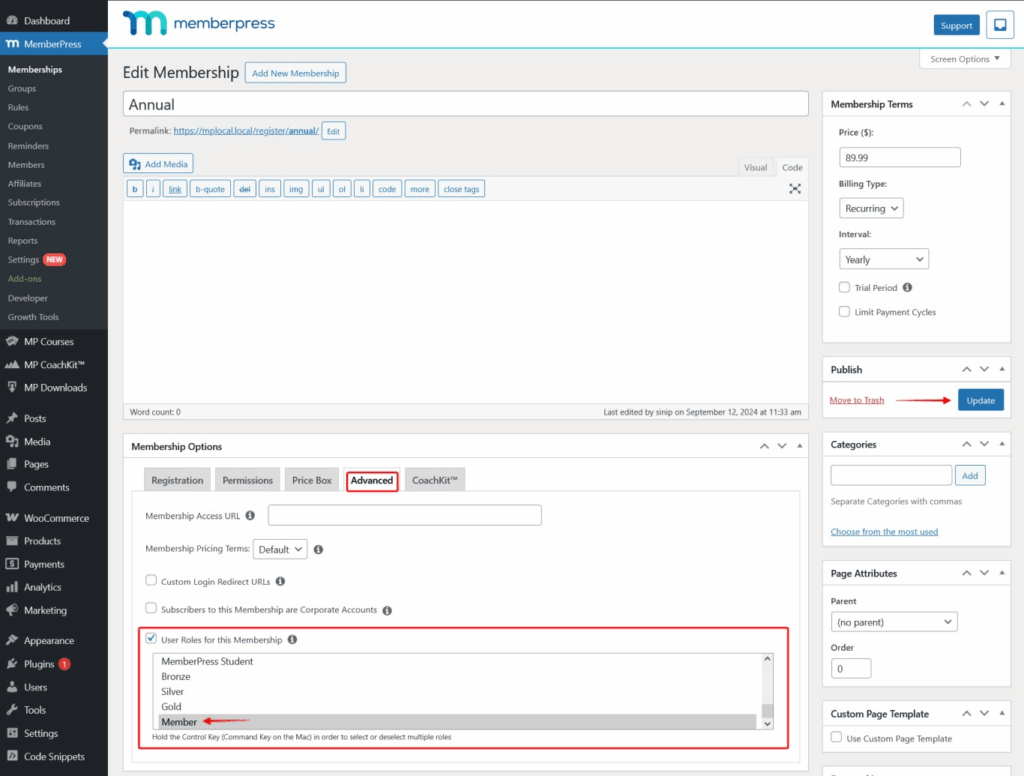
    Each membership that should trigger WooCommerce discounts needs a user role assigned. Navigate to Dashboard > MemberPress > Memberships > Advanced tab of the relevant membership.

    Enable the User Role for this Membership option and select the appropriate role (e.g., “Member”“Gold”). Click Update to save.

    Method 1: Custom PHP Code Solution

    Add the following code using WPCode plugin or your child theme’s functions.php file. This method provides the most control over discount logic.

    Single Membership Discount

    For a basic 10% discount for all members with the “Member” role:

    // Apply automatic discount for MemberPress members in WooCommerce
    add_action('woocommerce_cart_calculate_fees', 'apply_user_role_discount');
    function apply_user_role_discount($cart) {
        // Exit if admin or not AJAX
        if (is_admin() && !defined('DOING_AJAX')) {
            return;
        }
        // Exit if cart is empty
        if (empty($cart->get_cart_contents())) {
            return;
        }
        // Exit if no user
        $user = wp_get_current_user();
        if (empty($user->ID)) {
            return;
        }
        // Define member discount
        $member_discount = [
            'percentage' => 10,
            'min_cart' => 0,
            'max_discount' => 0  // 0 means no cap
        ];
        // Check if user has member role
        if (in_array('member', (array) $user->roles)) {
            $subtotal = $cart->get_subtotal();
            $discount = ($subtotal * $member_discount['percentage']) / 100;
            
            // Apply discount with cap check
            if ($member_discount['max_discount'] > 0 && $discount > $member_discount['max_discount']) {
                $discount = $member_discount['max_discount'];
                $cart->add_fee(
                    sprintf('Member Discount (%d%% - capped at %s)', 
                        $member_discount['percentage'],
                        wc_price($member_discount['max_discount'])
                    ),
                    -$discount
                );
            } else {
                $cart->add_fee(
                    sprintf('Member Discount (%d%%)', 
                        $member_discount['percentage']
                    ),
                    -$discount
                );
            }
        }
    }

    Multiple Tier Discounts

    For tiered memberships with different discount percentages (Bronze: 10%, Silver: 15%, Gold: 20%), use this enhanced version that automatically applies the highest available discount:

    // Apply tiered discounts based on MemberPress user roles
    add_action('woocommerce_cart_calculate_fees', 'apply_user_role_discount');
    function apply_user_role_discount($cart) {
        if (is_admin() && !defined('DOING_AJAX')) {
            return;
        }
        // Only calculate if cart is not empty
        if (empty($cart->get_cart_contents())) {
            return;
        }
        // Get current user
        $user = wp_get_current_user();
        if (empty($user->ID)) {
            return;
        }
        // Define discounts (ordered by highest to lowest percentage) add admin for testing
        $discounts = [
            'gold' => [
                'percentage' => 20,
                'min_cart' => 0,
                'max_discount' => 0  // 0 means no cap
            ],
            'silver' => [
                'percentage' => 15,
                'min_cart' => 0,
                'max_discount' => 0
            ],
            'bronze' => [
                'percentage' => 10,
                'min_cart' => 0,
                'max_discount' => 0
            ],
            'administrator' => [
                'percentage' => 5,
                'min_cart' => 0,
                'max_discount' => 0
            ]
        ];
        $subtotal = $cart->get_subtotal();
        $highest_discount_percent = 0;
        $selected_role = '';
        $max_discount_cap = 0;
        // Find highest applicable discount
        foreach ($discounts as $role => $discount_data) {
            if (in_array($role, (array) $user->roles)) {
                if ($discount_data['percentage'] > $highest_discount_percent) {
                    $highest_discount_percent = $discount_data['percentage'];
                    $selected_role = $role;
                    $max_discount_cap = $discount_data['max_discount'];
                }
            }
        }
        // Apply highest discount if found
        if ($highest_discount_percent > 0) {
            // Calculate initial discount
            $discount = ($subtotal * $highest_discount_percent) / 100;
            
            // Apply cap if set and if discount exceeds cap
            if ($max_discount_cap > 0 && $discount > $max_discount_cap) {
                $discount = $max_discount_cap;
                $cart->add_fee(
                    sprintf('%s Discount (%d%% - capped at %s)', 
                        ucfirst($selected_role), 
                        $highest_discount_percent,
                        wc_price($max_discount_cap)
                    ),
                    -$discount
                );
            } else {
                $cart->add_fee(
                    sprintf('%s Discount (%d%%)', 
                        ucfirst($selected_role), 
                        $highest_discount_percent
                    ),
                    -$discount
                );
            }
        }
    }

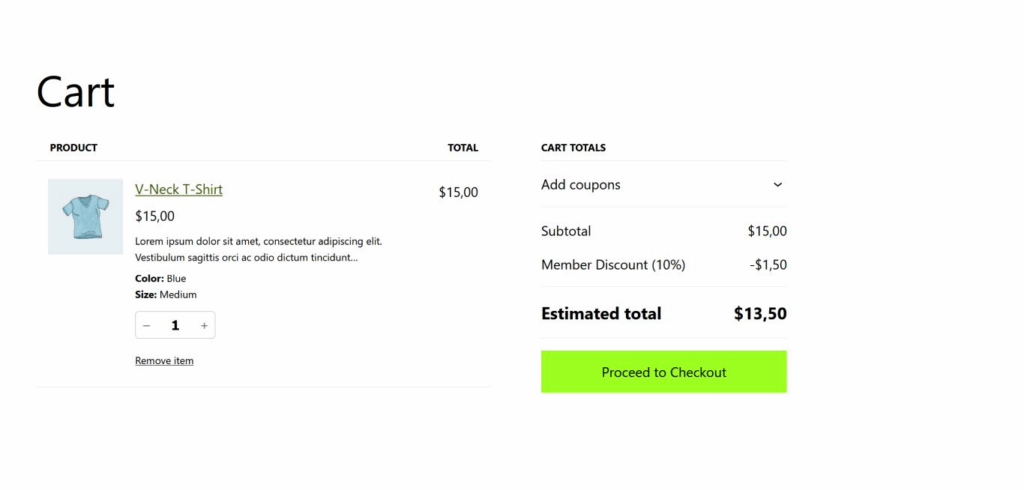
    With either code snippet active, discounts will automatically calculate and display at checkout.

    Method 2: WooCommerce Smart Coupons Plugin

    For those who prefer a plugin-based solution with a user interface, WooCommerce Smart Coupons provides an alternative approach.

    Plugin Installation

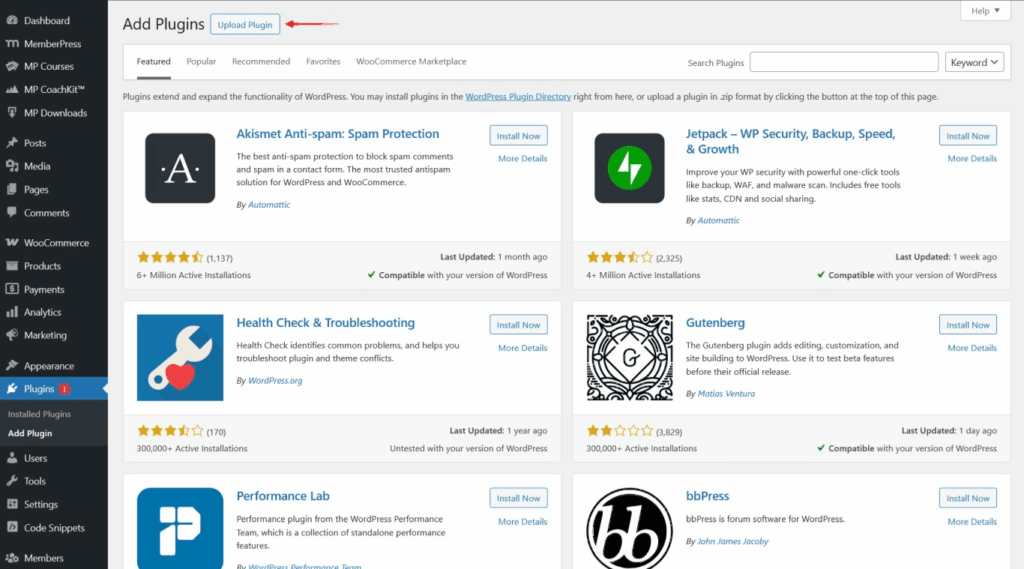
    Install WooCommerce Smart Coupons by navigating to Dashboard > Plugins > Add Plugin, click Upload Plugin, then upload and activate the plugin.

    Enable Auto-Apply Feature

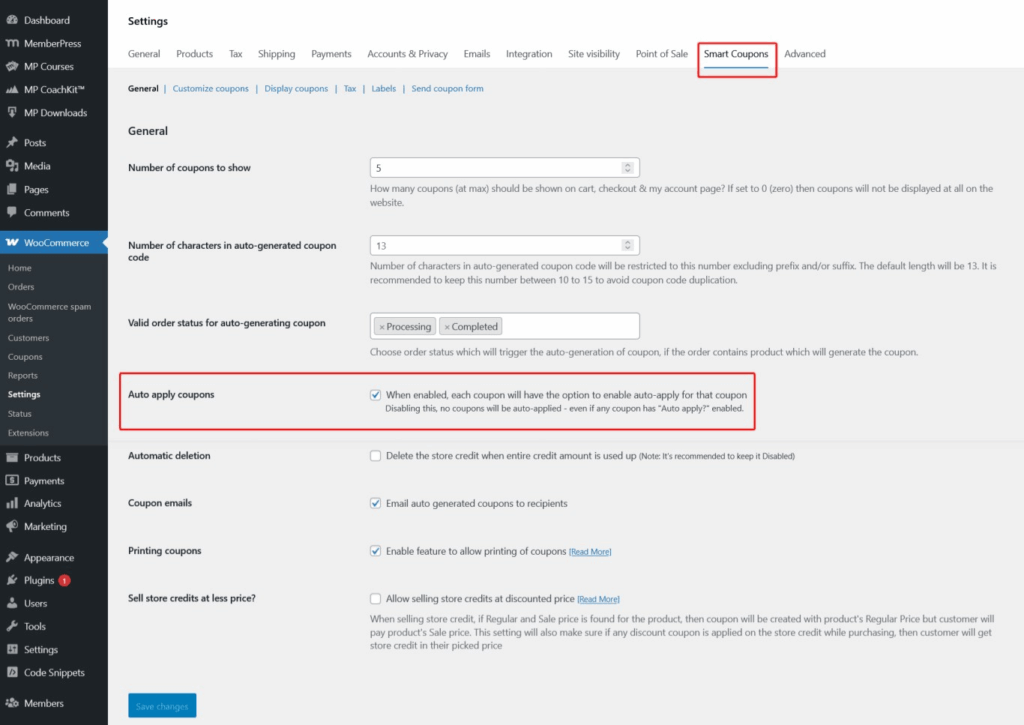
    Configure the plugin to automatically apply coupons. Navigate to Dashboard > WooCommerce > Settings > Smart Coupons and enable Auto apply coupons.

    Create Role-Based Coupons

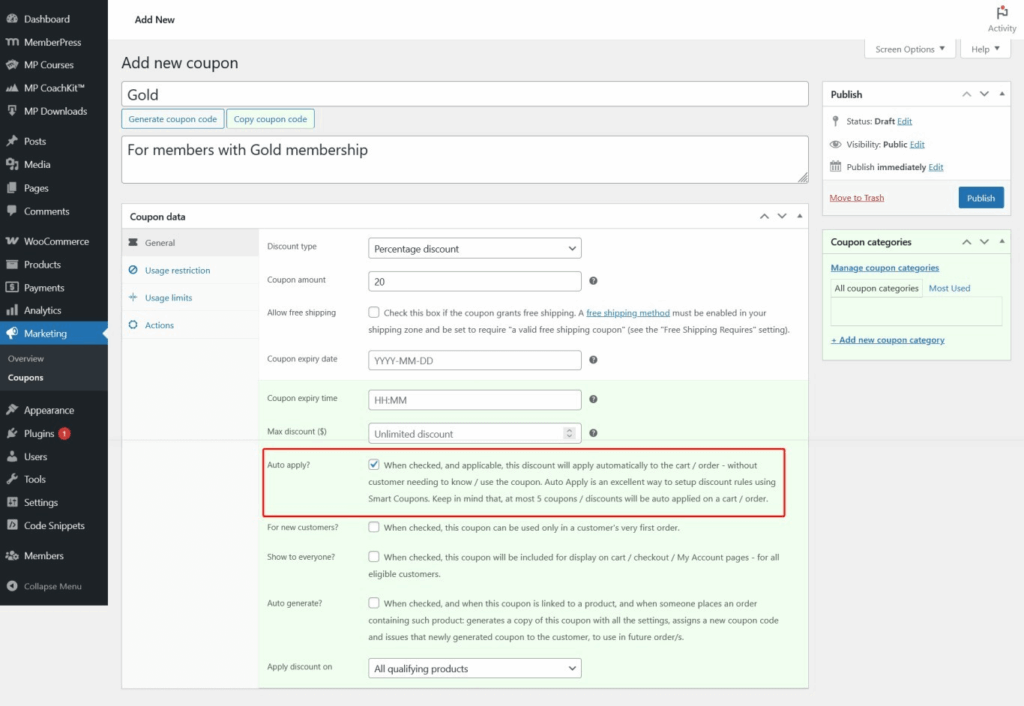
    Create auto-applying coupons restricted to specific user roles. Navigate to Dashboard > WooCommerce > Coupons and click Add new coupon.

    1. Set up the coupon with your desired discount amount and type.
    2. Enable Auto apply? in the coupon settings.
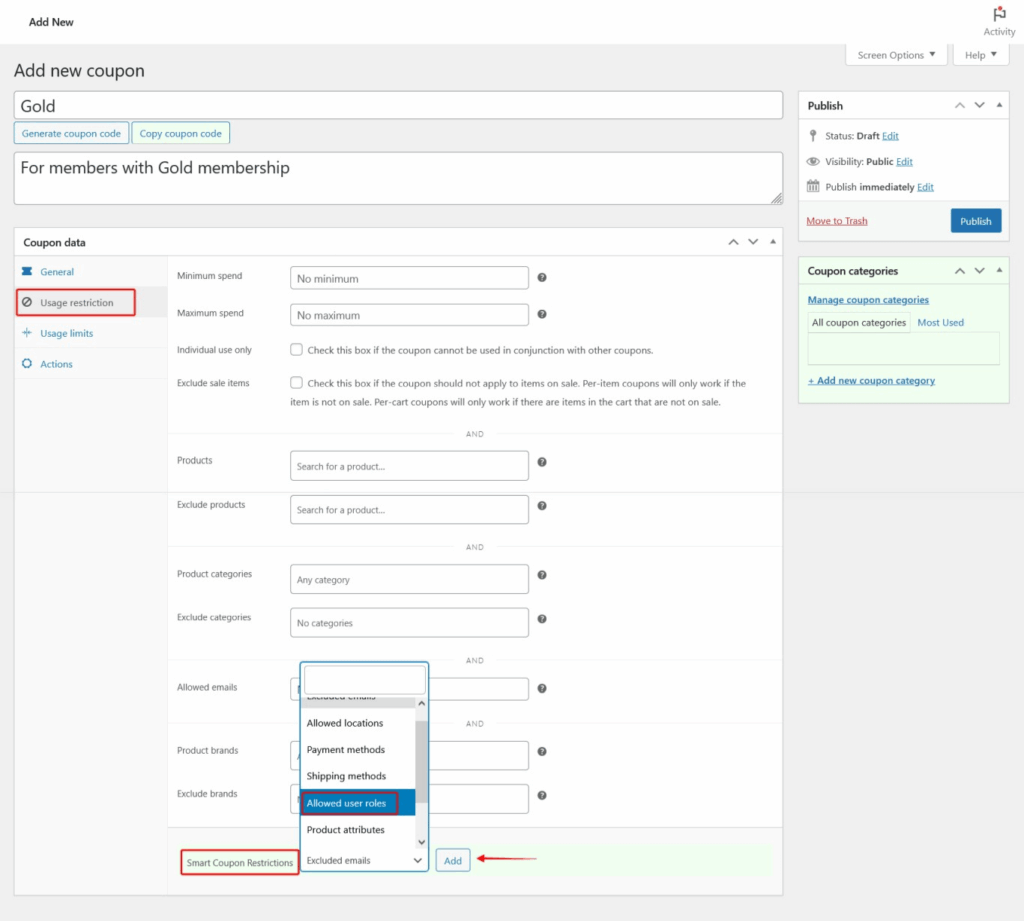
    1. Go to the Usage restriction tab.
    2. Scroll down and find the dropdown selection.
    3. Select Allowed user roles from the dropdown.
    4. Click Add to create the field.
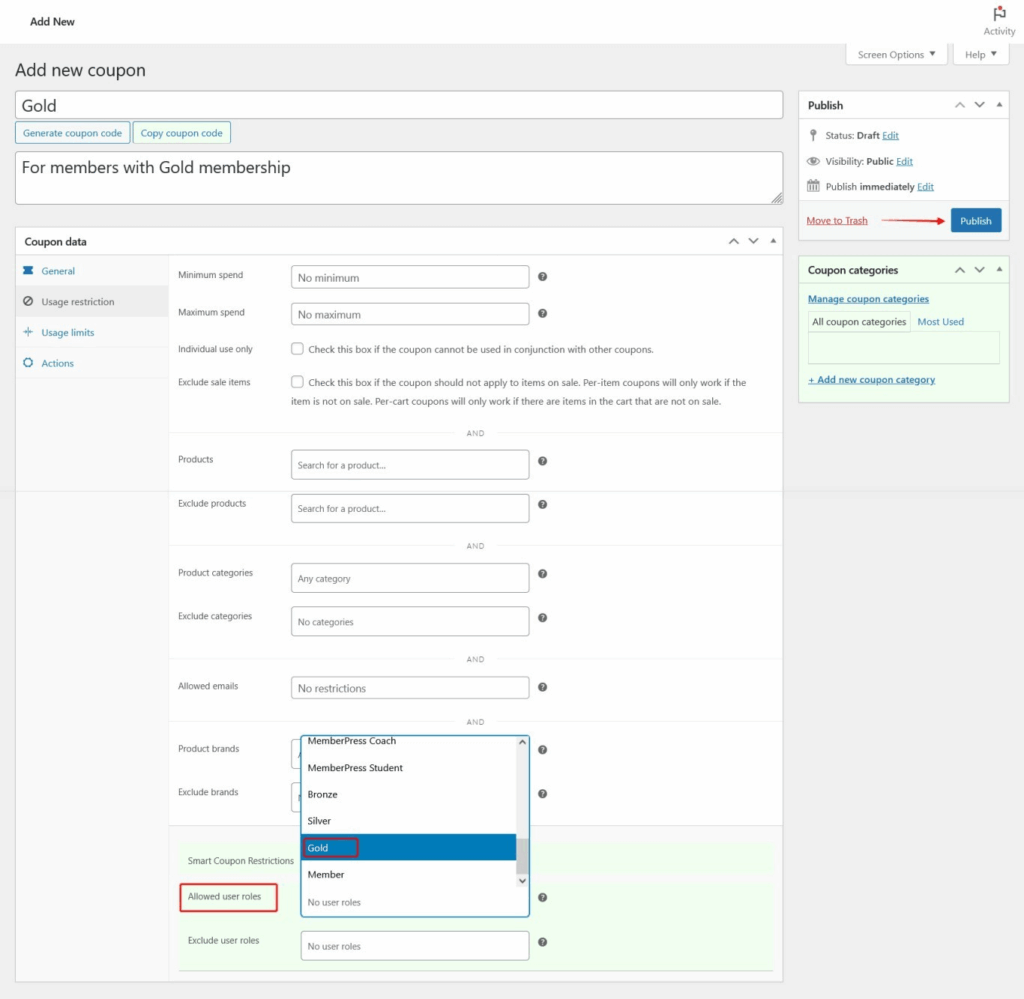
    1. Select the target user role (e.g., Gold) in the field.
    2. Click Publish to activate the coupon.

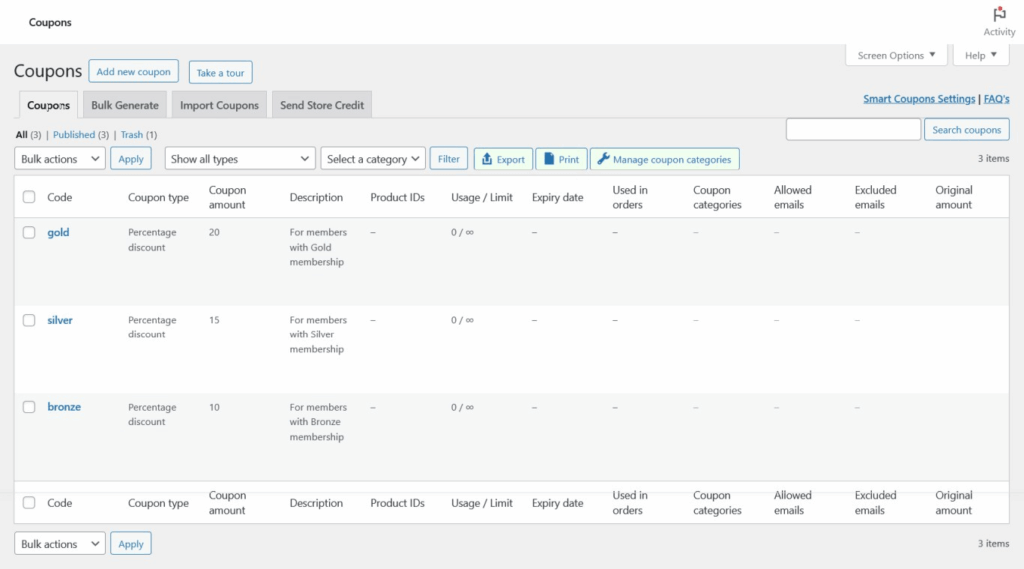
    Repeat this process for each membership tier (Bronze, Silver), creating separate coupons with appropriate discount amounts. Your coupon list will show all role-based auto-apply coupons.

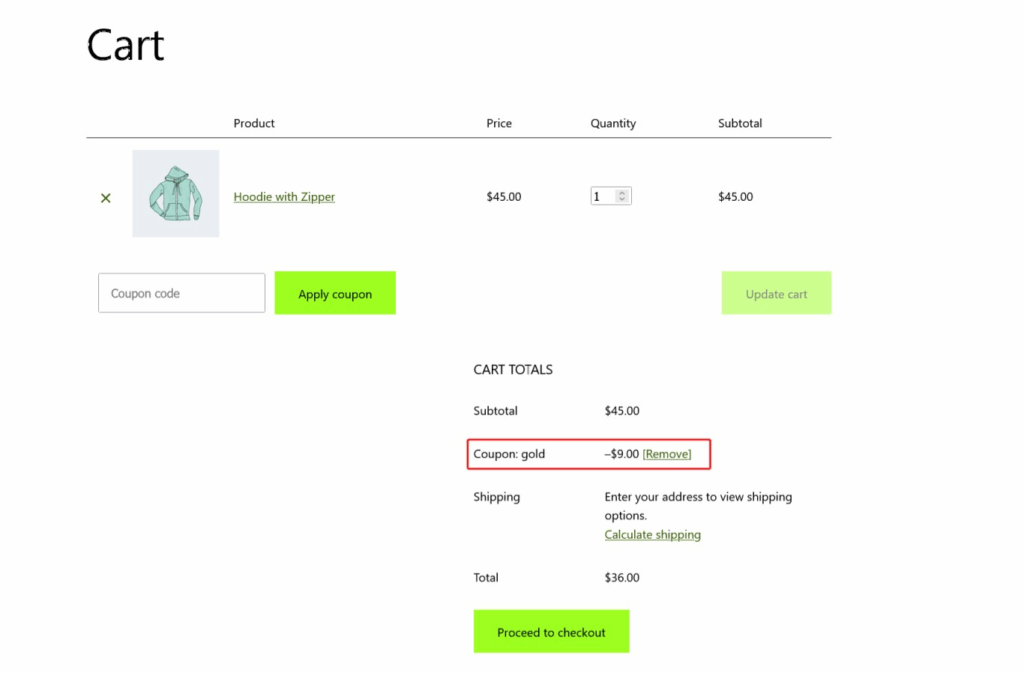
    The screenshot example below shows how this can appear.

    When members with active memberships add products to their cart, the appropriate coupon automatically applies based on their user role.

    Common Issue: Automatic Discounts Not Appearing

    Most commonly caused by incorrect user role assignments or caching issues.

    Troubleshooting Steps:

    • Verify that the MemberPress membership has the correct user role assigned in the Advanced tab;
    • Check that the user role exists and matches exactly in both MemberPress and the discount code;
    • Clear all caching (page cache, object cache, and WooCommerce transients);
    • Test with incognito/private browsing to eliminate browser caching issues;

    Public Facing Documentation / Additional References

    Public Facing Documentation

    Additional References

  • Using MemberPress Stripe Price Updater Add-on to Change Subscription Prices

    Summary

    The MemberPress Stripe Price Updater Add-on is a specialized tool developed by the MemberPress team that allows administrators to update the price of existing Stripe-based MemberPress subscriptions in bulk. This plugin maintains synchronization between MemberPress records and Stripe subscriptions, ensuring price changes are applied safely to active member subscriptions.

    This tool is particularly useful for site owners who need to implement price changes across multiple existing subscriptions without requiring members to cancel and re-subscribe. The plugin provides filtering options, preview functionality, and comprehensive logging to ensure accurate and controlled price updates.

    Installation and Usage

    Prerequisites

    Before using the MemberPress Stripe Price Updater Add-on, ensure the following requirements are met:

    • MemberPress plugin must be active and properly configured;
    • At least one Stripe gateway must be active in MemberPress;
    • Existing Stripe subscriptions must be present in your MemberPress installation;
    • Administrative access to WordPress dashboard;

    Installation Process

    1. Download the Stripe Price Updater file.
    2. Navigate to WordPress Admin > Plugins > Add New.
    3. Click Upload Plugin.
    4. Select the downloaded ZIP file and click Install Now.
    5. Click Activate once installation is complete.

    Using the Stripe Price Updater

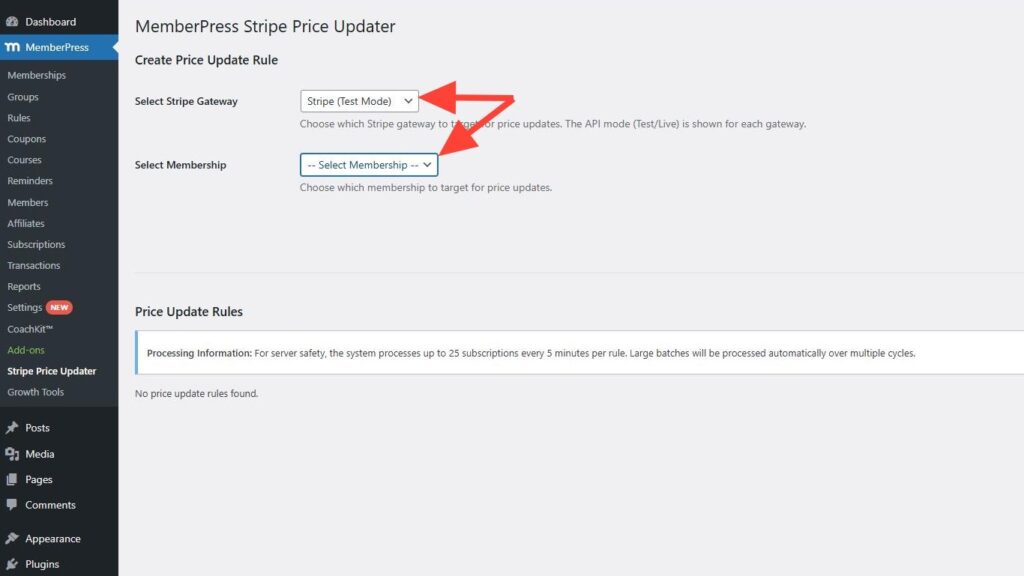
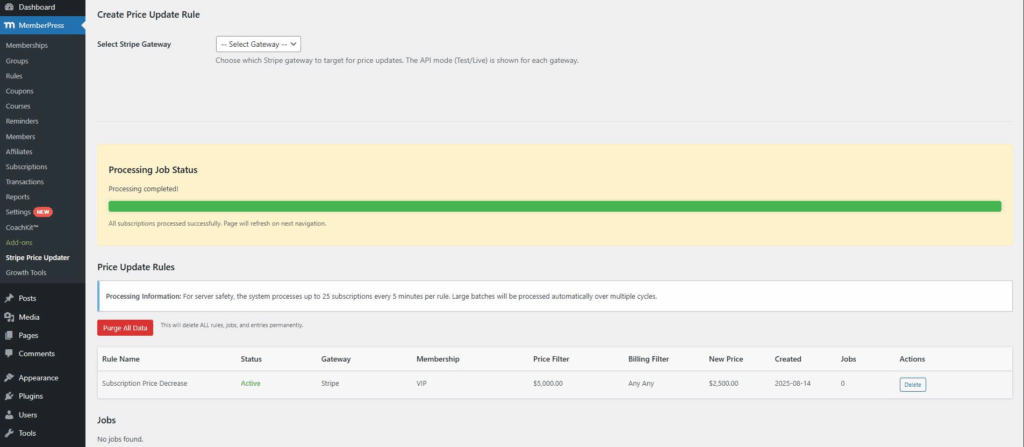
    1. Navigate to Dashboard > MemberPress > Stripe Price Updater.
    2. Select the appropriate Stripe gateway from the dropdown menu at the top of the page. This selection will display the membership selection options.
    1. After choosing the Stripe gateway, select the desired membership from the available options.
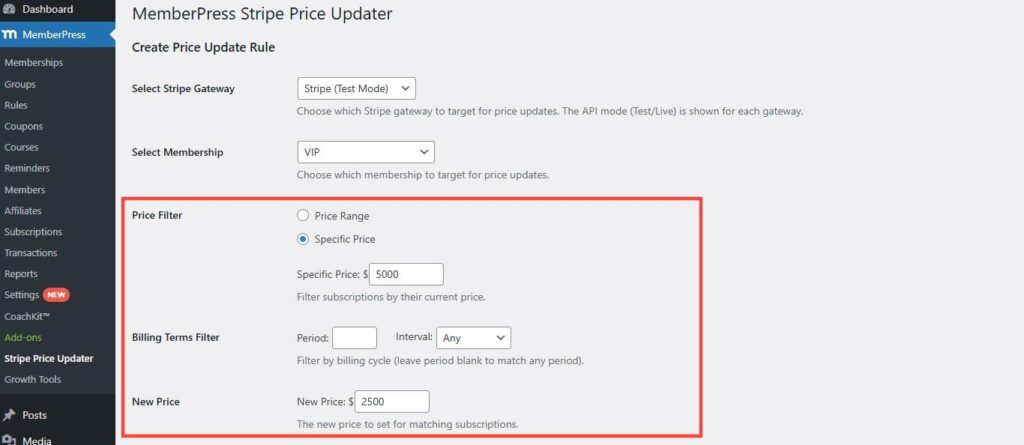
    2. Configure the filtering options to target specific subscriptions:
      • Set price filters to match current subscription amounts;
      • Set billing period filters to match current billing cycles;
      • Enter the new price and billing terms you want to apply;
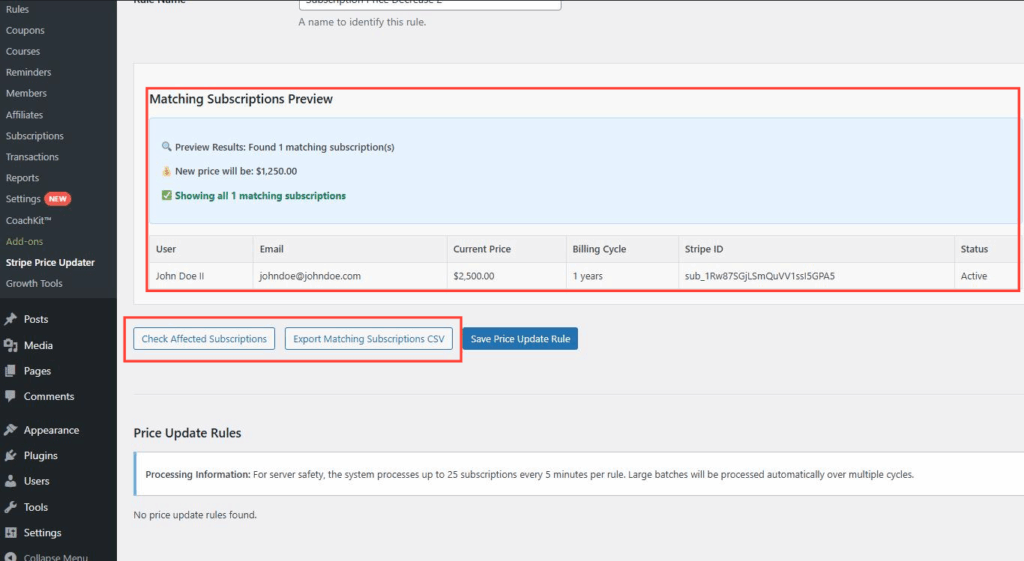
    1. Use the Preview section to review which subscriptions will be affected by your changes.
    2. Download an export of the affected subscriptions for your records if desired.
    1. Once you have verified the preview results are correct, provide a descriptive name for this price update rule.
    2. Click Save Price Update Rule to execute the price changes.
    3. The job will be initiated automatically. Monitor the progress of the update process through the plugin interface.
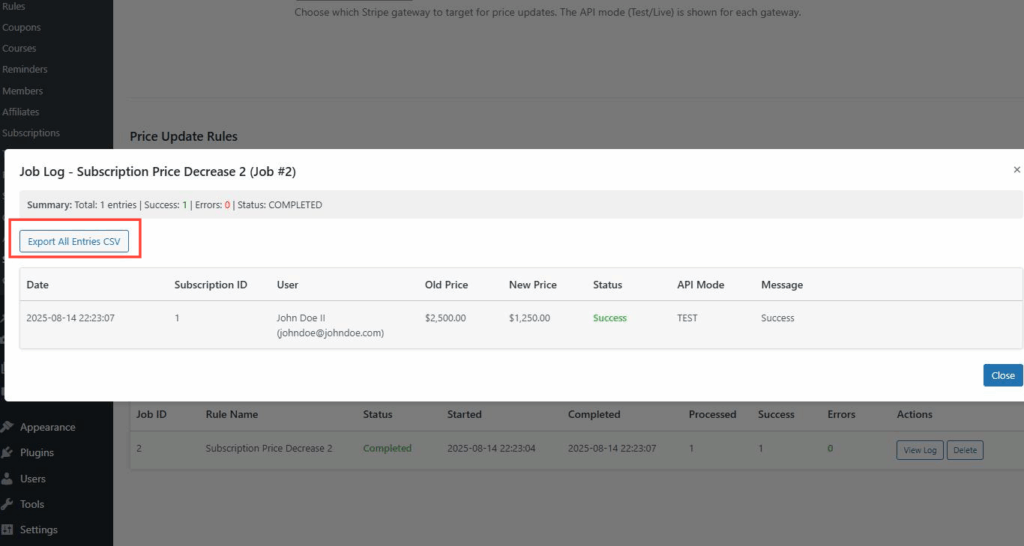
    4. Once the process is complete, review the processed job status and download reports as needed for documentation.
    1. Access and review detailed logs of the price update process.

    Managing Price Update Rules

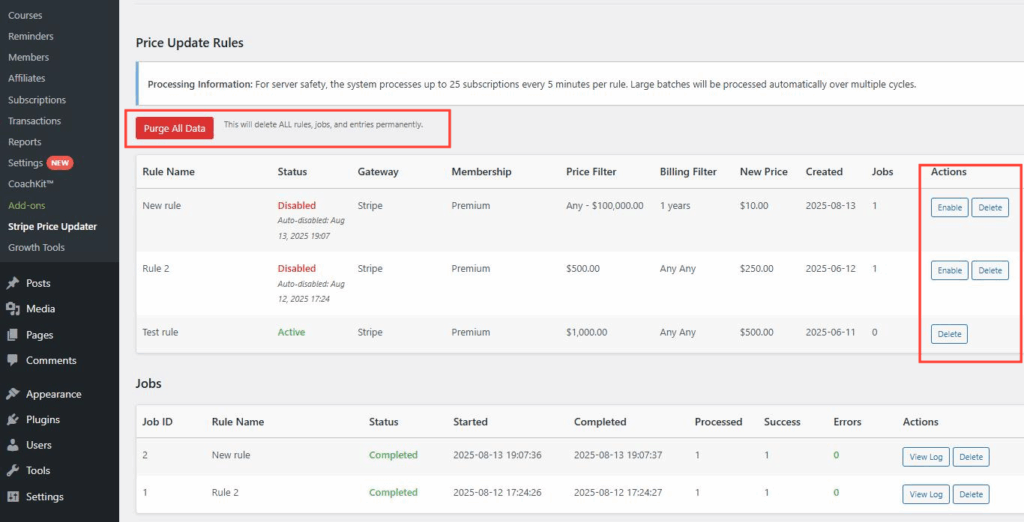
    After creating and executing price update rules, you have several management options available:

    • Delete specific rules: Remove individual price update rules that are no longer needed;
    • Purge all rules: Clear all existing price update rules at once;
    • Re-enable rules: Reactivate previous rules to repeat the price update process if needed;

    Important Limitations and Notes

    Note: The following limitations apply to the MemberPress Stripe Price Updater Add-on:

    • Stripe-only functionality: This tool only affects existing Stripe subscriptions and will not impact subscriptions created through other payment gateways;
    • Existing subscriptions only: The tool does not affect new signups or future subscriptions – only currently active Stripe subscriptions;
    • Gateway requirement: Both MemberPress and at least one Stripe gateway must be active for the plugin to function;
    • Logging: All price changes are automatically logged within the plugin for review and audit purposes;
    • Synchronization: The tool maintains synchronization between MemberPress database records and Stripe’s subscription data;

    Public Facing Documentation / Additional References

    Public Facing Documentation

    Additional References

  • Bulk Canceling Active Subscriptions for a Specific MemberPress Membership

    Summary

    This article provides a step-by-step solution for bulk canceling all active subscriptions associated with a specific membership plan in MemberPress. The solution uses a custom PHP code snippet that allows administrators to cancel multiple subscriptions simultaneously through a simple URL parameter.

    This method is particularly useful when you need to discontinue a membership plan and cancel all associated active subscriptions at once, rather than manually canceling each subscription individually through the WordPress dashboard. The code queries the database for all active subscriptions of a specified membership and iterates through each one to cancel them programmatically.

    Implementation Guide

    Adding the Required Code Snippet

    You can add this code using either method:

    • Add to your active child theme’s functions.php file;
    • Use the WPCode plugin (recommended for better management);

    Code to add:

    // Cancel all membership subscriptions
    // Usage: wp-admin/?cancel_membership_subs=70
    add_action('admin_init', function(){
        if ( isset($_GET['cancel_membership_subs']) && !empty($_GET['cancel_membership_subs']) ) {
            global $wpdb;    
            $product_id = (int)$_GET['cancel_membership_subs'];
            $query = $wpdb->prepare("SELECT id FROM {$wpdb->prefix}mepr_subscriptions WHERE product_id = %d AND status = 'active'", $product_id);
            $subs = $wpdb->get_results($query);
            
            $output = '';
            foreach($subs as $sub) {
                $sub = new MeprSubscription($sub->id);
                if ($sub) {
                    try {
                        $sub->cancel();
                        $output .= 'Cancelled sub ID ' . $sub->id . '
    '; } catch (Exception $e) { $output .= 'Can not cancel sub ID ' . $sub->id . ' Errors: ' . $e->getMessage() . '
    '; } } } $output .= 'Done!'; wp_die($output); } });

    Finding the Membership ID

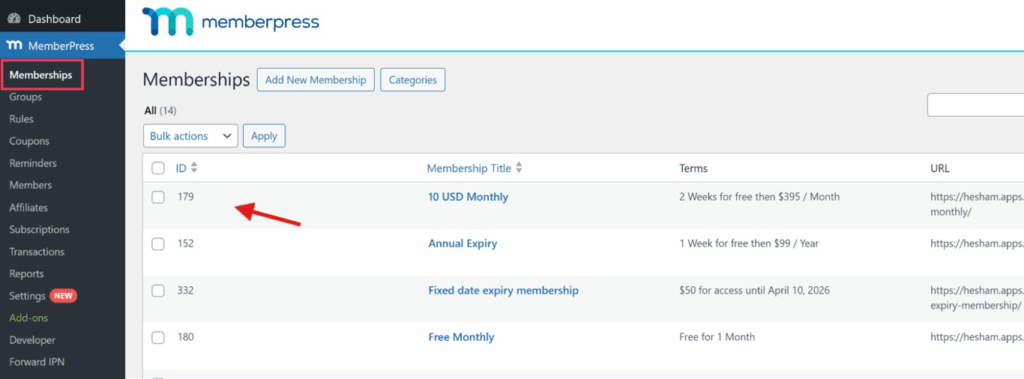
    1. Navigate to Dashboard > MemberPress > Memberships.
    2. Locate the membership ID under the ID column in the memberships list.

    Note: Make sure to record the correct membership ID as this will be used in the URL parameter for the bulk cancellation process.

    Executing the Bulk Cancellation

    1. Ensure you are logged in as a WordPress administrator.
    2. Construct the URL by adding wp-admin/?cancel_membership_subs=[[MEMBERSHIP_ID]] to the end of your site URL.
    3. Replace [[MEMBERSHIP_ID]] with your target membership ID number (e.g., 123) to create a URL like https://yoursite.com/wp-admin/?cancel_membership_subs=123.
    4. Navigate to the constructed URL in your browser.
    5. Wait for the process to complete. The page will display results showing successfully canceled subscription IDs and any error messages.

    Understanding the Results

    The script will display output similar to:

    Cancelled sub ID 456
    Cancelled sub ID 457
    Cancelled sub ID 458
    Can not cancel sub ID 459 Errors: No such subscription: 'sub_1PAu3NBG1tBrpBnJOiu6MZBm' (invalid_request_error)
    Done!

    If any subscriptions cannot be canceled, you will see error messages explaining the specific issues encountered. These errors typically occur when the subscription has already been canceled at the payment gateway or when there are connection issues with the payment processor.

    How the Code Works

    The provided code snippet creates a custom WordPress action that:

    1. Listens for a specific URL parameter (cancel_membership_subs)
    2. Queries the MemberPress subscriptions database table for all active subscriptions of the specified membership
    3. Iterates through each subscription and attempts to cancel it using the MemberPress API
    4. Displays results showing successful cancellations and any errors encountered
    5. Terminates execution with a “Done!” message

    Troubleshooting

    Post-Execution Verification

    1. Verify the results by checking Dashboard > MemberPress > Subscriptions to confirm the targeted subscriptions show as canceled.
    2. Check the payment gateway dashboard to confirm the subscriptions show as canceled there as well.
    3. Review any error messages displayed during execution and manually address problematic subscriptions if needed.
    4. Remove the code from your functions.php file or deactivate the WPCode snippet to prevent accidental future executions.
    5. Document the changes made for future reference and team members.

    Common Issues

    Issue: Payment Gateway Sync Errors

    Some subscriptions may fail to cancel due to payment gateway communication issues or subscriptions that have already been canceled at the gateway level.

    How to Test/Fix: Check the payment gateway dashboard directly and manually cancel any subscriptions that the script could not process. Review the error messages for specific subscription IDs that failed.

    Issue: Database Connection Errors

    Database query failures may occur on sites with heavy traffic or database connection limits.

    How to Test/Fix: Execute the script during low-traffic periods and consider breaking large membership cancellations into smaller batches by modifying the database query to include a LIMIT clause.

    Warning

    Always create a complete database backup before running the script. This allows you to roll back changes if any issues occur during the bulk cancellation process. The cancellation process affects both the MemberPress database and external payment gateway subscriptions, making it difficult to reverse without proper backups.

    Public Facing Documentation / Additional References

    Public Facing Documentation

    Additional References

  • Adding {$old_product} Email Parameter for MemberPress Subscription Notifications

    Summary

    This article explains how to create a custom {$old_product} email parameter for MemberPress subscription notifications. This parameter displays the previous membership or product name when users upgrade or downgrade their subscriptions, providing clearer context in email communications.

    The solution involves adding custom code to create the email parameter and then using it in the upgraded and downgraded subscription email notices to show both the old and new product names.

    Implementation Guide

    Adding the Required Code Snippet

    The custom email parameter requires adding code to your site. You can add this code using either method:

    • Add to your active theme’s functions.php file;
    • Use the WPCode plugin (recommended for better management);

    Code to add:

    // Add "old_product" email var
    add_filter('mepr_subscription_email_vars', function($vars) {
        $vars[] = 'old_product';
        return $vars;
    });
    
    // Add "old_product" email parameter
    add_filter('mepr_subscription_email_params', function($params, $sub) {
        $old_product = '';
        
        // Get the most recent transaction
        $txns = MeprTransaction::get_all_complete_by_user_id(
            $sub->user_id,
            'created_at DESC', // $order_by
            '', // $limit
            false, // $count
            false, // $exclude_expired
            true // $include_confirmations
        );
        
        if ( !empty($txns) ) {
            foreach($txns as $txn) {
                if ( $txn->product_id != $sub->product_id ) {
                    $old_product = get_the_title($txn->product_id);
                    break;
                }
            }
        }
        
        $params['old_product'] = $old_product;
        return $params;
    }, 10, 2);

    How the Code Works

    The code creates two filter hooks:

    1. mepr_subscription_email_vars – Registers the new old_product variable as available for email templates.
    2. mepr_subscription_email_params – Populates the variable with the previous product name by searching the user’s transaction history.

    The code searches through the user’s completed transactions in descending order (newest first) and finds the most recent transaction for a different product than their current subscription.

    Using the {$old_product} Email Parameter

    Once the code snippet is added and activated, the {$old_product} parameter becomes available in your MemberPress email notices.

    To use the parameter:

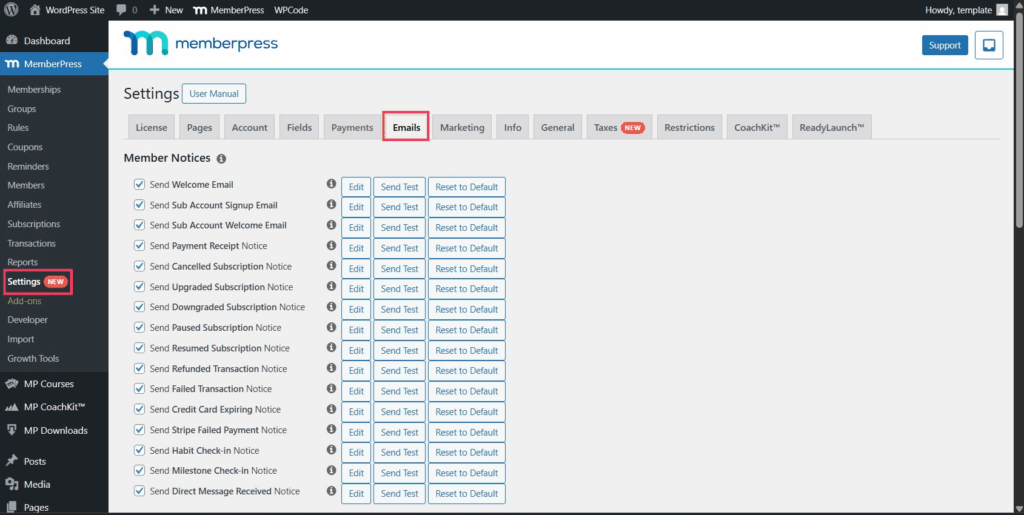
    1. Navigate to Dashboard > MemberPress > Settings.
    2. Click the Emails tab.
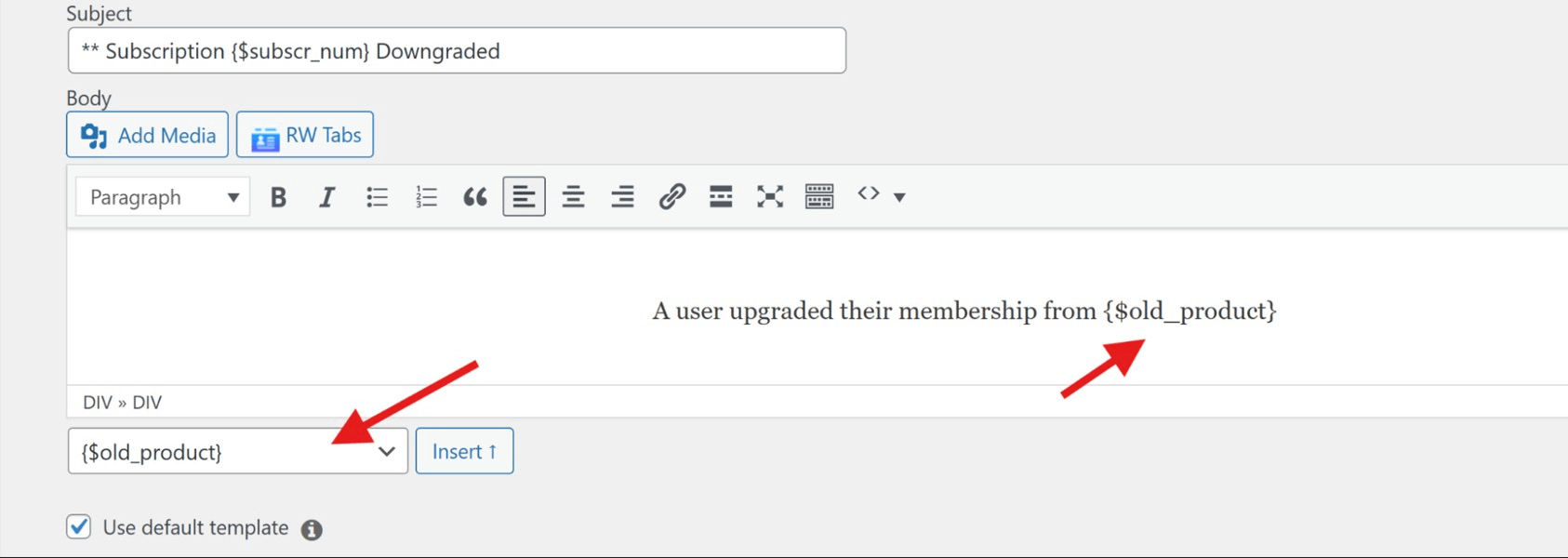
    1. Select the subscription email notice you want to edit (upgraded or downgraded).
    2. Add the parameter to your email content.

    Example usage in email templates:

    • Customer emails: “You upgraded/downgraded your membership from {$old_product} to {$product_name}”;
    • Admin emails: “A user upgraded their membership from {$old_product} to {$product_name}”;

    Recommended Email Notices

    This parameter is most useful in the following email notices:

    • Upgraded Subscription (Customer and Admin);
    • Downgraded Subscription (Customer and Admin);

    Note: While the parameter can be used in any subscription email notice, it will only display meaningful data when there is a previous product in the user’s transaction history.

    Troubleshooting

    Issue: Parameter Shows Empty Value

    If the {$old_product} parameter appears empty in emails, this typically occurs when:

    • The user has no previous completed transactions;
    • All previous transactions are for the same product as the current subscription;
    • The code was not properly added or activated;

    How to Test/Fix: Test with a user account that has multiple completed transactions for different products. Verify the code is properly added to your theme’s functions.php file or activated via WPCode plugin.

    Issue: Parameter Not Available in Email Editor

    If you don’t see the parameter listed in the email notice editor, the first filter hook may not be working properly.

    How to Test/Fix: Verify the mepr_subscription_email_vars filter is properly added. Check for PHP syntax errors that might prevent the code from executing. Clear any caching plugins and refresh the email editor page.

    Public Facing Documentation / Additional References

    Public Facing Documentation

    Developer Documentation

    Additional References

  • Resolving jQuery Version Conflicts with MemberPress Stripe Elements

    Summary

    Some custom WordPress themes deregister the built-in version of jQuery and register a different version instead. This practice can cause conflicts with MemberPress Stripe Elements integration, resulting in payment processing failures.

    This article explains how to identify and resolve jQuery version conflicts that prevent successful payment processing through MemberPress Stripe Elements. The solution involves modifying the theme’s functions.php file to remove conflicting jQuery registration code.

    Troubleshooting

    Payment Failure with Stripe Elements

    When members attempt to complete payments using MemberPress Stripe Elements integration, they receive an error message and the payment fails to process, even when payment details are entered correctly.

    Issue: jQuery Version Conflict with Theme

    Custom themes that deregister WordPress’s built-in jQuery and register alternative versions can interfere with MemberPress Stripe Elements functionality. This conflict occurs because MemberPress relies on specific jQuery methods and behaviors that may not be available or may function differently in alternative jQuery versions.

    Error Message: “ERROR: Payment was unsuccessful, please check your payment details and try again.”

    How to Test/Fix:

    1. Navigate to Dashboard > Appearance > Theme Editor.
    2. Select the active theme and open the functions.php file.
    3. Search for the following line of code:
    wp_deregister_script('jquery');
    1. If found, look for an accompanying line that registers a custom jQuery version, such as:
    wp_register_script( 'jquery', ( "//ajax.googleapis.com/ajax/libs/jquery/1.11.0/jquery.min.js" ), false);
    1. Create a backup of the functions.php file before making changes.
    2. Remove both the wp_deregister_script(‘jquery’); line and any related wp_register_script line that registers a custom jQuery version.
    3. Save the changes to functions.php.
    4. Test the MemberPress Stripe Elements payment form on a staging site first.
    5. Verify that both payment processing works correctly and theme functionality remains intact.
    6. If the theme breaks after removing jQuery registration code, contact the theme developer for a compatible solution.

    Note: Always test these changes on a staging site first. Removing custom jQuery registration may affect theme functionality if the theme was specifically designed to work with a particular jQuery version.

    Alternative Solutions

    Theme Compatibility Check

    If removing the jQuery registration code causes theme functionality issues, consider these alternatives:

    1. Contact the theme developer to request a fix for MemberPress Stripe Elements compatibility.
    2. Switch to a theme that doesn’t override WordPress’s default jQuery version.
    3. Use conditional logic to only deregister jQuery on specific pages where it doesn’t interfere with MemberPress functionality.

    Conditional jQuery Loading

    For advanced users, you can modify the theme’s jQuery handling to exclude MemberPress pages:

    add_action('wp_enqueue_scripts', 'conditional_jquery_deregister', 1);

    function conditional_jquery_deregister() {
    global $post;

    // Detect if we are on a MemberPress page
    if (class_exists('MeprAppHelper') && MeprAppHelper::is_memberpress_page($post)) {
    return; // Don't deregister jQuery on MemberPress pages
    }

    // Deregister jQuery only if not on MemberPress pages
    wp_deregister_script('jquery');
    wp_register_script('jquery', '//ajax.googleapis.com/ajax/libs/jquery/1.11.0/jquery.min.js', false);
    }

    Note: This code example should be adapted based on your specific MemberPress page setup and theme requirements. Test thoroughly before implementing on a production site.

    Public Facing Documentation / Additional References

    Public Facing Documentation

    Additional References