Author: Predrag

  • How to Add HTML Links in Loco Translate Translations for MemberPress Strings

    Summary

    Loco Translate is a popular plugin for translating WordPress themes and plugins, including MemberPress strings. When users attempt to add HTML links within translated strings, they encounter an issue where the HTML displays as plain text instead of rendering as clickable links.

    This document explains why HTML in Loco Translate translations displays as plain text and provides multiple implementation methods to enable HTML links in MemberPress translations. The solutions address WordPress security measures that automatically escape HTML content, ensuring translations remain functional while maintaining site security.

    Troubleshooting

    Understanding the Issue

    WordPress implements automatic HTML escaping in translations as a security measure to prevent XSS (Cross-Site Scripting) attacks. This behavior is intentional and affects all translation plugins, not just Loco Translate. When HTML code is added to a translation string, WordPress converts special characters into HTML entities, causing the code to display as plain text rather than rendering as functional HTML.

    This is not a MemberPress-specific issue but rather a WordPress core security feature. MemberPress follows WordPress best practices by escaping translated strings before output.

    Important: Modifying HTML escaping behavior can introduce security vulnerabilities if not implemented carefully. Only allow HTML in specific, controlled translation strings rather than disabling escaping globally.

    Solution Methods

    1) HTML Links Display as Plain Text in Translations

    When translating MemberPress strings like “Lifetime” to include HTML anchor tags such as <a href=”https://example.com”>click here</a>, the HTML code appears literally on the frontend instead of rendering as a clickable link.

    How to Test/Fix:

    Method 1: Using WPCode Plugin (Recommended)

    1. Install and activate the WPCode plugin.
    2. Navigate to Dashboard > Code Snippets > + Add Snippet.
    3. Click Add Your Custom Code (New Snippet).
    4. Set the code type to PHP Snippet.
    5. Add a descriptive title like “Allow HTML Links in MemberPress Translations”.
    6. Paste the following code into the code editor:
    /**
     * Allow HTML links in specific translations
     * Adapted from: https://localise.biz/wordpress/plugin/faqs/html-editing
     */
    function allow_links_in_memberpress_translation($safe, $unsafe) {
        // Check if the string contains the specific translation text or HTML anchor tags
        if (strpos($unsafe, 'Lifetime') !== false || strpos($unsafe, '<a href') !== false) {
            // Allow only anchor tags with href and target attributes for HTTP/HTTPS URLs
            return wp_kses($unsafe, ['a' => ['href' => true, 'target' => true]], ['http', 'https']);
        }
        return $safe;
    }
    add_filter('esc_html', 'allow_links_in_memberpress_translation', 999, 2);
    1. Modify ‘Lifetime’ in the code to match your specific translation string.
    2. Set the snippet to Active using the toggle switch.
    3. Click Save Snippet.
    4. Clear all caching (browser cache, WordPress cache, and CDN cache if applicable).
    5. Visit the frontend page where the translated string appears.
    6. Verify that the HTML link now renders as a clickable element.

    Method 2: Using Child Theme functions.php

    1. Access your WordPress site via FTP or cPanel File Manager.
    2. Navigate to wp-content/themes/[[YOUR-CHILD-THEME]]/.
    3. Locate and edit the functions.php file.
    4. Add the same code from Method 1 at the end of the file.
    5. Save the file and upload it back to the server if using FTP.
    6. Clear all caching.
    7. Test the translation on the frontend.

    Code Explanation: The code uses the esc_html filter to intercept translated strings before they are escaped. The wp_kses() function sanitizes the HTML, allowing only anchor tags with href and target attributes for HTTP and HTTPS URLs. This approach maintains security while enabling specific HTML elements.

    2) Multiple Translation Strings Require HTML Links

    When multiple translation strings across different MemberPress areas require HTML links, the basic code implementation becomes inefficient and difficult to maintain.

    How to Test/Fix:

    1. Use either Method 1 or Method 2 from the previous issue.
    2. Modify the condition to check for multiple strings using an array:
    /**
     * Allow HTML links in multiple specific translations
     */
    function allow_links_in_memberpress_translation($safe, $unsafe) {
        // Define strings that should allow HTML
        $allowed_strings = [
            'Lifetime',
            'Premium Membership',
            'Upgrade Now',
            'Learn More'
        ];
        
        // Check if the string matches any allowed strings or contains anchor tags
        foreach ($allowed_strings as $allowed_string) {
            if (strpos($unsafe, $allowed_string) !== false || strpos($unsafe, '<a href') !== false) {
                return wp_kses($unsafe, ['a' => ['href' => true, 'target' => true]], ['http', 'https']);
            }
        }
        
        return $safe;
    }
    add_filter('esc_html', 'allow_links_in_memberpress_translation', 999, 2);
    1. Add all translation strings that require HTML support to the $allowed_strings array.
    2. Save the changes.
    3. Clear all caching.
    4. Test each translation string individually on the frontend.

    3) HTML Links Not Working After Code Implementation

    After implementing the code solution, HTML links still display as plain text or do not function correctly.

    How to Test/Fix:

    1. Verify that the code snippet is active (if using WPCode) or properly saved in functions.php.
    2. Check for PHP syntax errors by navigating to Dashboard > Tools > Site Health.
    3. Ensure the translation string in the code exactly matches the source string in Loco Translate (case-sensitive).
    4. Clear all caching layers:
    • WordPress object cache;
    • Page caching plugin cache (WP Rocket, W3 Total Cache, etc.);
    • CDN cache (Cloudflare, etc.);
    • Browser cache (Ctrl+Shift+R or Cmd+Shift+R).
    1. Test in an incognito/private browser window to eliminate browser caching.
    2. Verify that the HTML in the Loco Translate translation is properly formatted with no extra spaces or special characters.
    3. Check browser console (F12) for JavaScript errors that might prevent link functionality.
    4. Temporarily deactivate other plugins to identify conflicts.
    5. Switch to a default WordPress theme temporarily to rule out theme conflicts.

    Troubleshooting Note: If the issue persists after following all steps, the translation string may be escaped multiple times by different filters or the theme. In such cases, consider using the alternative template override method described in Issue 4.

    4) Need More Complex HTML or Alternative Implementation

    The code-based solution has limitations when translations require more complex HTML (multiple tags, styling, or extensive formatting) or when the escaping filter approach proves incompatible with the site setup.

    How to Test/Fix:

    Use MemberPress template overrides to hardcode HTML directly in template files:

    1. Navigate to wp-content/plugins/memberpress/app/views/ via FTP or File Manager.
    2. Identify the template file containing the string you want to modify (e.g., checkout/payment_form.php for payment-related strings).
    3. Copy the template file to your child theme directory: wp-content/themes/[[YOUR-CHILD-THEME]]/memberpress/.
    4. Create the memberpress/ folder structure if it does not exist.
    5. Edit the copied template file and replace the translation function with hardcoded HTML.
    6. Save the file.
    7. Clear all caching.
    8. Test the modified output on the frontend.

    Example Template Override:

    Original code in MemberPress template:

    <?php esc_html_e('Lifetime', 'memberpress'); ?>

    Modified code in child theme override:

    <a href="https://example.com/pricing" target="_blank">Click here for pricing details</a>

    Advantage of Template Overrides: Template overrides provide complete control over HTML output and are not affected by translation or escaping filters. However, they require monitoring MemberPress updates to ensure template compatibility.

    Security Considerations

    • The code solution only allows anchor tags with href and target attributes for HTTP/HTTPS URLs;
    • HTML escaping is not disabled site-wide; only specific strings are affected;
    • Avoid allowing other HTML tags (script, iframe, etc.) unless absolutely necessary and properly sanitized;
    • Regularly review translation strings to ensure no malicious code is introduced;
    • Use trusted URLs only in translation links to prevent phishing or malware risks.

    Limitations and Best Practices

    • The filter-based solution works with most themes but may conflict with themes that implement additional escaping;
    • Translation updates in Loco Translate do not require code changes unless the source string text changes;
    • When using template overrides, test compatibility after each MemberPress update;
    • Document all custom code implementations for future reference and maintenance;
    • Test all solutions across multiple browsers and devices to ensure consistent behavior;
    • Backup your site before implementing any code modifications.

    Public Facing Documentation / Additional References

    Public Facing Documentation

    Additional References

  • How to Identify and Fix MemberPress Database Upgrade Failures

    Summary

    This article explains how to identify and resolve issues that occur when the MemberPress database upgrade process fails during plugin updates. The guide helps Support Engineers verify upgrade completion, re-trigger migrations safely, and prevent data inconsistencies or corruption.

    Database upgrade errors are uncommon but can happen due to timeout limits, file permission issues, caching, or conflicts with third-party plugins. This article outlines the correct steps to diagnose and fix the problem.

    Troubleshooting

    Symptoms

    • MemberPress pages show database-related errors.
    • Some MemberPress admin pages fail to load or return 500 errors.
    • Users are unable to access protected content despite having valid subscriptions.
    • The System Info page shows mismatched plugin and database versions.

    Common Error Messages

    • Error performing database upgrade.
    • Table wp_mepr_rules doesn’t exist.
    • The database version does not match the code version.
    • Unknown column in wp_mepr_transactions table.

    Database Upgrade Process Failed to Complete

    Issue: Database Version Does Not Match Plugin Version

    The database upgrade did not complete successfully during a MemberPress plugin update, causing version mismatch between the plugin code and database schema.

    How to Test/Fix:

    1. Check MemberPress version: Go to WordPress Dashboard > Plugins, and confirm that the MemberPress plugin is updated to the latest version.

    2. Check database version: Navigate to WordPress Dashboard > MemberPress > Settings > General tab > System Info and locate the Database Version field.

    3. Compare with code version: Review the class-mepr-db-upgrade.php file in the plugin folder (/wp-content/plugins/memberpress/app/lib/) to find the latest database schema version.

    4. Confirm mismatch: If the System Info version is lower than the code version, the database upgrade did not complete successfully.

    5. Create a full site backup (files and database). Use your hosting provider’s backup option or a plugin like UpdraftPlus.

    6. Temporarily disable caching plugins (e.g., WP Rocket, W3 Total Cache).

    7. Deactivate and reactivate MemberPress: This action will trigger MemberPress to recheck its stored database version and attempt to run any pending schema updates.

    8. Review MemberPress logs: Check /wp-content/uploads/memberpress/logs/ for any upgrade-related errors.

    9. Verify schema update: Revisit System Info to confirm that the database version now matches the plugin version.

    10. Re-enable caching plugins once confirmed.

    Optional Developer Snippet — Reset the Database Version

    If the standard fix above doesn’t resolve the issue, you can force WordPress to re-run the MemberPress upgrade by resetting the stored DB version:

    <?php
    // Reset MemberPress database version to force upgrade
    function mepr_reset_db_version() {
      // Replace 1.10 with the version from class-mepr-db-upgrade.php
      update_option( 'mepr_db_version', '1.10' );
    }
    add_action( 'admin_init', 'mepr_reset_db_version' );
    ?>

    Usage Notes:

    • Add this code temporarily using a snippet manager or custom plugin.
    • Visit any admin page once while logged in as an administrator (this will execute the code).
    • Then deactivate and reactivate MemberPress — the upgrade routine will automatically run again.
    • Remove the snippet immediately after the process completes.

    Note: This should only be used by experienced admins or under Developer supervision. Resetting to an incorrect version may cause schema mismatches.

    Preventing Future Issues

    • Always take a full backup before updating MemberPress.
    • Ensure sufficient server resources: PHP memory limit of at least 256M; PHP max execution time of 60s or higher.
    • Run the update from an administrator account with full capabilities.
    • Avoid performing updates during high-traffic periods.

    When to Escalate to Developer

    If the issue persists after re-running the upgrade, escalate to Developer with the following details:

    • Site URL
    • PHP version
    • MySQL version
    • MemberPress plugin and database versions
    • Relevant error log entries

    Note: This issue is known to occur after major schema updates (e.g., changes in mepr_transactions, mepr_subscriptions, or mepr_rules tables).

    Additional References

    Updating MemberPress

    MemberPress System Requirements

    How to Backup WordPress Site with UpdraftPlus

    How to Increase PHP Memory Limit in WordPress

  • How to Disable RSS Feeds in MemberPress

    Summary

    RSS feeds in WordPress automatically syndicate content, which can expose protected MemberPress content to unauthorized users or search engines. By default, WordPress generates RSS feeds for posts, pages, categories, and custom post types, potentially bypassing membership restrictions.

    This document provides step-by-step instructions for completely disabling RSS feeds on a MemberPress site. The solution requires adding a constant definition to the wp-config.php file and implementing custom code through either the theme’s functions.php file or the WPCode plugin. This approach ensures all RSS feed types are blocked with a 403 error response.

    Troubleshooting

    Implementing the RSS Feed Disable Solution

    This solution requires two separate code implementations working together. The constant definition acts as a flag, while the function checks for this flag and blocks feed requests.

    1) RSS Feeds Exposing Protected Content

    RSS feeds can expose membership content that should remain protected. Even when pages are restricted by MemberPress rules, RSS feed URLs may still display content excerpts or full content to anyone accessing the feed.

    How to Test/Fix:

    Step 1: Add Constant to wp-config.php

    1. Access the site files via FTP, cPanel File Manager, or hosting control panel.
    2. Locate the wp-config.php file in the root directory of the WordPress installation.
    3. Download a backup copy of wp-config.php before making changes.
    4. Open wp-config.php in a text editor.
    5. Find the line that reads /* That’s all, stop editing! Happy publishing. */.
    6. Add the following line directly above that comment:
    define('MEPR_DISABLE_RSS_FEEDS', true);
    1. The final code should appear as follows:
    define('MEPR_DISABLE_RSS_FEEDS', true);
    /* That's all, stop editing! Happy publishing. */
    1. Save the wp-config.php file.
    2. Upload the modified file back to the server if editing locally.

    Step 2: Add Function Code via WPCode Plugin (Recommended Method)

    1. Navigate to Dashboard > Code Snippets > + Add Snippet.
    2. Click Add Your Custom Code (New Snippet).
    3. Enter [[SNIPPET_NAME]] as the snippet title.
    4. Set Code Type to PHP Snippet.
    5. Paste the following code into the code editor:
    if ( ! function_exists( 'mepr_disable_rss_feeds' ) ) :
      function mepr_disable_rss_feeds() {
        if ( defined( 'MEPR_DISABLE_RSS_FEEDS' ) && MEPR_DISABLE_RSS_FEEDS === true ) {
          wp_die(
            'RSS feeds are not available. Please visit our website to view content.',
            'Feed Disabled',
            array( 'response' => 403 )
          );
        }
      }
    endif;
    add_action( 'do_feed', 'mepr_disable_rss_feeds', 1 );
    add_action( 'do_feed_rdf', 'mepr_disable_rss_feeds', 1 );
    add_action( 'do_feed_rss', 'mepr_disable_rss_feeds', 1 );
    add_action( 'do_feed_rss2', 'mepr_disable_rss_feeds', 1 );
    add_action( 'do_feed_atom', 'mepr_disable_rss_feeds', 1 );
    1. Set Location to Run Everywhere.
    2. Click Save Snippet.
    3. Toggle the snippet to Active.

    For detailed instructions on using WPCode, refer to How to Add Custom Code Snippets in WPCode.

    Step 2 Alternative: Add Function Code via Theme’s functions.php

    1. Navigate to Dashboard > Appearance > Theme File Editor.
    2. Select functions.php from the file list on the right.
    3. Scroll to the end of the file.
    4. Paste the function code shown in Step 2 above.
    5. Click Update File.

    Important: Adding code directly to functions.php will be lost when the theme is updated. Using WPCode plugin or a child theme is strongly recommended for long-term maintenance.

    Step 3: Test the RSS Feed Block

    1. Open a new browser tab.
    2. Navigate to [[YOUR_SITE_URL]]/feed/ to test the main RSS feed.
    3. Verify that the page displays the “Feed Disabled” error message with a 403 status.
    4. Test additional feed URLs including [[YOUR_SITE_URL]]/feed/rss/[[YOUR_SITE_URL]]/feed/rss2/, and [[YOUR_SITE_URL]]/feed/atom/.
    5. Confirm all feed types return the same disabled message.

    2) RSS Feed Block Not Working After Implementation

    After adding both code components, RSS feeds may still be accessible due to caching, incorrect constant placement, or syntax errors in the implementation.

    How to Test/Fix:

    1. Clear all site caching including WordPress cache, server cache, and CDN cache.
    2. Verify the constant definition in wp-config.php appears before the “stop editing” comment.
    3. Check for PHP syntax errors by enabling debug mode temporarily.
    4. Navigate to Dashboard > Tools > Site Health to check for any PHP errors.
    5. Confirm the function code is active in WPCode or properly saved in functions.php.
    6. Test feeds again in an incognito or private browser window to bypass browser caching.
    7. Review server error logs for any PHP warnings or fatal errors.

    3) Custom Post Type Feeds Still Accessible

    Some custom post types created by MemberPress or other plugins may generate separate feed URLs that are not covered by the standard feed hooks.

    How to Test/Fix:

    1. Identify custom post type feed URLs by checking [[YOUR_SITE_URL]]/feed/?post_type=[[CPT_SLUG]].
    2. Test specific MemberPress post types such as memberpressproduct and mpcs-course.
    3. If custom post type feeds remain accessible, add the following additional code to the WPCode snippet or functions.php:
    add_action( 'template_redirect', 'mepr_disable_cpt_feeds' );
    function mepr_disable_cpt_feeds() {
      if ( defined( 'MEPR_DISABLE_RSS_FEEDS' ) && MEPR_DISABLE_RSS_FEEDS === true ) {
        if ( is_feed() ) {
          wp_die(
            'RSS feeds are not available. Please visit our website to view content.',
            'Feed Disabled',
            array( 'response' => 403 )
          );
        }
      }
    }
    1. Save the changes and clear all caches.
    2. Test custom post type feeds again to verify they are blocked.

    4) Customizing the RSS Feed Disabled Message

    The default disabled message may not match site branding or provide sufficient information to visitors attempting to access feeds.

    How to Test/Fix:

    1. Locate the wp_die() function call in the code implementation.
    2. Modify the first parameter to change the main message text.
    3. Modify the second parameter to change the page title.
    4. Example customization:
    wp_die(
      'RSS feeds have been disabled on this site. Please visit our homepage to view the latest content or create a free account to access member content.',
      'RSS Not Available',
      array( 'response' => 403 )
    );
    1. Save the updated code.
    2. Clear caches and test a feed URL to view the customized message.

    Important Considerations
    Disabling RSS feeds affects all content types on the site, not just MemberPress protected content;
    Search engines and feed aggregators will no longer be able to index content via RSS;
    Users with feed readers subscribed to the site will no longer receive updates;
    The constant definition must remain in wp-config.php for the function to execute the blocking code;
    Removing either the constant or the function code will re-enable RSS feeds;
    This solution works independently from MemberPress membership rules and applies site-wide.

    Public Facing Documentation / Additional References

    Public Facing Documentation

    Developer Documentation

    Additional References
  • How to Limit Content Views for MemberPress Users on Free Trials

    Summary

    MemberPress does not include a native feature to limit the number of content views for users on free trials. By default, users with active free trial subscriptions have unrestricted access to all protected content assigned to their membership level during the trial period.

    This document provides a custom code solution to restrict the number of posts or pages a user can view while on a free trial for a specific membership. The solution uses browser cookies to track view counts and displays the unauthorized message after the view limit is reached. This approach addresses edge cases where site owners want to provide limited content sampling during trial periods without requiring users to upgrade immediately.

    The code examples provided use the WPCode plugin implementation method and can be adapted for child theme functions.php files. This solution is particularly useful for content-heavy membership sites, online courses, or publications that want to encourage trial-to-paid conversions through content limitations.

    Troubleshooting

    Understanding the Technical Challenge

    The default MemberPress access control system uses the mepr_pre_run_rule_content filter to determine content protection. This filter evaluates access rules before content is displayed. However, when a user has valid access through an active free trial subscription, this filter allows unrestricted content access and does not provide a mechanism to count or limit individual content views.

    The solution bypasses this limitation by using the the_content filter instead. This WordPress core filter processes content after access has been granted, allowing the custom code to implement view tracking and content restriction based on cookie data. The approach tracks views per user session rather than at the database level, making it lightweight but browser-dependent.

    Implementing Free Trial View Limitations

    1) Default MemberPress Free Trials Allow Unlimited Content Access

    Users with active free trial subscriptions can access all protected content without restrictions. Site owners who want to limit content sampling during trials have no built-in option to restrict views.

    How to Test/Fix:

    1. Navigate to Dashboard > Plugins > Add New.
    2. Search for “WPCode” and install the WPCode plugin.
    3. Click Activate after installation completes.
    4. Navigate to Dashboard > Code Snippets > Add Snippet.
    5. Click Add Your Custom Code (New Snippet).
    6. Enter a descriptive title such as “Limit Free Trial Content Views”.
    7. Set Code Type to PHP Snippet.
    8. Paste the complete code provided in the Code Implementation section below.
    9. Locate the configuration variables at the top of the first code block.
    10. Update $MAX_VIEWS to your desired view limit (default is 5).
    11. Update $PRODUCT_ID to match your specific membership ID (find this under Dashboard > MemberPress > Memberships).
    12. Update the $PRODUCT_ID value in the second code block to match the same membership ID.
    13. Set the snippet to Active.
    14. Click Save Snippet.
    15. Test by logging in as a user with an active free trial for the specified membership.
    16. Visit protected posts and verify that after the configured number of views, the unauthorized message displays instead of content.

    2) View Count Not Persisting Across Browser Sessions

    The solution relies on browser cookies to track view counts. If users clear their cookies, use private browsing, or switch browsers, the view count resets to zero.

    How to Test/Fix:

    This is an inherent limitation of cookie-based tracking. The cookie is set to expire after one month using the MONTH_IN_SECONDS constant. To verify cookie behavior:

    1. Open your browser’s Developer Tools (press F12).
    2. Navigate to the Application or Storage tab.
    3. Expand Cookies and select your site domain.
    4. Look for a cookie named “free_trial_views”.
    5. Verify the cookie value increases as you view additional posts.
    6. Note that the cookie value is base64-encoded for basic obfuscation.

    If stricter tracking is required, consider implementing a database-based solution using WordPress user meta or custom database tables. This approach prevents count resets but requires more complex code modifications.

    3) Unauthorized Message Displays for Non-Trial Users

    If the code incorrectly identifies users or fails to check trial status properly, paid members or users without free trials may see the unauthorized message.

    How to Test/Fix:

    1. Verify that the $PRODUCT_ID matches exactly with your target membership.
    2. Test with multiple user accounts in different states (active paid subscription, expired trial, active trial, no subscription).
    3. Confirm that only users with active free trials for the specified membership see view restrictions.
    4. Check that the code includes the $sub->in_free_trial() condition, which ensures only trial users are affected.
    5. Review the transaction loops to ensure they correctly identify active subscriptions with the $txn->subscription_id > 0 check.

    4) View Limit Applies to All Posts Instead of Protected Content Only

    The code includes safety checks to ensure it only runs on singular post views for logged-in users. However, if improperly configured, it may affect unprotected content.

    How to Test/Fix:

    1. Verify that both code blocks include the initial conditional checks: !MeprUtils::is_user_logged_in()!MeprUtils::get_current_post(), and !is_singular().
    2. These conditions ensure the code only executes for logged-in users viewing individual posts or pages.
    3. Test by viewing archive pages, category pages, and the homepage to confirm no unauthorized messages appear.
    4. If you need to restrict specific post types only (such as posts but not pages), add a post type check: if (get_post_type() !== ‘post’) { return $content; }.

    Code Implementation

    Add the following code using the WPCode plugin or paste it into your child theme’s functions.php file. Update the [[MAX_VIEWS]] and [[PRODUCT_ID]] placeholders with your specific values.

    // Limit free trial views for a specific product
    add_filter('the_content', function($content){
        global $post;
    
        $MAX_VIEWS  = [[MAX_VIEWS]];     // Maximum number of views allowed during free trial
        $PRODUCT_ID = [[PRODUCT_ID]];    // MemberPress membership ID to apply view limits
    
        // Skip if user not logged in, not viewing a post, or not on singular view
        if (!MeprUtils::is_user_logged_in() || !MeprUtils::get_current_post() || !is_singular()) {
            return $content;
        }
    
        // Get current view count from cookie (default 0 if cookie doesn't exist)
        $num_views = isset($_COOKIE['free_trial_views'])
            ? (int) base64_decode($_COOKIE['free_trial_views'])
            : 0;
    
        $user         = new MeprUser(get_current_user_id());
        $transactions = (array) $user->active_product_subscriptions('transactions');
        
        foreach ($transactions as $txn) {
            // Check if transaction has subscription and matches target product
            if ($txn->subscription_id > 0 && $txn->product_id == $PRODUCT_ID) {
                $sub = $txn->subscription();
                
                // If user is in free trial and exceeded view limit, show unauthorized message
                if ($sub->in_free_trial() && $num_views > $MAX_VIEWS) {
                    $content = do_shortcode('[mepr-unauthorized-message]');
                }
            }
        }
    
        return $content;
    });
    
    // Set and update the view count cookie
    add_action('template_redirect', function(){
        $PRODUCT_ID = [[PRODUCT_ID]];  // Must match the product ID from the first code block
    
        // Skip if user not logged in, not viewing a post, or not on singular view
        if (!MeprUtils::is_user_logged_in() || !MeprUtils::get_current_post() || !is_singular()) {
            return;
        }
    
        // Get current view count from cookie (default 0 if cookie doesn't exist)
        $num_views = isset($_COOKIE['free_trial_views'])
            ? (int) base64_decode($_COOKIE['free_trial_views'])
            : 0;
    
        $user         = new MeprUser(get_current_user_id());
        $transactions = (array) $user->active_product_subscriptions('transactions');
        
        foreach ($transactions as $txn) {
            // Check if transaction has subscription and matches target product
            if ($txn->subscription_id > 0 && $txn->product_id == $PRODUCT_ID) {
                $sub = $txn->subscription();
                
                // If user is in free trial, increment and save view count
                if ($sub->in_free_trial()) {
                    // Set cookie to expire in 1 month, store base64-encoded view count
                    setcookie('free_trial_views', base64_encode(($num_views + 1)), time() + MONTH_IN_SECONDS, '/');
                    $_COOKIE['free_trial_views'] = base64_encode(($num_views + 1));
                    break;
                }
            }
        }
    });

    Code Explanation and Customization Options

    The solution consists of two separate function hooks that work together:

    First Function (the_content filter): This function checks whether the current user should see content or the unauthorized message. It retrieves the view count from the cookie, verifies the user has an active free trial for the specified membership, and replaces content with the unauthorized message if the view limit is exceeded.

    Second Function (template_redirect action): This function increments the view count cookie each time a free trial user views a post. It runs during the template_redirect action, which executes before content is displayed but after WordPress has determined which template to load.

    Customization Options:

    • Change $MAX_VIEWS to any integer value representing your desired view limit.
    • Change $PRODUCT_ID to match the specific membership you want to restrict;
    • Modify the cookie expiration by changing MONTH_IN_SECONDS to WEEK_IN_SECONDSDAY_IN_SECONDS, or a custom time value in seconds;
    • Replace 
      You are unauthorized to view this page.
       with custom HTML or a different shortcode to display a custom message;
    • To apply limits to multiple memberships, duplicate the conditional checks and add separate view tracking cookies for each membership ID.

    Important: This solution relies on browser cookies, which users can clear or block. For mission-critical view tracking, consider implementing a database-based solution using WordPress user meta to store view counts permanently.

    Additional Considerations and Limitations

    • Cookie-based tracking can be bypassed by clearing cookies, using incognito mode, or switching browsers;
    • The solution tracks views per browser session rather than per user account in the database;
    • Base64 encoding provides basic obfuscation but is not a security measure and can be decoded easily;
    • The code only affects singular post or page views and does not restrict access to archives, categories, or search results;
    • View counts increment even if users do not finish reading the content;
    • The unauthorized message shortcode displays the default MemberPress message, which can be customized through Dashboard > MemberPress > Settings > Unauthorized Access;
    • If a user upgrades from trial to paid during the same browser session, the cookie persists but the restriction no longer applies due to the in_free_trial() check.

    Public Facing Documentation / Additional References

    Public Facing Documentation

    Developer Documentation

  • How to Disable MemberPress Transient Model Caching to Resolve Database Performance Issues

    Summary

    MemberPress uses transient model caching to improve performance by storing frequently accessed data in the WordPress database. In some cases, this caching mechanism can cause database tables to grow excessively large, leading to slow query performance and increased server load.

    This document provides step-by-step instructions for disabling MemberPress transient model caching when database performance issues arise. This solution is particularly useful for sites experiencing slow load times, bloated database tables, or timeout errors related to transient queries.

    Troubleshooting

    When to Disable Transient Model Caching

    Consider disabling transient model caching if the site experiences any of the following symptoms:

    • Slow page load times on MemberPress-related pages (account dashboard, registration forms, pricing tables);
    • Large wp_options table size (typically over 50MB) with numerous MemberPress-related transients;
    • Database timeout errors or max execution time warnings;
    • High database query counts on pages using MemberPress functionality;
    • Server resource exhaustion during peak traffic periods.

    Important: Disabling transient caching may increase direct database queries. Only implement this solution when transient-related performance issues are confirmed. Test on a staging environment first.

    Identifying Transient Caching Issues

    1) Excessive Transient Data in Database

    MemberPress stores transient cache data in the WordPress wp_options table. When this data accumulates without proper cleanup, the table becomes bloated and query performance degrades.

    How to Test/Fix:

    1. Access the database through phpMyAdmin or the hosting control panel’s database management tool.
    2. Navigate to the wp_options table.
    3. Run the following SQL query to count MemberPress transients:
    SELECT COUNT(*) 
    FROM wp_options 
    WHERE option_name LIKE '%_transient_mepr_%';
    1. If the count exceeds 500 transients, or if the wp_options table size is unusually large (check table size in phpMyAdmin’s Structure tab), proceed with disabling transient caching.
    2. Before disabling, clean existing transients using this SQL query:
    DELETE FROM wp_options 
    WHERE option_name LIKE '%_transient_mepr_%' 
    OR option_name LIKE '%_transient_timeout_mepr_%';
    1. Verify the cleanup by re-running the COUNT query from step 3.

    Note: Always back up the database before running DELETE queries. If using a table prefix other than wp_, adjust the query accordingly (e.g., wpmp_options).

    2) Slow Query Performance on MemberPress Pages

    Pages using MemberPress functionality may load slowly due to transient lookup queries that scan large portions of the wp_options table.

    How to Test/Fix:

    1. Install and activate the Query Monitor plugin.
    2. Navigate to a MemberPress-related page (pricing table, account dashboard, or checkout page).
    3. Check the Query Monitor toolbar and click Queries.
    4. Look for queries selecting from wp_options with WHERE clauses containing “transient_mepr”.
    5. If multiple slow transient queries appear (typically 0.5+ seconds each), proceed with disabling transient caching.
    6. Note the total query count and page load time before implementing the solution for comparison.

    Implementing the Transient Caching Disable Filter

    MemberPress provides a filter hook that allows developers to disable transient model caching. This solution can be implemented using either the WPCode plugin (recommended) or a child theme’s functions.php file.

    Method 1: Using WPCode Plugin (Recommended)

    1. Navigate to Dashboard > Plugins > Add New.
    2. Search for “WPCode” and install the free version.
    3. Click Activate after installation completes.
    4. Go to Dashboard > Code Snippets > + Add Snippet.
    5. Click Add Your Custom Code (New Snippet).
    6. Set the snippet title to “Disable MemberPress Transient Caching”.
    7. Select PHP Snippet as the code type.
    8. Paste the following code into the code editor:
    /**
     * Disable MemberPress transient model caching
     * 
     * This filter disables the transient caching mechanism used by MemberPress
     * to store frequently accessed data. Disabling this can help resolve database
     * performance issues related to excessive transient accumulation.
     * 
     * @param bool   $use_cache   Whether to use transient cache (default: true)
     * @param string $post_type   The post type being cached
     * @param string $class_name  The class name using the cache
     * @return bool  Always returns false to disable caching
     */
    add_filter('mepr-cpt-all-use-transient-cache', function ($use_cache, $post_type, $class_name) {
        return false;
    }, 10, 3);
    1. Set Location to Run Everywhere.
    2. Toggle the Active switch to enable the snippet.
    3. Click Save Snippet.
    4. Clear all caching (site cache, object cache, and CDN cache if applicable).
    5. Test MemberPress functionality on the frontend to ensure normal operation.

    Method 2: Using Child Theme Functions.php

    1. Access the WordPress installation via FTPSFTP, or the hosting control panel’s File Manager.
    2. Navigate to /wp-content/themes/[[YOUR-CHILD-THEME-NAME]]/.
    3. Locate and download the functions.php file as a backup.
    4. Open functions.php in a text editor.
    5. Add the following code at the end of the file:
    /**
     * Disable MemberPress transient model caching
     * 
     * This filter disables the transient caching mechanism used by MemberPress
     * to store frequently accessed data. Disabling this can help resolve database
     * performance issues related to excessive transient accumulation.
     * 
     * @param bool   $use_cache   Whether to use transient cache (default: true)
     * @param string $post_type   The post type being cached
     * @param string $class_name  The class name using the cache
     * @return bool  Always returns false to disable caching
     */
    add_filter('mepr-cpt-all-use-transient-cache', function ($use_cache, $post_type, $class_name) {
        return false;
    }, 10, 3);
    1. Save the file and upload it back to the server, overwriting the existing file.
    2. Clear all caching (site cache, object cache, and CDN cache if applicable).
    3. Test MemberPress functionality on the frontend to ensure normal operation.

    Critical: Never add custom code directly to a parent theme’s functions.php file. Theme updates will overwrite changes. Always use a child theme or a code snippet plugin like WPCode.

    Verifying the Solution

    1. After implementing the filter, clear all caching layers (page cache, object cache, CDN).
    2. Navigate to a MemberPress-related page (pricing table, registration form, or account dashboard).
    3. Open Query Monitor and check the Queries section.
    4. Verify that transient-related queries to wp_options no longer appear.
    5. Compare total query count and page load time with pre-implementation benchmarks.
    6. Monitor the wp_options table size over the next 24-48 hours to confirm no new MemberPress transients are being created.
    7. Test all critical MemberPress functionality including registration, login, subscription purchases, and content access.

    Understanding Filter Parameters

    The mepr-cpt-all-use-transient-cache filter accepts three parameters:

    • $use_cache (boolean): Default is true. Determines whether transient caching should be used for the current query;
    • $post_type (string): The custom post type being cached (e.g., memberships, subscriptions, transactions);
    • $class_name (string): The MemberPress class requesting cache access (e.g., MeprProduct, MeprTransaction).

    The filter returns false to disable caching for all MemberPress post types and classes. Advanced users can implement conditional logic to disable caching only for specific post types or classes if needed.

    Alternative Approaches for Specific Scenarios

    3) Need to Disable Caching Only for Specific Post Types

    In some cases, transient caching issues may only affect specific MemberPress post types (memberships, transactions, or subscriptions). A conditional approach can target only the problematic post type.

    How to Test/Fix:

    1. Use Query Monitor to identify which post type’s transient queries are causing performance issues.
    2. Modify the filter code to check the $post_type parameter:
    /**
     * Disable MemberPress transient caching for specific post types
     */
    add_filter('mepr-cpt-all-use-transient-cache', function ($use_cache, $post_type, $class_name) {
        // Disable caching only for memberships and transactions
        $disabled_types = array('memberpressproduct', 'meprtransaction');
        
        if (in_array($post_type, $disabled_types)) {
            return false;
        }
        
        return $use_cache;
    }, 10, 3);
    1. Replace the array values with the specific post types experiencing issues.
    2. Save and test as outlined in the verification steps above.

    4) Database Performance Degrades After Disabling Transient Caching

    In rare cases, disabling transient caching may increase direct database queries, potentially causing different performance issues on high-traffic sites.

    How to Test/Fix:

    1. Use Query Monitor to compare total query counts before and after disabling transient caching.
    2. If query counts increase significantly (50+ additional queries per page), consider implementing object caching instead. Install Redis Object Cache plugin (requires Redis server support from hosting provider) or install Memcached Object Cache plugin (requires Memcached support from hosting provider).
    3. Configure the object cache plugin according to the hosting provider’s documentation.
    4. Enable object caching and test performance with transient caching still disabled.
    5. Object caching will store query results in memory, reducing database load without relying on WordPress transients.

    Important Limitations and Considerations

    • Disabling transient caching does not affect MemberPress functionality, only performance characteristics;
    • The filter must remain active permanently; removing it will re-enable transient caching;
    • Sites with high member counts (1000+ active members) may benefit more from object caching solutions than disabling transients;
    • Shared hosting environments with limited database resources may see the most significant improvements;
    • This solution does not address transients created by other plugins or WordPress core; additional cleanup may be needed;
    • Regular database optimization (via plugins like WP-Optimize) should still be performed regardless of transient caching status.

    Monitoring Long-Term Performance

    1. Schedule weekly checks of the wp_options table size using phpMyAdmin.
    2. Monitor page load times for MemberPress-related pages using tools like Query Monitor or GTmetrix.
    3. Track server resource usage (CPU, memory, database connections) through hosting control panel.
    4. If performance degrades over time, investigate other optimization opportunities such as upgrading to a higher-performance hosting plan, implementing full-page caching for logged-out users, optimizing database indexes (consult with hosting support), or implementing a content delivery network (CDN) for static assets.

    Public Facing Documentation / Additional References

    Public Facing Documentation

    Developer Documentation

    Additional References

  • How to Customize MemberPress Courses Certificate Fonts and Styling

    Summary

    This article explains how to customize certificate fonts in MemberPress Courses using Google Fonts and WordPress filter hooks. The process allows branding certificates to match organizational identity while maintaining compatibility with both browser previews and PDF generation.

    Certificates contain five customizable font elements that can each use different Google Fonts or Web Safe fonts. This customization is achieved through specific WordPress filters and requires loading the selected fonts before the certificate style tag. Advanced styling beyond fonts can be accomplished through template override in a child theme.

    Advanced Configuration Guides

    Certificate Font Elements Overview

    MemberPress Courses certificates include five distinct text elements, each controllable through a dedicated filter:

    • Default body font (general certificate text and descriptions);
    • Title font (certificate title);
    • Student name font (student name display);
    • Instructor name font (instructor name display);
    • Footer font (footer information and additional details).

    Each element accepts either Google Fonts or Web Safe fonts like Arial, Verdana, and Tahoma.

    Customizing Certificate Fonts

    1. Select Fonts

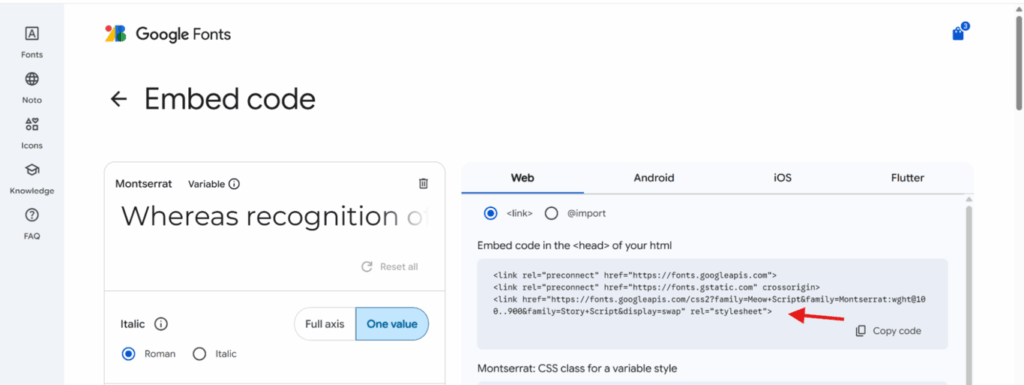
    1. Navigate to Google Fonts.
    2. Browse and select desired fonts for the certificate.
    3. Note the exact font names (case-sensitive) for use in the code.
    4. Alternatively, use Web Safe fonts (Arial, Verdana, and Tahoma) which do not require external loading.

    2. Add Code to WordPress Site

    Code can be added through either method:

    • Child theme’s functions.php file;
    • WPCode plugin (recommended for easier management and updates).

    3. Load Selected Google Fonts

    Load fonts using the mpcs_certificate_pdf_before_style_tag action hook. The example below loads five fonts:

    • Roboto
    • Playfair Display
    • Montserrat
    • Lora
    • Open Sans.
    // Load Google Fonts for MemberPress Courses certificates
    add_action('mpcs_certificate_pdf_before_style_tag', function() {
        echo '<link href="https://fonts.googleapis.com/css2?family=Roboto&family=Playfair+Display&family=Montserrat&family=Lora&family=Open+Sans&display=swap" rel="stylesheet">';
    });

    Alternative approach: On the Google Fonts website, select fonts and copy the embed code provided. Paste this code directly into the function above.

    4. Apply Fonts Using Filter Hooks

    Each certificate element has a dedicated filter for font assignment. Add the appropriate filters for each element being customized.

    Default body font filter:

    // Set default body font
    add_filter('mpcs_certificate_default_font', function() {
        return 'Roboto';
    });

    Title font filter:

    // Set certificate title font
    add_filter('mpcs_certificate_title_font', function() {
        return 'Playfair Display';
    });

    Student name font filter:

    // Set student name font
    add_filter('mpcs_certificate_student_name_font', function() {
        return 'Montserrat';
    });

    Instructor name font filter:

    // Set instructor name font
    add_filter('mpcs_certificate_instructor_name_font', function() {
        return 'Lora';
    });

    Footer font filter:

    // Set footer text font
    add_filter('mpcs_certificate_footer_font', function() {
        return 'Open Sans';
    });

    5. Test Certificate Display

    1. Navigate to Dashboard > MemberPress > Courses.
    2. Select a course with certificate functionality enabled.
    3. Use a test account that has completed the course or manually mark course completion.
    4. Preview the certificate in the browser to verify font display.
    5. Generate and download the PDF certificate to confirm fonts render correctly in PDF format.

    Advanced Styling Through Template Override

    For styling modifications beyond font customization (colors, layouts, spacing, element positioning), the certificate template can be overridden in a child theme.

    Template Override Process

    1. Locate the certificate template file at memberpress-courses/app/views/courses/courses_certificate.php in the plugin directory.
    2. In the child theme folder, create the directory structure /memberpress/courses/.
    3. Copy courses_certificate.php from the plugin to the child theme’s /memberpress/courses/ directory.
    4. Edit the copied template file to modify HTML structure, CSS styles, colors, and layouts.
    5. Save changes and clear all caches (WordPress, browser, CDN).
    6. Test certificate rendering to verify customizations appear correctly.

    Available CSS Customizations

    Within the overridden template file, the following elements can be customized:

    • Element ordering and positioning;
    • Background colors, borders, and decorative elements;
    • Layout structure and alignment;
    • Padding, margins, and spacing;
    • Font sizes beyond the filter-controlled font families;
    • Font weights and text styles;
    • Text colors for brand consistency;
    • Line heights and letter spacing for improved readability.

    Troubleshooting Font Display Issues

    1) Custom Fonts Not Appearing on Certificates

    Fonts may fail to display if font names are misspelled, caching is preventing updates, or the Google Fonts URL is incorrect.

    How to Test/Fix:

    1. Verify font names in filters match Google Fonts exactly (font names are case-sensitive).
    2. Clear all caches: WordPress cache, browser cache, and CDN cache if applicable.
    3. Confirm the Google Fonts URL in the mpcs_certificate_pdf_before_style_tag action includes all selected fonts.
    4. Verify code is properly added to the child theme’s functions.php or activated in WPCode.
    5. Test with a Web Safe font (Arial, Verdana) to isolate whether the issue is font loading or filter application.
    6. Check browser developer console for font loading errors.

    2) Fonts Display in Browser Preview But Not in PDF

    PDF generation may fail to load fonts if the Google Fonts link is not properly placed before the style tag or if the PDF library cannot access external resources.

    How to Test/Fix:

    1. Confirm the font loading code uses the mpcs_certificate_pdf_before_style_tag action hook specifically.
    2. Verify the Google Fonts URL is complete and accessible.
    3. Test with Web Safe fonts which do not require external loading for PDF generation.
    4. Check for server-side restrictions that may block external font requests.

    3) Only Some Font Elements Changed

    If only certain certificate text elements display the custom font, not all filter hooks may have been added or some filters may contain errors.

    How to Test/Fix:

    1. Review code to ensure all five filter hooks are included if customizing all elements.
    2. Check for syntax errors in filter functions (missing semicolons, mismatched quotes, incorrect function syntax).
    3. Verify return statements include the correct font name for each filter.
    4. Test each filter individually by commenting out others to isolate which filters are working.

    Public Facing Documentation / Additional References

    Public Facing Documentation

    External Resources

  • How to Cancel MemberPress Database Migration Process

    Summary

    The MemberPress database migration process runs automatically when updating to certain versions. While it typically completes without issues, the process can sometimes take longer than expected depending on the size of your member database. If the migration appears stuck or is taking an unusually long time, you can manually cancel it using a URL parameter.

    This article explains how to cancel an in-progress database migration when needed.

    Troubleshooting

    When to Cancel a Migration

    You may need to cancel a migration if:

    • The migration process has been running for an extended period without completion;
    • The site appears frozen or unresponsive during migration;
    • You need to restore site functionality immediately;
    • The migration is blocking access to the WordPress admin area.

    How to Cancel the Migration

    1. Navigate to your WordPress Dashboard URL

    Open your browser and go to your WordPress admin area. The URL typically looks like:

    https://yourdomain.com/wp-admin

    2. Add the cancel migration parameter to the URL

    At the end of your WordPress Dashboard URL, add the following parameter:

    ?mepraction=cancel-migration

    Your complete URL should look something like the following:

    https://yourdomain.com/wp-admin/?mepraction=cancel-migration

    3. Press Enter to load the URL

    The page will reload and the migration process will be canceled. You should be able to access your WordPress Dashboard normally.


    Important: Canceling the migration will stop the process, but it does not reverse any changes that have already been made. If you cancel a migration and later need to complete it, you may need to contact MemberPress support for assistance with resuming or restarting the migration process.


    After Canceling the Migration

    Once you’ve successfully canceled the migration:

    • Verify that your site is functioning normally;
    • Check that members can access their content;
    • Test payment processing if applicable;
    • Review any error logs for additional issues;
    • Contact MemberPress support if you need assistance completing the migration or if you experience ongoing issues.
  • How to Resolve “No Such Plan” Error When Members Pay with Stripe in MemberPress

    Summary

    The “No such plan” error occurs when MemberPress cannot locate the product stored for a membership in the connected Stripe account. This article explains the cause of this error and provides step-by-step instructions to resolve it by clearing cached product IDs from the WordPress database.

    Troubleshooting

    Members Receive “No Such Plan” Error During Stripe Payment

    1) Stripe Account Was Recently Switched

    When you switch from one Stripe account to another in MemberPress settings, the cached product and plan IDs stored in the database still reference products from the previous Stripe account. Since these products no longer exist in the new Stripe account, members encounter the “No such plan:” error during checkout.

    How to Test/Fix: Clear the cached Stripe product IDs from the database. This forces MemberPress to create new products in your current Stripe account on the next signup attempt.

    2) Stripe Product Was Deleted in Stripe Dashboard

    If the Stripe product associated with a membership was manually deleted in the Stripe Dashboard, MemberPress will continue looking for that deleted product ID when members attempt to purchase or renew that membership.

    How to Test/Fix: Clear the cached Stripe product IDs from the database so MemberPress can generate new product references in Stripe.

    Resolution Steps

    Important: Before proceeding, create a complete backup of your WordPress database. Ensure you know how to restore from this backup in case any issues occur.

    1. Access your WordPress database using phpMyAdmin, Adminer, or your preferred database management tool.

    2. Identify your database table prefix. The default WordPress prefix is wp_, but your site may use a different prefix such as wpmp_ or a custom prefix.

    3. Execute the following SQL statement to delete all cached Stripe product and plan IDs:

    sql
    
    DELETE FROM wp_postmeta WHERE meta_key LIKE '_mepr_stripe%'

    4. If your database uses a different table prefix, modify the statement accordingly. For example, if your prefix is wpmp_, use:

    sql
    
    DELETE FROM wpmp_postmeta WHERE meta_key LIKE '_mepr_stripe%'

    5. After executing the SQL statement, test the membership checkout process. When a member completes their next signup or renewal with Stripe, MemberPress will automatically create new product and plan IDs in your current Stripe account.

    6. Verify in your Stripe Dashboard that new products have been created successfully after the test transaction.

    Note: This solution clears all cached Stripe metadata for all memberships on your site. MemberPress will regenerate these connections automatically as members complete new transactions. This does not affect existing Stripe subscriptions or historical transaction data.

    Public Facing Documentation / Additional References

    Public Facing Documentation

    Additional References

  • How to Add a “Cancelled On” Date Column to MemberPress Subscriptions Table

    Summary

    By default, MemberPress does not display a “Cancelled On” date column in the Subscriptions table located at Dashboard > MemberPress > Subscriptions. This limitation makes it challenging for site administrators and support engineers to quickly determine when a subscription was cancelled without opening individual subscription records or querying the database directly.

    This document provides a complete solution for adding a custom “Cancelled On” column to the Subscriptions table. The solution retrieves cancellation timestamps from the mepr_subscriptions.cancelled_at database field and displays them in an easily accessible format. This enhancement improves workflow efficiency for churn tracking, reporting, audit purposes, and support ticket resolution.

    Troubleshooting

    Understanding the Missing Cancellation Date

    1) No Visible Cancellation Timestamp in Subscriptions Table

    The MemberPress Subscriptions table displays “Created On” and “Expires On” columns but does not include a “Cancelled On” column by default. When a subscription status changes to “Stopped,” the cancellation timestamp is stored in the database but not displayed in the admin interface. This creates inefficiency when support engineers need to verify cancellation timing for refund requests, churn analysis, or customer inquiries.

    How to Test/Fix: Navigate to Dashboard > MemberPress > Subscriptions and locate any subscription with the “Stopped” status. Observe that only “Created On” and “Expires On” columns are visible. The cancellation date can only be accessed by opening the subscription record individually or querying the database. The solution below adds a custom column that displays this information directly in the table view.

    Implementing the “Cancelled On” Column

    The following solution adds a custom admin column to the Subscriptions table that displays cancellation dates for stopped subscriptions. This code can be implemented using either the WPCode plugin (recommended) or by adding it to your child theme’s functions.php file.

    Method 1: Using WPCode Plugin (Recommended)

    1. Navigate to Dashboard > Plugins > Add New.
    2. Search for “WPCode” and install the free version.
    3. Click Activate after installation completes.
    4. Navigate to Dashboard > Code Snippets > Add Snippet.
    5. Click Add Your Custom Code (New Snippet).
    6. Enter a descriptive title such as “Add Cancelled On Column to Subscriptions.”
    7. Set the Code Type dropdown to PHP Snippet.
    8. Paste the complete code snippet provided in the next section into the code editor.
    9. Scroll to the Insertion section and select Auto Insert.
    10. Set Location to Run Everywhere.
    11. Click Save Snippet and then toggle the snippet to Active.

    Method 2: Using Child Theme Functions File

    1. Navigate to Dashboard > Appearance > Theme File Editor.
    2. Select your active child theme from the dropdown menu in the upper right corner.
    3. Locate and click on Theme Functions (functions.php) in the right sidebar.
    4. Scroll to the bottom of the file.
    5. Paste the complete code snippet from the next section.
    6. Click Update File to save the changes.

    Important: Always use a child theme when editing theme files directly. Editing the parent theme will cause your changes to be lost when the theme is updated. If you do not have a child theme configured, use the WPCode plugin method instead.

    Complete Code Snippet

    <?php
    /**
     * Add Cancellation Date Column to MemberPress Subscriptions Table
     * 
     * Adds a "Cancelled On" column to the MemberPress Subscriptions admin table.
     * Displays the cancellation timestamp for stopped subscriptions.
     * 
     * @package MemberPress
     * @subpackage CustomAdminColumns
     */
    
    // Prevent direct access
    if (!defined('ABSPATH')) {
        exit;
    }
    
    /**
     * Add cancelled_at column to subscriptions table structure
     * 
     * Hooks into mepr_admin_subscriptions_cols filter to add custom column.
     * Only applies to non-lifetime subscriptions.
     */
    add_filter('mepr_admin_subscriptions_cols', function($cols, $prefix, $lifetime) {
        if (!$lifetime) {
            $cols[$prefix . 'cancelled_at'] = __('Cancelled On', 'memberpress');
        }
        return $cols;
    }, 10, 3);
    
    /**
     * Display cancellation date in custom column
     * 
     * Outputs formatted cancellation date or "N/A" if not applicable.
     * Uses red styling for cancelled dates and gray styling for N/A values.
     */
    add_action('mepr_admin_subscriptions_cell', function($column_name, $rec, $table, $attributes) {
        if ($column_name === 'col_cancelled_at') {
            $cancelled_at = get_subscription_cancellation_date($rec->id);
            
            if ($cancelled_at) {
                echo '<td ' . $attributes . '>';
                echo '<span style="color: #d63638; font-weight: 500;">' . MeprAppHelper::format_date($cancelled_at) . '</span>';
                echo '</td>';
            } else {
                echo '<td ' . $attributes . '>';
                echo '<span style="color: #8c8f94; font-style: italic;">' . __('N/A', 'memberpress') . '</span>';
                echo '</td>';
            }
        }
    }, 10, 4);
    
    /**
     * Retrieve cancellation date for a subscription
     * 
     * Checks multiple data sources in order of priority:
     * 1. cancelled_at column in mepr_subscriptions table
     * 2. subscription-stopped event in mepr_events table
     * 3. updated_at timestamp for stopped subscriptions (fallback)
     * 
     * @param int $subscription_id The subscription ID to query
     * @return string|null The cancellation timestamp or null if not found
     */
    function get_subscription_cancellation_date($subscription_id) {
        global $wpdb;
        
        $mepr_db = MeprDb::fetch();
        
        // Primary check: cancelled_at column
        $cancelled_at = $wpdb->get_var($wpdb->prepare(
            "SELECT cancelled_at FROM {$mepr_db->subscriptions} WHERE id = %d",
            $subscription_id
        ));
        
        if ($cancelled_at) {
            return $cancelled_at;
        }
        
        // Secondary check: subscription-stopped event
        $event = $wpdb->get_row($wpdb->prepare(
            "SELECT created_at FROM {$mepr_db->events} 
             WHERE evt_id = %d 
             AND evt_id_type = 'subscriptions' 
             AND event = 'subscription-stopped'
             ORDER BY created_at DESC LIMIT 1",
            $subscription_id
        ));
        
        if ($event) {
            return $event->created_at;
        }
        
        // Fallback: updated_at for stopped status
        $subscription = $wpdb->get_row($wpdb->prepare(
            "SELECT status, updated_at FROM {$mepr_db->subscriptions} WHERE id = %d",
            $subscription_id
        ));
        
        if ($subscription && $subscription->status === 'stopped') {
            return $subscription->updated_at;
        }
        
        return null;
    }
    
    /**
     * Create cancelled_at database column if missing
     * 
     * Runs on admin_init to ensure database structure exists.
     * Also backfills existing stopped subscriptions with cancellation dates.
     */
    add_action('admin_init', function() {
        global $wpdb;
        
        $mepr_db = MeprDb::fetch();
        $table_name = $mepr_db->subscriptions;
        
        // Check if column exists
        $column_exists = $wpdb->get_results($wpdb->prepare(
            "SHOW COLUMNS FROM {$table_name} LIKE %s",
            'cancelled_at'
        ));
        
        if (empty($column_exists)) {
            // Add cancelled_at column to table structure
            $wpdb->query("ALTER TABLE {$table_name} ADD COLUMN cancelled_at datetime DEFAULT NULL AFTER status");
            
            // Backfill existing stopped subscriptions
            $wpdb->query(
                "UPDATE {$table_name} 
                 SET cancelled_at = updated_at 
                 WHERE status = 'stopped' AND cancelled_at IS NULL"
            );
        }
    });
    
    /**
     * Record cancellation timestamp when status changes
     * 
     * Updates cancelled_at field whenever a subscription status changes to stopped.
     * This ensures future cancellations are automatically tracked.
     */
    add_action('mepr_subscription_status_changed', function($subscription, $old_status, $new_status) {
        if ($new_status === 'stopped') {
            global $wpdb;
            $mepr_db = MeprDb::fetch();
            
            $wpdb->update(
                $mepr_db->subscriptions,
                array('cancelled_at' => current_time('mysql')),
                array('id' => $subscription->id),
                array('%s'),
                array('%d')
            );
        }
    }, 10, 3);

    Code Explanation and Customization Options

    The code snippet above performs four primary functions that work together to display cancellation dates in the Subscriptions table.

    Function 1: Add Column Header

    The mepr_admin_subscriptions_cols filter adds the “Cancelled On” column header to the table. The column only displays for regular subscriptions (not lifetime subscriptions). To customize the column header text, modify line 20:

    $cols[$prefix . 'cancelled_at'] = __('Cancelled On', 'memberpress');

    Change “Cancelled On” to your preferred header text.

    Function 2: Display Column Data

    The mepr_admin_subscriptions_cell action outputs the cancellation date for each subscription row. Cancelled subscriptions display the date in red text, while active subscriptions show “N/A” in gray italic text. To customize the display styling, modify lines 35-36 for cancelled dates or lines 39-40 for N/A values.

    Function 3: Retrieve Cancellation Date

    The get_subscription_cancellation_date() function queries the database using three fallback methods. First, it checks the cancelled_at column directly. If empty, it searches for “subscription-stopped” events in the events table. If neither source contains data, it returns the updated_at timestamp for stopped subscriptions. This multi-source approach ensures maximum compatibility with existing data.

    Function 4: Database Column Creation

    The admin_init hook checks whether the cancelled_at column exists in the subscriptions table. If missing, the code automatically creates the column and backfills cancellation dates for existing stopped subscriptions using their updated_at timestamps. This one-time operation runs when an administrator first accesses the WordPress dashboard after activating the code.

    Function 5: Track Future Cancellations

    The mepr_subscription_status_changed action automatically records the current timestamp in the cancelled_at field whenever a subscription status changes to “stopped.” This ensures all future cancellations are tracked without manual intervention.

    Verifying the Implementation

    1. Navigate to Dashboard > MemberPress > Subscriptions.
    2. Locate the new “Cancelled On” column header in the table.
    3. Find any subscription with the “Stopped” status.
    4. Verify that the cancellation date displays in red text in the “Cancelled On” column.
    5. Locate an active subscription and confirm it displays “N/A” in gray italic text.
    6. Test cancelling a subscription to verify the timestamp updates automatically.

    Common Issues and Solutions

    2) Column Displays But Shows “N/A” for Historical Cancellations

    If the “Cancelled On” column appears but shows “N/A” for subscriptions that were cancelled before implementing this code, the backfill process may not have completed successfully. This can occur if the subscription’s updated_at timestamp was not set when the status changed to stopped.

    How to Test/Fix: Navigate to Dashboard > MemberPress > Subscriptions and identify stopped subscriptions showing “N/A” in the “Cancelled On” column. The code attempts to backfill data using three methods, but some edge cases may not be covered. For these subscriptions, the cancellation date must be determined manually by checking the subscription’s transaction history or the events table. You can use the following database query to find the cancellation date:

    SELECT created_at FROM [[DB_PREFIX]]_mepr_events 
    WHERE evt_id = [[SUBSCRIPTION_ID]] 
    AND evt_id_type = 'subscriptions' 
    AND event = 'subscription-stopped' 
    ORDER BY created_at DESC LIMIT 1;

    Replace [[DB_PREFIX]] with your WordPress database prefix (usually “wp_”) and [[SUBSCRIPTION_ID]] with the actual subscription ID. The result shows the cancellation timestamp.

    3) Column Not Appearing After Code Implementation

    If the “Cancelled On” column does not appear in the Subscriptions table after adding the code, this indicates either a code syntax error or a conflict with another plugin or theme customization that modifies the Subscriptions table structure.

    How to Test/Fix: First, verify the code was saved correctly without syntax errors. Navigate to Dashboard > Code Snippets (if using WPCode) or review the child theme’s functions.php file for any PHP error messages. Check the WordPress debug log by enabling debug mode. Add the following lines to your wp-config.php file:

    define('WP_DEBUG', true);
    define('WP_DEBUG_LOG', true);
    define('WP_DEBUG_DISPLAY', false);

    Review the debug log file located at /wp-content/debug.log for error messages related to the code snippet. If no errors appear, test for plugin conflicts by temporarily deactivating all plugins except MemberPress, then checking if the column appears. Reactivate plugins one by one to identify any conflicts.

    4) Database Column Creation Fails

    In rare cases, the automated database column creation may fail due to insufficient MySQL user permissions or database table corruption. This prevents the cancelled_at column from being added to the subscriptions table.

    How to Test/Fix: Verify that your database user account has ALTER TABLE permissions. Access your database through phpMyAdmin or another database management tool. Navigate to the [[DB_PREFIX]]_mepr_subscriptions table and check if the cancelled_at column exists. If missing, run the following SQL query manually:

    ALTER TABLE [[DB_PREFIX]]_mepr_subscriptions 
    ADD COLUMN cancelled_at datetime DEFAULT NULL AFTER status;

    Replace [[DB_PREFIX]] with your actual WordPress database prefix. After creating the column, run this query to backfill existing stopped subscriptions:

    UPDATE [[DB_PREFIX]]_mepr_subscriptions 
    SET cancelled_at = updated_at 
    WHERE status = 'stopped' AND cancelled_at IS NULL;

    Critical: Always create a complete database backup before running manual SQL queries. Incorrect queries can cause data loss or database corruption. If you are not comfortable executing SQL queries directly, contact your hosting provider or a qualified developer for assistance.

    Important Limitations and Considerations

    • The “Cancelled On” column only displays for regular subscriptions and is hidden for lifetime subscriptions where cancellation dates are not applicable;
    • Historical cancellation dates for subscriptions cancelled before implementing this code rely on the accuracy of the updated_at timestamp or event log data;
    • The column displays dates in the format configured in Dashboard > Settings > General > Date Format;
    • This customization does not modify MemberPress core files and remains compatible with plugin updates;
    • The code does not export cancellation dates to CSV or other reporting formats without additional customization;
    • Cancellation dates reflect the timestamp when the subscription status changed to stopped, which may differ slightly from when a user initiated the cancellation request through a payment gateway.

    Public Facing Documentation / Additional References

    Public Facing Documentation

    Developer Documentation

    Additional References