Author: Predrag

  • How to Exempt a Specific IP From MemberPress Card Testing Protection

    Summary

    MemberPress Card Testing Protection automatically blocks any IP address after five failed payment attempts within a two-hour window. While this feature prevents fraudulent card testing, it can also block trusted IP addresses. Support agents, office staff, or developers testing payments may trigger the protection unintentionally.

    This document explains why removing an IP from the blocked list does not resolve the issue immediately. It also provides a code-based solution using the mepr_anti_card_testing_ip filter to permanently exempt a specific IP address from card testing protection.

    Troubleshooting

    Cause of the Issue

    When an IP address triggers five or more failed payment attempts within two hours, MemberPress adds it to the Blocked IP Addresses list. A failed_payments transient is used to track the failure count for that IP.

    Removing the IP from the Blocked IP Addresses list does not delete the associated transient. The transient retains its count (five or greater) until it expires naturally after two hours or is cleared manually.

    This creates the following sequence of events:

    1. The IP hits five or more failures and is added to the blocked list. The transient count remains at five or greater.
    2. An admin removes the IP from the Blocked IP Addresses textarea and saves. The IP is removed, but the transient still holds its count.
    3. On the next purchase attempt, MemberPress reads the same transient. Since the count is still five or greater, the IP is immediately re-added to the blocked list.

    Important: Simply removing an IP from the Blocked IP Addresses list will not prevent it from being re-blocked. The failed_payments transient must expire (after two hours) or be cleared manually for the removal to take effect.

    Prerequisites

    The following is required to implement the solution in this document:

    • MemberPress — active and installed on the WordPress site;
    • WPCode plugin (or access to the child theme’s functions.php file) — to add the custom code filter;
    • The specific IP address to be exempted — this must be known before implementing the solution.

    Exempting a Specific IP Using the mepr_anti_card_testing_ip Filter

    The recommended approach is to use the mepr_anti_card_testing_ip filter. This filter intercepts the IP address that MemberPress evaluates for card testing protection. It replaces the trusted IP with a non-routable address that will never trigger the protection.

    To implement this solution:

    1. Navigate to Dashboard > Plugins > Code Snippets and click Add New Snippet. Alternatively, open the child theme’s functions.php file.
    2. Add the following code snippet.
    // MemberPress - Exempt a Specific IP From Card Testing Protection
    // Replace the IP address on line 4 with the actual IP to exempt.
    
    add_filter( 'mepr_anti_card_testing_ip', function( $ip ) {
      // Replace with the actual trusted IP address
      $specific_ip = '203.0.113.10';
    
      // If the detected IP matches, swap it to a non-routable address
      if ( $ip === $specific_ip ) {
        return '10.0.0.1';
      }
    
      return $ip;
    } );

    Code Explanation

    The code snippet includes the following modifiable elements:

    • $specific_ip = '203.0.113.10'; (line 6) — This is the IP address to exempt. Replace 203.0.113.10 with the actual trusted IP address (e.g., an office or support team IP);
    • return '10.0.0.1'; (line 10) — This is the non-routable substitute IP address. The value 10.0.0.1 is a private address that will never be associated with real site visitors. This value does not need to be changed unless it conflicts with the internal network configuration.
    1. Click Save Snippet and toggle the snippet to Active. If using the child theme’s functions.php, save the file.

    Note: Once the code is saved and active, the specified IP address will no longer be evaluated for card testing protection. No further configuration is required.

    Verifying the Solution

    After applying the filter, verify that the exemption is working correctly:

    1. Navigate to Dashboard > MemberPress > Settings > General and scroll to the Card Testing Protection section.
    2. Confirm the exempted IP address is not listed in the Blocked IP Addresses textarea.
    3. Attempt a test payment from the exempted IP address.
    4. Confirm the payment processes without the IP being re-added to the blocked list.
    5. If the IP was previously blocked, wait for the existing failed_payments transient to expire (two hours) before testing. Alternatively, clear the transient manually.

    Additional Troubleshooting

    If the IP continues to be re-blocked after applying the filter, check the following:

    IP Address Does Not Match

    The IP address in the code must exactly match the blocked IP. IP addresses are case-sensitive and must be an exact string match. Confirm the correct IP by checking the Blocked IP Addresses textarea or asking the affected user to visit a service such as whatismyipaddress.com.

    Transient Has Not Yet Expired

    If the IP was already blocked before the filter was applied, the existing failed_payments transient may still be active. The transient expires after two hours. Wait for it to expire, or clear it manually from the database.

    Code Snippet Is Not Active

    Navigate to Dashboard > Code Snippets and confirm the snippet is enabled. Check that it has no syntax errors. If the snippet was added to functions.php, confirm the file was saved successfully.

    Caching or Security Plugin Interference

    Some caching or security plugins may alter how IP addresses are detected by WordPress. If the issue persists, temporarily disable caching and security plugins to rule out interference. Server-level caching (e.g., Varnish or Nginx caching) may also need to be cleared.

    Known Limitations

    • This solution exempts only one IP address per code snippet. To exempt multiple IPs, the code must be modified to check against an array of addresses;
    • If the trusted IP address changes (e.g., due to a dynamic IP assignment from the ISP), the code snippet must be updated with the new IP;
    • The filter does not retroactively remove an IP from the blocked list. If the IP is currently blocked, it must either be removed manually from the textarea or allowed to expire;
    • The mepr_anti_card_testing_ip filter bypasses card testing protection entirely for the specified IP. Any fraudulent activity from that IP will not be detected by this feature.

    Important: Exempting an IP address from card testing protection removes a layer of security for that address. Only exempt IP addresses that are confirmed to be trusted and under organizational control.

    Result

    Once the mepr_anti_card_testing_ip filter is in place, the specified IP address is substituted with a non-routable internal address before MemberPress evaluates it. This prevents the trusted IP from being added to the blocked list regardless of the number of failed payment attempts.
    Public Facing Documentation / Additional References

    Public Facing Documentation

    Additional References

  • How to Restrict MemberPress Coupon Codes to Members With Specific Active Subscriptions

    Summary

    By default, MemberPress coupon codes can be used by any user during registration. There is no built-in option to restrict a coupon code so that only members with active subscriptions to specific memberships can use it.

    This document provides a custom code solution using the mepr_coupon_is_valid filter hook. The code checks the current user’s active subscriptions before allowing coupon usage. If the user does not have an active subscription to one of the required memberships, the coupon is automatically invalidated.

    This method is useful for offering exclusive discounts to existing members, rewarding loyalty with special pricing, or creating tiered promotions based on membership levels.

    Troubleshooting

    Cause and Background

    MemberPress validates coupon codes using the mepr_coupon_is_valid filter. This filter determines whether a coupon can be applied during registration. By default, it only checks standard conditions such as expiration date, usage limits, and applicable memberships.

    The filter does not check whether the user already holds an active subscription. Custom code is required to add this validation layer. The code hooks into the existing filter and adds a subscription check before the coupon is applied.

    Prerequisites

    The following prerequisites must be met before implementing this solution:

    • MemberPress plugin must be installed and activated;
    • At least one active coupon must exist under Dashboard > MemberPress > Coupons;
    • At least one membership must be active and have subscribers;
    • The WPCode plugin should be installed (recommended), or a child theme with an active functions.php file must be available;
    • The coupon field must be enabled under Dashboard > MemberPress > Settings > Account tab > Registration section.

    Adding the Code Snippet

    This code snippet uses the mepr_coupon_is_valid filter to check whether the current user has an active subscription to at least one of the required memberships. If the user does not meet the requirement, the specified coupon is invalidated.

    The recommended method for adding this code is through the WPCode plugin. Alternatively, the code can be added to the active child theme’s functions.php file

    Follow these steps to add the code using WPCode:

    1. Navigate to Dashboard > Code Snippets > Add Snippet.
    2. Hover over “Add Your Custom Code (New Snippet)” and click the Use Snippet button.
    3. Add a title for the snippet (e.g., “Restrict Coupon to Active Subscribers”).
    4. Select PHP Snippet as the code type.
    5. Paste the following code into the Code Preview area.
    /**
     * MemberPress - Restrict Coupon Code to Members With Active Subscriptions
     *
     * This snippet invalidates a specific coupon code for users who do not
     * have an active subscription to at least one of the required memberships.
     *
     * Instructions:
     * - Replace 'PP25XRWM' on line 12 with the target coupon code.
     * - Replace the membership IDs in $required_memberships on line 8
     *   with the actual membership IDs (e.g., [123, 456]).
     */
    add_filter('mepr_coupon_is_valid', function($is_valid, $coupon, $product_id) {
      $mepr_user = new MeprUser(get_current_user_id());
    
      // Replace these IDs with the actual membership IDs
      $required_memberships = array(123, 456);
    
      // Replace 'PP25XRWM' with the target coupon code
      if ($coupon->post_title == 'PP25XRWM') {
        $has_required_membership = false;
    
        foreach ($required_memberships as $membership_id) {
          if ($mepr_user->is_already_subscribed_to($membership_id)) {
            $has_required_membership = true;
            break;
          }
        }
    
        if (!$has_required_membership) {
          $is_valid = false;
        }
      }
    
      return $is_valid;
    }, 10, 3);

    Code Explanation

    The code snippet introduces the following changes:

    • Line 8 ($required_memberships): This array defines the membership IDs that qualify a user to use the coupon. Replace 123 and 456 with the actual membership IDs. Additional IDs can be added, separated by commas (e.g., array(123, 456, 789));
    • Line 12 ($coupon->post_title == 'PP25XRWM'): This condition targets a specific coupon code. Replace PP25XRWM with the actual coupon code to restrict;
    • Lines 14-18: The foreach loop checks whether the user has an active subscription to any of the required memberships. It uses the is_already_subscribed_to() method of the MeprUser class;
    • Lines 20-22: If the user does not have any of the required memberships, the $is_valid variable is set to false, which invalidates the coupon.

    Customizing for Multiple Coupons

    To restrict multiple coupon codes, each with different membership requirements, modify the code as shown below:

    /**
     * MemberPress - Restrict Multiple Coupon Codes to Active Subscribers
     *
     * Instructions:
     * - Add coupon codes as array keys and their required
     *   membership IDs as array values on lines 8-11.
     */
    add_filter('mepr_coupon_is_valid', function($is_valid, $coupon, $product_id) {
      $mepr_user = new MeprUser(get_current_user_id());
    
      // Define coupon codes and their required memberships
      $coupon_restrictions = array(
        'PP25XRWM' => array(123, 456),
        'VIP50OFF' => array(789),
      );
    
      $coupon_code = $coupon->post_title;
    
      if (isset($coupon_restrictions[$coupon_code])) {
        $required_memberships = $coupon_restrictions[$coupon_code];
        $has_required_membership = false;
    
        foreach ($required_memberships as $membership_id) {
          if ($mepr_user->is_already_subscribed_to($membership_id)) {
            $has_required_membership = true;
            break;
          }
        }
    
        if (!$has_required_membership) {
          $is_valid = false;
        }
      }
    
      return $is_valid;
    }, 10, 3);

    Activating the Code Snippet

    1. After pasting the code, toggle the Status switch to Active.
    2. Click the Save Snippet button.

    Finding Membership IDs

    To find the ID of a membership, follow these steps:

    1. Navigate to Dashboard > MemberPress > Memberships.
    2. Hover over the membership name in the list.
    3. The membership ID appears in the URL shown in the browser status bar (e.g., post=123 indicates the ID is 123).
    4. Alternatively, click Edit on the membership. The ID is visible in the browser address bar in the format post.php?post=[[MEMBERSHIP_ID]]&action=edit.

    Finding the Coupon Code

    To find the coupon code to use in the snippet:

    1. Navigate to Dashboard > MemberPress > Coupons.
    2. The coupon code is displayed in the Code column of the coupons list.
    3. Copy the code exactly as shown. Coupon codes are case-sensitive in the custom code snippet.

    Verification and Testing

    After activating the code snippet, test the coupon restriction to confirm it works as expected:

    1. Open a membership registration page in an Incognito (private) browser window.
    2. Enter the restricted coupon code in the coupon field.
    3. Verify that the coupon is not applied because no user is logged in.
    4. Log in as a test user who does not have an active subscription to any of the required memberships.
    5. Attempt to use the coupon code on a registration page. The coupon should be invalidated.
    6. Log in as a test user who does have an active subscription to one of the required memberships.
    7. Attempt to use the coupon code on a registration page. The coupon should be accepted and the discount applied.

    The is_already_subscribed_to() method checks for active subscriptions only. If a user’s subscription has expired, been paused, or been cancelled, the coupon will be invalidated for that user. Ensure the target users have active subscriptions before sharing the coupon code.

    Common Issues

    Coupon Rejected for All Users

    If the coupon is rejected even for users with active subscriptions, check the following:

    • Confirm the coupon code in the snippet matches the actual coupon code exactly, including case sensitivity;
    • Verify the membership IDs in the $required_memberships array are correct;
    • Ensure the user’s subscription status is “Active” under Dashboard > MemberPress > Subscriptions;
    • Check for PHP errors by enabling the WordPress debug mode.

    Coupon Accepted for All Users

    If the coupon is accepted for users without the required subscriptions:

    • Verify the WPCode snippet status is set to Active;
    • Confirm the code type is set to PHP Snippet in WPCode;
    • Check that there are no other snippets or plugins overriding the mepr_coupon_is_valid filter with a higher priority.

    Guest Users (Not Logged In)

    Guest users who are not logged in will not have any active subscriptions. The code uses get_current_user_id(), which returns 0 for guests. In this case, the is_already_subscribed_to() check will return false, and the coupon will be invalidated. This is the expected behavior.

    If the coupon is intended for returning members who need to log in first, consider adding a note on the registration page. This can instruct users to log in before attempting to use the coupon code.

    Known Limitations

    • This solution requires custom code and is not available through the MemberPress user interface;
    • The code checks active subscriptions only. It does not validate based on transaction history or past memberships;
    • Coupon codes in the snippet are case-sensitive, while standard MemberPress coupon validation is not case-sensitive;
    • If a caching plugin is active, changes may not take effect immediately. Clear all caches after activating the snippet;
    • The WPCode Conditional Logic feature (Pro) offers an alternative method for membership-based conditions without custom code. However, it controls snippet execution and does not directly invalidate coupon codes.

    Public Facing Documentation / Additional References

    Public Facing Documentation

    Developer Documentation

  • How to Run a MemberPress Staging or Clone Site Safely With Staging Safe Mode

    Summary

    Cloning a live MemberPress site copies the entire database. This includes real subscriptions, customer email addresses, and payment gateway credentials. Without safeguards, WordPress cron continues to run on the clone. MemberPress sends receipts and reminders to real customers, and live gateways process real charges.

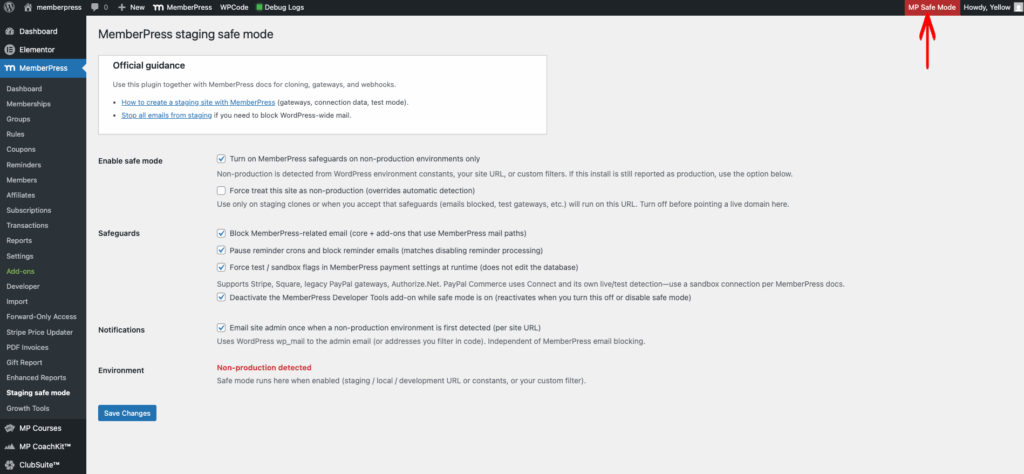
    This document explains how to use the Staging Safe Mode for MemberPress companion plugin to protect a staging or cloned site. The plugin provides a master switch with five independent safeguards: emails, reminders, gateways, Developer Tools, and a one-time admin notification. Normal WordPress mail (password resets, 2FA codes, admin alerts) is never touched.

    Running a cloned MemberPress site without staging safeguards can charge real customers and send live emails. Always install and enable this plugin before testing on a clone of a production site.

    Troubleshooting

    Cause of the Issue

    A cloned WordPress site has no native way to identify itself as staging. MemberPress reads its data from the cloned database. It continues to schedule reminders, send receipts, and route payments to the gateway credentials stored in wp_options.

    Disabling all outbound mail would break transactional emails the admin still needs. A targeted set of MemberPress-aware safeguards is required instead.

    Prerequisites

    • MemberPress must be installed and active on the staging site;
    • Access to the staging site WordPress admin dashboard;
    • The latest release of Staging Safe Mode for MemberPress downloaded from GitHub;
    • FTP or file manager access (only required if the upload method fails).

    Installing and Configuring the Plugin

    Installing via the WordPress Plugin Uploader

    1. Navigate to Dashboard > Plugins > Add New > Upload Plugin.
    2. Upload the staging-safe-mode-for-memberpress.zip file.
    3. Click Install Now.
    4. Click Activate Plugin once the installation completes.

    Installing via FTP (Fallback)

    Use this method if the upload method fails due to file size limits or server restrictions.

    1. Extract the plugin zip file on the local machine.
    2. Upload the staging-safe-mode-for-memberpress folder into /wp-content/plugins/.
    3. Navigate to Dashboard > Plugins.
    4. Locate Staging Safe Mode for MemberPress in the plugin list and click Activate.

    Configuring the Settings

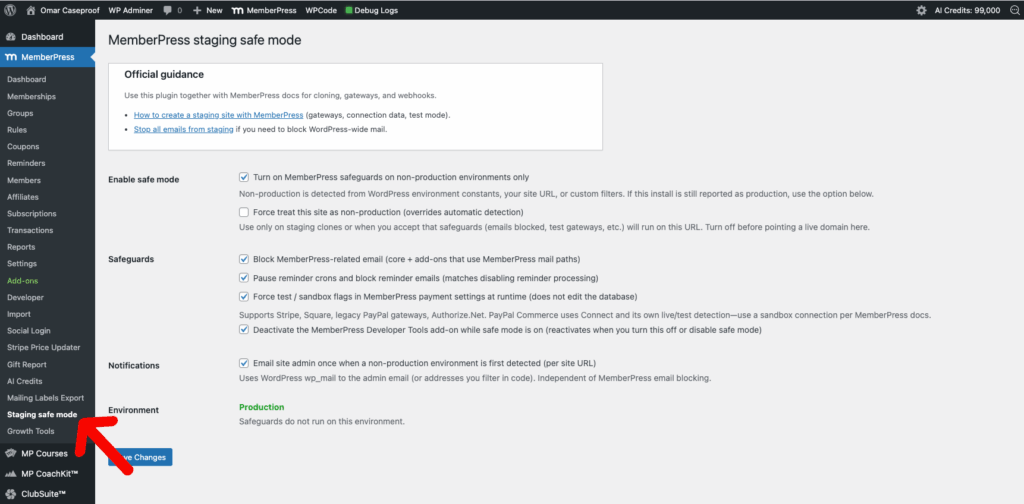
    1. Navigate to Dashboard > MemberPress > Staging Safe Mode.
    1. Check the “Environment” banner at the top of the page.
      • non-production result means automatic detection matched a staging signal.
      • production result means automatic detection did not match.
    1. If the site is a clone but the banner shows production, check “Force treat this site as non-production” to enable the manual override.

    The manual override is required when the staging URL contains no staging hints and WP_ENVIRONMENT_TYPE is set to production. Without it, safe mode cannot activate.

    1. Check “Enable safe mode” to activate the master switch.
    2. Select the individual safeguards to enable:
      • “Emails” — blocks MemberPress mail paths.
      • “Reminders” — pauses MemberPress reminder crons.
      • “Gateways” — biases supported gateways to test or sandbox mode at read time.
      • “Developer Tools” — deactivates the MemberPress Developer Tools add-on.
      • “Notifications” — sends a one-time admin email when non-production is detected.
    3. Click Save to apply the configuration.
    4. Confirm that the red “MP Safe Mode” badge appears in the WordPress admin bar on every admin page.

    Safeguards Reference

    Each safeguard runs only when all three conditions are met: the site is treated as non-production, the master switch is on, and the specific safeguard checkbox is enabled.

    Emails Safeguard

    This safeguard blocks MemberPress mail without touching other plugin mail.

    • Clears recipients on the mepr_wp_mail_recipients filter. The core MemberPress send loop has nothing to process;
    • Short-circuits pre_wp_mail when the call stack shows a file under wp-content/plugins/memberpress/ or wp-content/plugins/memberpress-*/ and the frame is email-related;
    • Other plugin mail, password resets, 2FA codes, and admin alerts are not affected.

    Reminders Safeguard

    This safeguard pauses MemberPress reminder scheduling and sending.

    • Forces mepr_disable_reminder_crons to a truthy value via pre_option_mepr_disable_reminder_crons. Reminder crons are not scheduled;
    • Returns true from mepr_{trigger_event}_reminder_disable for each reminder event (for example, mepr_sub-expires_reminder_disable).

    Gateways Safeguard

    This safeguard biases supported payment gateways to test or sandbox mode at read time only.

    • Filters option_mepr_options to merge test or sandbox flags into the gateway rows;
    • Supported gateways: Stripe, legacy PayPal family, Square, and Authorize.Net;
    • No values are written to the database. Toggling the safeguard off restores live behavior immediately.

    PayPal Complete Payments are not forced to sandbox by this safeguard. Use the MemberPress + PayPal sandbox documentation for those gateways.

    Developer Tools Safeguard

    This safeguard unloads the MemberPress Developer Tools addon while active.

    • Deactivates memberpress-developer-tools/main.php;
    • Reactivates the add-on automatically when the safeguard is turned off, when safe mode is disabled, or when the site is no longer treated as non-production;
    • The deactivation state is tracked in the staging_mepr_dt_deactivated_by_sdem option.

    Notifications Safeguard

    This safeguard sends a one-time admin email when non-production is detected.

    • Uses wp_mail directly, not the MemberPress mail path;
    • Sends once per home_url() hash, tracked in the sdem_staging_detection_notice_sent_for option;
    • Skipped when only the “Force treat this site as non-production” manual override applies.

    Detection Methods Reference

    The plugin treats a site as non-production when any of the following conditions match.

    1. The WP_ENVIRONMENT_TYPE constant is set to staginglocal, or development.
    2. The WP_ENV constant is set to stagingstagelocaldev, or development.
    3. The site URL contains stagingstage.test.local, or localhost.
    4. The staging_disable_emails_memberpress_is_staging filter returns true.
    5. The legacy mepr_disable_emails_is_staging filter returns true.
    6. The “Force treat this site as non-production” checkbox is enabled in the settings UI.

    The WP_ENVIRONMENT_TYPE constant is a WordPress core feature available since WordPress 5.5. It can be defined in the wp-config.php file.

    Custom Detection Code Snippet

    Use the snippet below when the automatic detection does not match the staging URL convention. Add this code to a custom mu-plugin or the child theme functions.php file.

    // Staging Safe Mode for MemberPress - Custom Staging Detection.
    // Add a custom condition to the staging detection filter.
    // The hook name retains the legacy prefix for backwards compatibility.
    add_filter( 'staging_disable_emails_memberpress_is_staging', function ( $is_staging ) {
      // Replace [[STAGING_URL]] with the actual staging host.
      // Example: staging.example.com
      if ( isset( $_SERVER['HTTP_HOST'] ) && strpos( $_SERVER['HTTP_HOST'], '[[STAGING_URL]]' ) !== false ) {
        return true;
      }
      return $is_staging;
    }, 10, 1 );

    The code hooks into the staging_disable_emails_memberpress_is_staging filter. When $_SERVER['HTTP_HOST'] contains the specified staging URL fragment, the filter returns true. This triggers non-production detection. Replace [[STAGING_URL]] on line 6 with the actual staging domain (for example, staging.example.com).

    Verification Steps

    1. Navigate to Dashboard > MemberPress > Staging Safe Mode and confirm that the “Environment” banner shows non-production.
    2. Confirm that the red “MP Safe Mode” badge is visible in the WordPress admin bar.
    3. Attempt to process a test transaction. The gateway should route to test or sandbox mode.
    4. Check the staging site email logs. MemberPress emails should not appear.
    5. Navigate to Dashboard > MemberPress > Settings > Emails and verify that reminder emails are not being scheduled.
    6. Navigate to Dashboard > Plugins and confirm that the MemberPress Developer Tools add-on is deactivated (if the Developer Tools safeguard is enabled).

    Known Limitations

    • PayPal Standard and PayPal Complete payments are not forced to sandbox by the Gateways safeguard. These require manual sandbox configuration;
    • The Notifications safeguard is skipped when only the manual override is active (no automatic detection match);
    • The plugin does not modify database records. All safeguards operate at read time through WordPress filters;
    • Deactivating the plugin removes all safeguards immediately. The staging site will resume live behavior.

    Deactivating the Staging Safe Mode plugin removes all protections immediately. The staging site will send live emails, run reminder crons, and route payments to production gateways.

    Wrap-Up

    Once the plugin is installed and safe mode is enabled, the staging site will not email real customers through MemberPress, will not run MemberPress reminder crons, and will route supported gateway calls to test or sandbox mode. The Developer Tools add-on will be unloaded, and the admin will receive a one-time notification that non-production was detected. Normal WordPress email continues to send.

    The red “MP Safe Mode” admin bar badge confirms that protection is active on every admin page.

    Public Facing Documentation / Additional References

    Public Facing Documentation

    Developer Documentation

    Additional References

  • How to Send MemberPress Payment Receipt Emails for Free and 100% Discount Transactions

    Summary

    By default, MemberPress does not send Payment Receipt emails for $0.00 transactions. This includes transactions created by 100% discount coupons and free trial periods with a $0.00 initial payment. The core plugin skips the receipt notification logic when no actual payment amount is processed.

    This document provides a custom code snippet that forces MemberPress to send Payment Receipt emails for all $0.00 transactions. The snippet hooks into transaction-completed events and subscription-created actions across all supported payment gateways. It covers both one-time free transactions and recurring subscriptions with $0.00 free trial periods.

    Troubleshooting

    Why MemberPress Skips Receipt Emails for $0.00 Transactions

    MemberPress processes $0.00 transactions differently from paid transactions. When a transaction total is $0.00, the plugin uses the create_free_transaction() method. This method completes the transaction but does not call record_sub_payment(). The record_sub_payment() method is responsible for triggering receipt email notifications.

    A similar situation occurs with $0.00 free trial subscriptions. Payment gateways such as Stripe may never trigger record_sub_payment() when the initial trial amount is $0.00. As a result, the Payment Receipt email is never sent to the member.

    This behavior affects the following scenarios:

    • Memberships purchased with a 100% discount coupon;
    • Free memberships that produce a $0.00 transaction;
    • Recurring subscriptions with a $0.00 free trial period (e.g. first-payment coupons);
    • Any gateway-processed subscription where the initial charge is $0.00.

    Prerequisites

    Before applying the solution, confirm the following requirements are met:

    • MemberPress plugin is installed and activated;
    • The Payment Receipt email is enabled under Dashboard > MemberPress > Settings > Emails tab;
    • One of the following is available for adding custom code: the WPCode plugin, a child theme functions.php file, or an MU plugin file;
    • Access to the WordPress admin dashboard with administrator privileges.

    Payment Receipt Emails Not Sent for $0.00 Transactions

    Applying the Custom Code Snippet

    The following code snippet forces MemberPress to send Payment Receipt emails for all $0.00 transactions. It hooks into two types of events:

    • The mepr_event_transaction-completed action, which fires when a $0.00 transaction is completed natively (e.g. through create_free_transaction());
    • Gateway-specific subscription_created actions, which fire when a subscription with a $0.00 free trial is created.

    The snippet includes a deduplication mechanism. This prevents the same transaction from triggering multiple receipt emails.

    Note: This code snippet should be added using the WPCode plugin or within a child theme functions.php file. Do not add custom code to the MemberPress plugin files directly, as updates will overwrite the changes.

    How to Add the Code Snippet via WPCode:

    1. Navigate to Dashboard > Code Snippets > + Add Snippet.
    2. Click Add Your Custom Code (New Snippet) and then click Use Snippet.
    3. Enter a descriptive title, such as “MemberPress: Send Receipt Emails for $0 Transactions”.
    4. Set the Code Type dropdown to PHP Snippet.
    5. Paste the code snippet below into the code editor area.
    6. Set the Insertion method to Auto Insert and the location to Run Everywhere.
    7. Toggle the snippet status to Active.
    8. Click Save Snippet.

    How to Add the Code Snippet via Child Theme:

    1. Access the site files using an FTP client or the hosting file manager.
    2. Navigate to wp-content/themes/[[CHILD_THEME_NAME]]/functions.php.
    3. Open the functions.php file in a text editor.
    4. Paste the code snippet below at the end of the file, before the closing ?> tag (if present).
    5. Save the file and upload it back to the server.

     Important: Always use a child theme when adding code to functions.php. Adding code to the parent theme functions.php will result in the changes being lost when the theme is updated.

    Code Snippet:

    /**
     * MemberPress: Send Payment Receipt emails for $0 transactions,
     * including $0 free trials (e.g. first-payment coupons) where
     * core skips record_sub_payment().
     */
    add_action(
      'plugins_loaded',
      function () {
        if (
          !class_exists('MeprUtils') ||
          !class_exists('MeprTransaction') ||
          !class_exists('MeprSubscription')
        ) {
          return;
        }
        $sent = [];
        $send_free_receipt = static function ($txn) use (&$sent) {
          if (!($txn instanceof MeprTransaction) || empty($txn->id)) {
            return;
          }
          if (isset($sent[$txn->id])) {
            return;
          }
          if ((float) $txn->total > 0.0) {
            return;
          }
          $sent[$txn->id] = true;
          MeprUtils::send_transaction_receipt_notices($txn);
        };
        // 1) Native $0 checkouts that record transaction-completed
        //    without sending receipts (e.g. create_free_transaction).
        add_action(
          'mepr_event_transaction-completed',
          static function ($event) use ($send_free_receipt) {
            if (
              !class_exists('MeprEvent') ||
              !($event instanceof MeprEvent)
            ) {
              return;
            }
            $txn = $event->get_data();
            if (!($txn instanceof MeprTransaction)) {
              return;
            }
            if ($txn->status !== MeprTransaction::$complete_str) {
              return;
            }
            $send_free_receipt($txn);
          },
          20
        );
        // 2) $0 free-trial signups (Stripe often never hits
        //    record_sub_payment for amount 0).
        $subscription_created_hooks = apply_filters(
          'mepr_free_receipt_subscription_created_hooks',
          [
            'mepr_stripe_subscription_created',
            'mepr_paypalcommerce_subscription_created',
            'mepr_authorize_subscription_created',
            'mepr_square_subscription_created',
            'mepr_paypal_subscription_created',
            'mepr_paypalexpress_subscription_created',
            'mepr_offline_subscription_created',
          ]
        );
        foreach ($subscription_created_hooks as $hook) {
          add_action(
            $hook,
            static function ($txn, $sub) use ($send_free_receipt) {
              if (!($sub instanceof MeprSubscription)) {
                return;
              }
              if (!$sub->trial || (int) $sub->trial_days <= 0) {
                return;
              }
              if ((float) $sub->trial_total > 0.0) {
                return;
              }
              if (!($txn instanceof MeprTransaction)) {
                return;
              }
              if (
                !in_array(
                  $txn->status,
                  [
                    MeprTransaction::$complete_str,
                    MeprTransaction::$confirmed_str,
                  ],
                  true
                )
              ) {
                return;
              }
              $send_free_receipt($txn);
            },
            20,
            2
          );
        }
      },
      20
    );

    How the Code Snippet Works

    The code snippet performs two main functions:

    1. Handling native $0.00 transactions: The snippet hooks into the mepr_event_transaction-completed action at priority 20. When a transaction-completed event fires, it checks whether the transaction total is $0.00. If so, it calls MeprUtils::send_transaction_receipt_notices() to send the Payment Receipt email.

    2. Handling $0.00 free trial subscriptions: The snippet hooks into gateway-specific subscription_created actions. These include hooks for Stripe, PayPal Commerce, Authorize.net, Square, PayPal Standard, PayPal Express, and Offline gateways. When a subscription is created with a $0.00 trial, it sends the receipt email for the associated transaction.

    The $sent array acts as a deduplication guard. It prevents the same transaction from receiving multiple receipt emails if both hooks fire for the same transaction.

    The list of gateway hooks is filterable using the mepr_free_receipt_subscription_created_hooks filter. This allows developers to add or remove gateway hooks as needed without modifying the snippet directly.

    Supported Payment Gateways

    The code snippet covers the following payment gateways by default:

    • Stripe (mepr_stripe_subscription_created);
    • PayPal Commerce (mepr_paypalcommerce_subscription_created);
    • Authorize.net (mepr_authorize_subscription_created);
    • Square (mepr_square_subscription_created);
    • PayPal Standard (mepr_paypal_subscription_created);
    • PayPal Express (mepr_paypalexpress_subscription_created);
    • Offline Gateway (mepr_offline_subscription_created).

    Verifying the Solution

    After adding the code snippet, follow these steps to verify it is working correctly:

    1. Navigate to Dashboard > MemberPress > Settings > Emails tab.
    2. Confirm the Payment Receipt email is enabled.
    3. Create a test coupon with a 100% discount, or use an existing free membership.
    4. Log out of the admin account, or use an incognito browser window.
    5. Register for the membership using the 100% discount coupon or free membership.
    6. Check the email inbox of the test user account for the Payment Receipt email.
    7. Navigate to Dashboard > MemberPress > Transactions to confirm a $0.00 transaction was created.

    Note: If the test email does not arrive, verify that the WordPress site is able to send emails. Check the email delivery using a plugin such as WP Mail SMTP. Also confirm that the email is not in the spam or junk folder.

    Testing With a $0.00 Free Trial Subscription

    To verify the snippet works for $0.00 free trial subscriptions:

    1. Create or edit a recurring membership.
    2. Enable the Trial option in the membership settings.
    3. Set the Trial Duration to the desired number of days.
    4. Set the Trial Amount to 0.00.
    5. Save the membership.
    6. Register a test user for this membership using the configured payment gateway.
    7. Check the email inbox for the Payment Receipt email.
    8. Verify the transaction under Dashboard > MemberPress > Transactions.

    Known Limitations

    • The code snippet only affects $0.00 transactions. Paid transactions continue to use the default MemberPress receipt email logic;
    • The snippet relies on MemberPress core classes (MeprUtilsMeprTransactionMeprSubscription). If these classes are unavailable, the snippet will not execute;
    • The deduplication array ($sent) persists only within a single page load. In rare cases where a transaction is processed across separate requests, duplicate emails may still occur;
    • The snippet does not modify the content of the Payment Receipt email. The email template and content are controlled by MemberPress under Dashboard > MemberPress > Settings > Emails tab;
    • If a custom gateway is used that is not included in the default hook list, the developer must add the appropriate hook using the mepr_free_receipt_subscription_created_hooks filter.

    Adding a Custom Gateway Hook

    If a custom or additional payment gateway is not covered by the default hook list, the mepr_free_receipt_subscription_created_hooks filter can be used to add support. The following example adds a custom gateway hook:

    /**
     * MemberPress: Add a custom gateway hook for $0 receipt emails.
     * Replace 'mepr_customgateway_subscription_created' with the
     * actual hook name for the custom gateway.
     */
    add_filter(
      'mepr_free_receipt_subscription_created_hooks',
      function ($hooks) {
        $hooks[] = 'mepr_customgateway_subscription_created';
        return $hooks;
      }
    );

    Public Facing Documentation / Additional References

    Public Facing Documentation

    Developer Documentation

    Additional References

  • How to Auto-Generate Post Excerpts for MemberPress Content Protection

    Summary

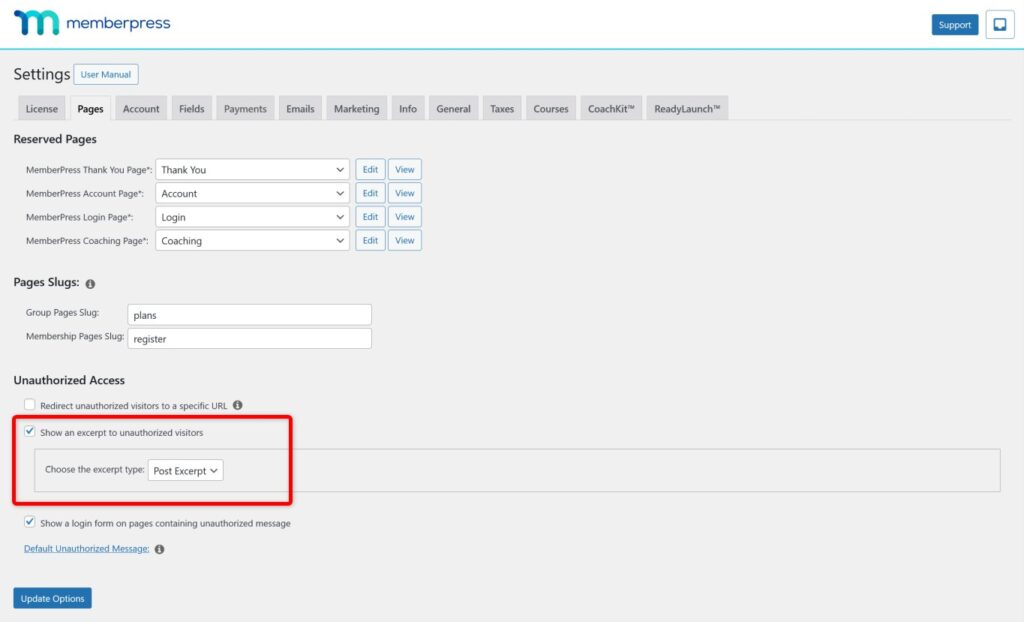
    MemberPress includes a content protection feature that can display post excerpts to unauthorized visitors. When a visitor without the required membership accesses protected content, MemberPress can show the post excerpt instead of the full content. This provides a preview that encourages visitors to subscribe.

    On websites with a large number of existing posts and pages, generating excerpts manually is not practical. This document explains how to use the AI Smart Excerpt plugin to auto-generate excerpts in bulk. It also covers the recommended plugin settings for use with MemberPress content protection.

    Troubleshooting

    Why Excerpts May Be Missing on Protected Content

    WordPress does not auto-generate excerpts by default. When a post is created, the excerpt field remains empty unless the author fills it in manually. If MemberPress rules are configured to show excerpts for unauthorized access, posts without excerpts will display no preview content at all.

    This is especially common on websites that were built before MemberPress was installed. Hundreds of posts may already exist without any excerpts. Manually writing an excerpt for each post would be extremely time-consuming.

    Prerequisites

    • An active MemberPress installation with at least one protection rule configured;
    • WordPress administrator access;
    • The AI Smart Excerpt plugin (free version available on WordPress.org);
    • An AI provider account (e.g. OpenAI) if using AI-powered excerpt generation. Simple (non-AI) generation does not require an external account.

    Installing the AI Smart Excerpt Plugin

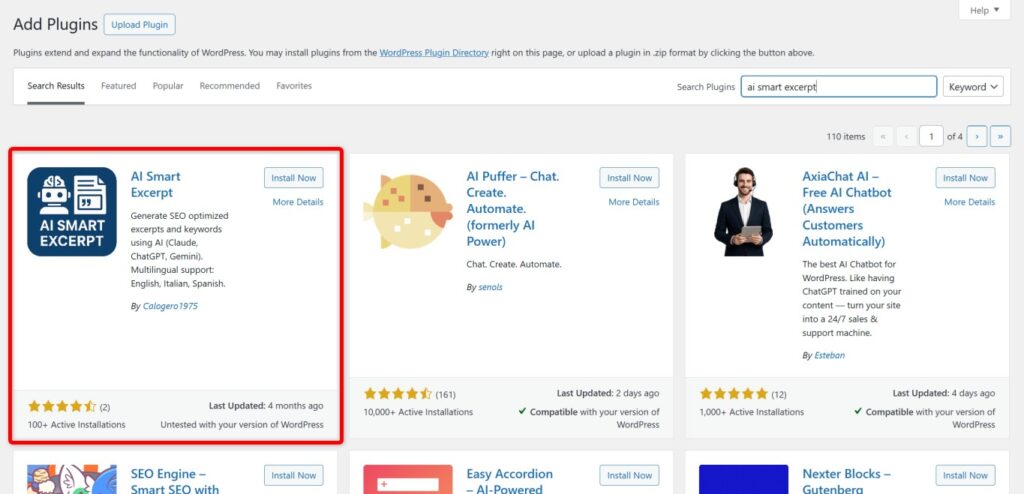
    1. Navigate to Dashboard > Plugins > Add New.
    2. Search for “AI Smart Excerpt”.
    1. Click Install Now, then click the Activate button.

    Configuring the Plugin Settings

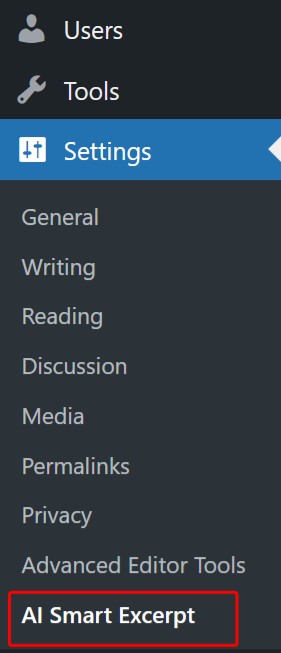
    After activation, navigate to Dashboard > Settings and click the AI Smart Excerpt link.

    Each tab in the AI Smart Excerpt settings must be saved separately. Changes made on one tab are not saved when switching to another tab.

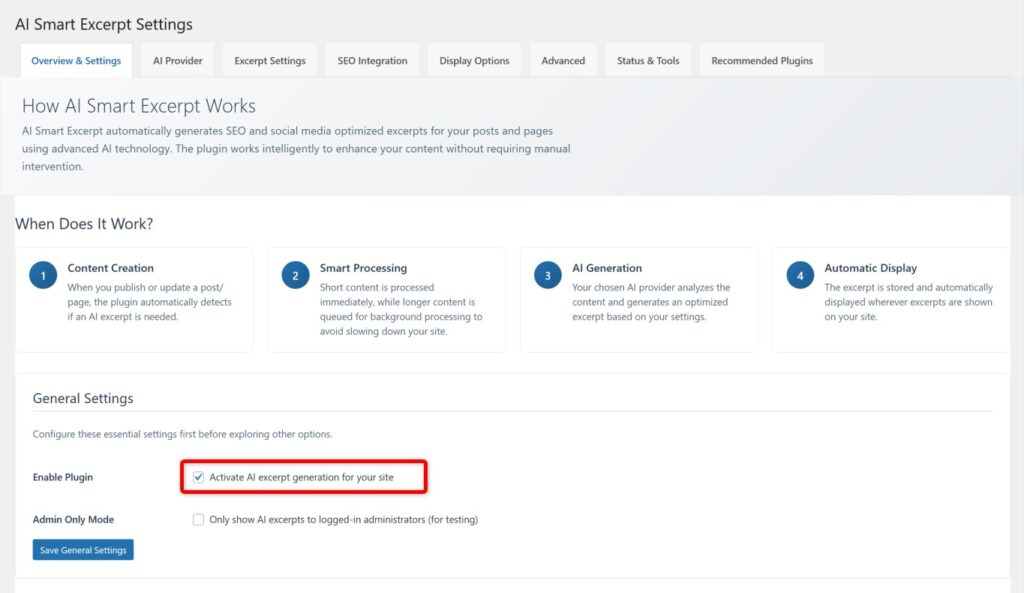
    Overview & Settings Tab

    1. Enable the “Activate AI excerpt generation for your site” option.
    2. Click Save Changes.

    AI Provider Tab

    1. Select and connect a supported AI provider of choice.
    2. Follow the on-screen instructions to authenticate the account.
    3. Click Save Changes.

    If no AI provider is configured, the plugin falls back to simple (non-AI) excerpt generation. Simple generation truncates existing post content to create the excerpt rather than generating original summary text.

    Excerpt Settings Tab

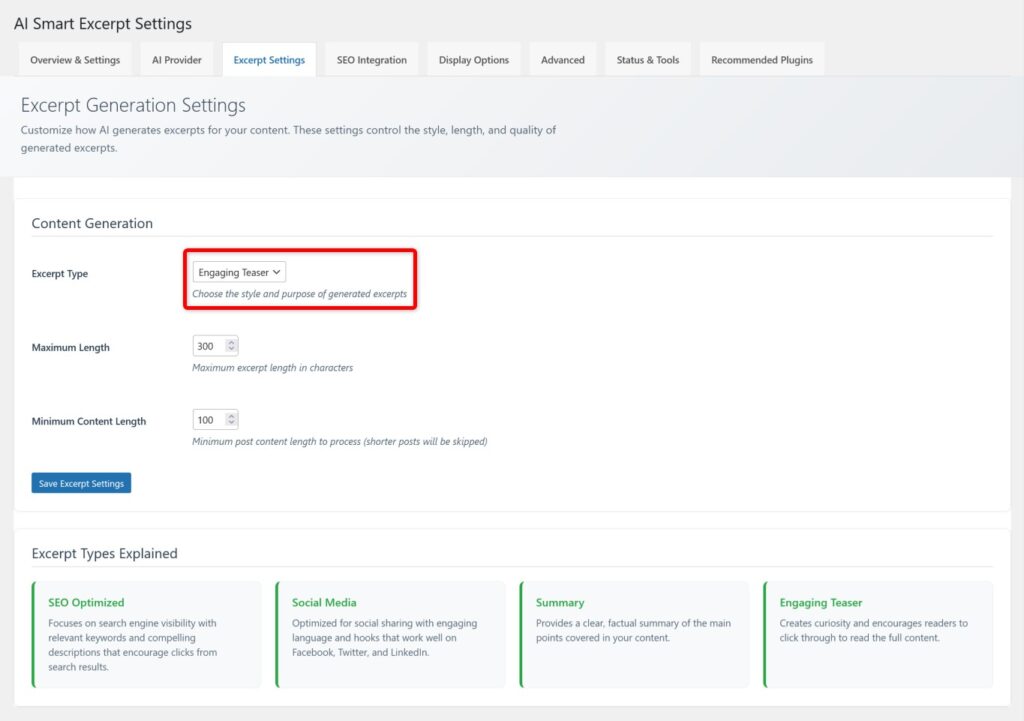
    1. If using AI for excerpt generation, select the “Engaging Teaser” style. This option generates excerpts designed to encourage the reader to continue reading, which aligns well with MemberPress content protection goals.
    2. Adjust any other excerpt length or formatting preferences as needed.
    3. Click Save Changes.

    Advanced Tab

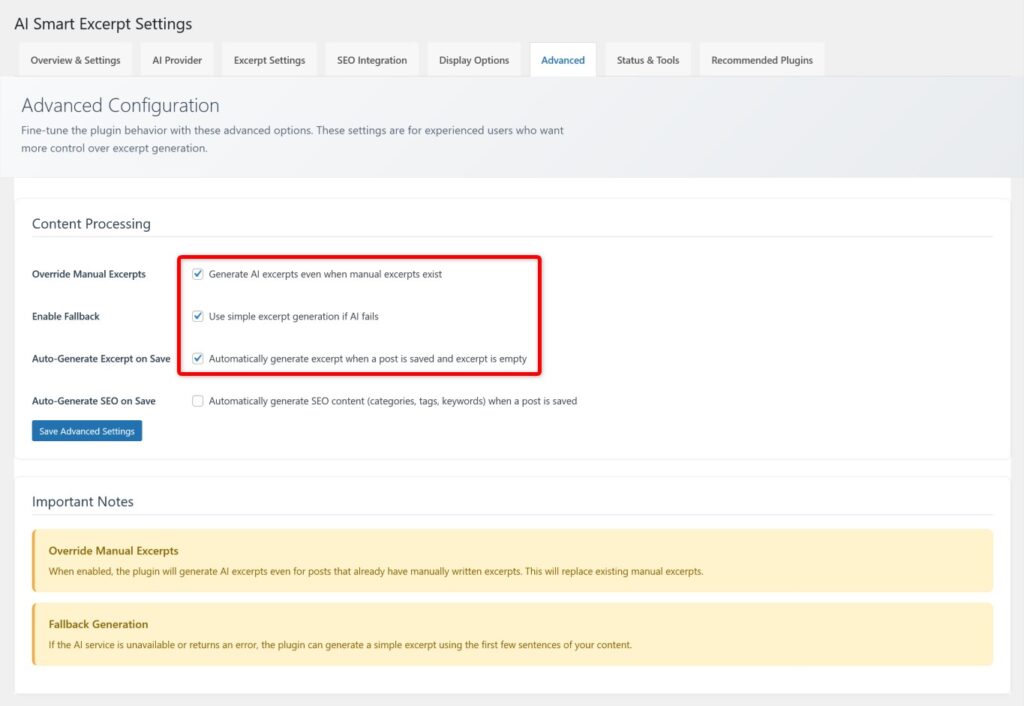
    The following options are recommended when using AI excerpt generation with MemberPress:

    • “Generate AI excerpts even when manual excerpt exists” — Enable this to overwrite existing low-quality or placeholder excerpts with AI-generated ones;
    • “Use simple excerpt generation if AI fails” — Enable this as a fallback to ensure every post receives an excerpt even if the AI provider encounters an error;
    • “Automatically generate excerpt when a post is saved and excerpt is empty” — Enable this to auto-generate excerpts for new posts going forward.

    Enabling “Generate AI excerpts even when manual excerpt exists” will overwrite any manually written excerpts. If some posts already have carefully written excerpts that should be preserved, leave this option disabled and use the bulk generation tool only for posts with empty excerpts.

    1. Configure the remaining options as preferred.
    2. Click Save Changes.

    Generating Excerpts in Bulk

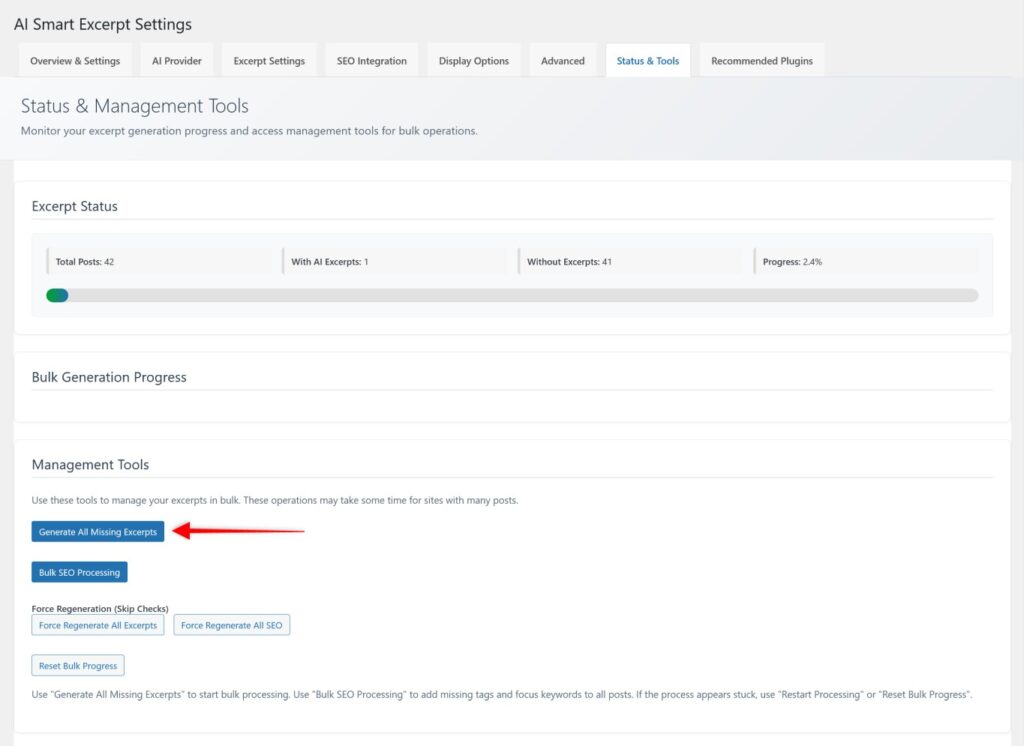
    1. Navigate to the Status & Tools tab within the AI Smart Excerpt settings.
    2. Click the “Generate All Missing Excerpts” button.
    1. Wait for the generation process to complete. Depending on the number of posts, this may take several minutes.
    2. Once complete, the plugin will display a summary of generated excerpts.

    Verifying Excerpts With MemberPress Content Protection

    After generating excerpts, verify that they display correctly for unauthorized visitors:

    1. Ensure a MemberPress rule is configured to protect the content.
    2. Confirm the rule’s unauthorized access settings are configured to display excerpts.
    3. Open a private/incognito browser window (or log out of WordPress).
    4. Navigate to a protected post.
    5. Confirm that the post excerpt is displayed instead of the full content.
    6. Verify that the excerpt text is accurate and reads naturally.

    Common Issues After Excerpt Generation

    Excerpts Not Displaying for Unauthorized Visitors

    If excerpts are generated but do not appear on protected pages, the MemberPress rule may not be configured to show excerpts.

    How to Test/Fix:

    1. Navigate to Dashboard > MemberPress > Rules.
    2. Edit the rule that protects the content in question.
    3. Scroll down to the “Unauthorized Access” settings.
    4. Verify that the option to show excerpts is enabled.
    5. Click Save Rule.
    6. Test again in an incognito browser window.

    AI Excerpt Generation Failing for Some Posts

    The AI provider may fail to generate excerpts for posts with very short content, posts containing mostly images, or posts with special characters. This is typically caused by insufficient text for the AI to summarize.

    How to Test/Fix:

    1. Ensure the “Use simple excerpt generation if AI fails” option is enabled in the Advanced tab.
    2. Re-run the “Generate All Missing Excerpts” process from the Status & Tools tab.
    3. For posts that still lack excerpts, manually write an excerpt by editing the post and filling in the Excerpt field in the post editor sidebar.

    Caching Preventing Excerpt Updates From Appearing

    Caching plugins or server-level caching may serve stale versions of protected pages. This can prevent newly generated excerpts from appearing to unauthorized visitors.

    How to Test/Fix:

    1. Clear all caching layers (plugin cache, server cache, CDN cache).
    2. If using a caching plugin with MemberPress, ensure that MemberPress pages are excluded from caching.
    3. Test the page again in a private/incognito browser window.

    Known Limitations

    • AI Smart Excerpt is a third-party plugin. MemberPress support cannot troubleshoot AI Smart Excerpt-specific functionality;
    • AI-powered generation requires a valid account with a supported AI provider. API usage may incur costs depending on the provider’s pricing;
    • Simple (non-AI) generation truncates post content rather than generating original summary text. The results may not read as naturally;
    • Excerpts generated for posts containing mostly shortcodes, images, or embedded content may be inaccurate or empty;
    • The plugin generates standard WordPress excerpts. Custom excerpt implementations in themes may not display these excerpts as expected.

    Public Facing Documentation / Additional References

    Public Facing Documentation

    Additional References

  • Enable Featured Image Support for MemberPress Downloads Files

    Summary

    The MemberPress Downloads add-on does not include Featured Image (post thumbnail) support by default. This prevents page builders such as Elementor Loop Grid from pulling images into download file templates.

    This document provides a PHP code snippet that adds Featured Image support to the mpdl-file post type. The snippet uses the register_post_type_args filter, so it survives MemberPress and add-on updates. After activation, the Featured Image panel appears in the MP Downloads file editor sidebar.

    Troubleshooting

    Cause of the Issue

    The MemberPress Downloads add-on registers the mpdl-file custom post type without thumbnail in its supports array. WordPress hides the Featured Image panel for any post type that does not declare thumbnail support. This is standard WordPress behavior and not a bug.

    Prerequisites

    • MemberPress plugin (active);
    • MemberPress Downloads add-on (active);
    • The WPCode plugin (recommended) or access to a child theme’s functions.php file;
    • The active theme must support post thumbnails globally (see the Known Limitation section below).

    Featured Image Panel Not Appearing on Downloads Files

    Post Type Missing Thumbnail Support

    The mpdl-file post type does not include thumbnail in its registered supports. A short PHP snippet can add this support using the register_post_type_args filter hook.

    How to Test/Fix:

    Follow the steps below to add the code snippet using the WPCode plugin.

    1. Install and activate the WPCode plugin from the WordPress plugin directory.
    2. Navigate to Dashboard > Code Snippets > Add New.
    3. Click Add Your Custom Code (New Snippet).
    4. Enter a descriptive title (e.g., “Enable Featured Image for MP Downloads”).
    5. Set the Code Type dropdown to PHP Snippet.
    6. Paste the code snippet from the section below into the code editor.
    7. Toggle the snippet status to Active.
    8. Click Save Snippet to apply the change.

    Code Snippet:

    /**
     * MemberPress - Enable Featured Image for Downloads Files
     *
     * Adds post thumbnail (Featured Image) support to the mpdl-file
     * post type registered by the MemberPress Downloads add-on.
     * Uses the register_post_type_args filter so the change
     * survives MemberPress and add-on updates.
     */
    add_filter(
      'register_post_type_args',
      function ( $args, $post_type ) {
        // Only modify the MemberPress Downloads file post type.
        if ( 'mpdl-file' !== $post_type ) {
          return $args;
        }
    
        // Preserve existing supports values, then append 'thumbnail'.
        $supports         = isset( $args['supports'] ) ? (array) $args['supports'] : array();
        $supports[]       = 'thumbnail';
        $args['supports'] = array_values( array_unique( $supports ) );
    
        return $args;
      },
      10,
      2
    );

    The snippet performs the following actions:

    • Line 12 (if ( 'mpdl-file' !== $post_type )): Targets only the MemberPress Downloads file post type. No other post types are affected;
    • Line 17 ($supports[] = 'thumbnail';): Appends thumbnail to the existing supports array. This tells WordPress to display the Featured Image panel;
    • Line 18 (array_unique): Prevents duplicate entries if thumbnail is ever added natively in a future update.

    Verifying the Solution

    1. Navigate to Dashboard > MP Downloads > Files.
    2. Open any existing file or create a new one.
    3. Confirm the Featured Image panel appears in the right sidebar of the editor.
    4. Click Set featured image and select or upload an image.
    5. Click Update (or Publish for a new file) to save.
    6. If using a page builder (e.g., Elementor Loop Grid), verify the featured image displays in the template preview.

    Known Limitations

    Theme Thumbnail Support Scoped to Specific Post Types

    The snippet only works if the active theme registers post thumbnails globally. Some themes scope thumbnail support to specific post types using a pattern like the following:

    // MemberPress - Example of scoped theme thumbnail support
    // If the active theme uses this pattern, mpdl-file must be added to the array.
    add_theme_support( 'post-thumbnails', array( 'post', 'page' ) );

    In that case, the Featured Image panel will not appear even after the snippet is active. The theme’s allowlist must be extended to include mpdl-file.

    How to Test/Fix:

    1. Check whether the active theme limits thumbnail support to specific post types. This is typically set in the theme’s functions.php file.
    2. If the theme scopes support, add 'mpdl-file' to the array in a child theme’s functions.php file. For example: add_theme_support( 'post-thumbnails', array( 'post', 'page', 'mpdl-file' ) );
    3. Alternatively, add a separate WPCode snippet that calls add_theme_support( 'post-thumbnails' ); without the array parameter to enable thumbnails for all post types.

    Important: Removing the post type array from add_theme_support() enables thumbnails for all post types. Confirm this does not cause unintended changes to other post types on the site before applying.

    Elementor Cached Preview Not Updating

    Elementor may display a cached preview that does not reflect the newly assigned featured image. This is an Elementor caching behavior, not a MemberPress issue.

    How to Test/Fix:

    1. Re-save the Elementor template by opening it in the Elementor editor and clicking Update.
    2. Clear any active site caching (plugin-based or server-level).
    3. Reload the page in a new browser tab or incognito window to verify.

    Alternative Installation Methods

    If WPCode is not available, the snippet can be added using one of the following methods:

    • Child theme functions.php: Paste the snippet at the end of the child theme’s functions.php file. This method requires an active child theme;
    • MU plugin: Create a PHP file (e.g., mp-downloads-featured-image.php) in the wp-content/mu-plugins/ directory. MU plugins load automatically and cannot be deactivated from the admin.

    Note: The WPCode plugin method is recommended. It allows the snippet to be toggled on or off without editing theme files or accessing the server directly.

    Public Facing Documentation / Additional References

    Public Facing Documentation

    Developer Documentation

    Additional References

  • How to Reset the MemberPress Downloads File Download Counter

    Summary

    The MemberPress Downloads add-on tracks how many times each file has been downloaded. There is no built-in option to reset this counter through the WordPress admin interface.

    This document provides a method to reset the download counter for a specific file. The process requires running an SQL query directly on the site database. It is intended for cases where download statistics need to be cleared, such as after testing or when re-uploading a corrected file.

    Troubleshooting

    Prerequisites

    Before proceeding, the following requirements must be met:

    • The MemberPress Downloads add-on must be installed and activated on the site;
    • Access to the site database through phpMyAdmin or another database management tool is required;
    • The file ID of the target file must be known (see the section below on how to locate it).

    Running SQL queries directly on the database can cause irreversible changes. Always create a full site backup before making any database modifications. If an incorrect query is executed, data loss may occur that cannot be undone without restoring from a backup.

    Locating the File ID

    The file ID is needed to target the correct file in the SQL query. Follow these steps to locate it:

    1. Navigate to Dashboard > MemberPress > Downloads.
    2. Locate the file whose download counter needs to be reset.
    3. Hover over the file name or click Edit to open the file editor.
    4. Check the browser address bar for the URL. The file ID appears as the post= parameter value in the URL (e.g., post.php?post=1753&action=edit means the file ID is 1753).

    Resetting the Download Counter

    Download Counter Cannot Be Reset Through the Admin Interface

    MemberPress Downloads does not include an option to reset the download count from the WordPress dashboard. The download statistics are stored in the wp_mpdl_file_stats database table. Resetting the counter requires running an SQL query to delete the relevant records from this table.

    How to Reset the Counter:

    1. Create a full backup of the site, including the database.
    2. Log in to phpMyAdmin (or another database management tool) through the hosting control panel.
    3. Select the WordPress database used by the site.
    4. Click the SQL tab to open the query editor.
    5. Enter the following SQL query:
    -- MemberPress Downloads: Reset download counter for a specific file
    -- Replace wp_ with your database table prefix if different
    -- Replace [[FILE_ID]] with the actual file ID (e.g., 1753)
    
    DELETE FROM wp_mpdl_file_stats WHERE file_id = [[FILE_ID]];

    Replace wp_ with the actual database table prefix if the site uses a custom prefix. The table prefix can be found in the wp-config.php file under the $table_prefix variable.

    1. Replace [[FILE_ID]] in the query with the actual file ID identified in the previous section.
    2. Click Go (or Execute) to run the query.
    3. phpMyAdmin will display a confirmation message indicating how many rows were deleted.

    Verifying the Reset

    After running the query, verify that the counter has been reset:

    1. Navigate to Dashboard > MemberPress > Downloads.
    2. Locate the file that was targeted by the query.
    3. Confirm that the download count now shows 0 (or no longer displays a count for that file).

    If the download count does not appear to have changed, clear any active caching on the site. This includes plugin-based caching (e.g., WP Super Cache, W3 Total Cache, LiteSpeed Cache) and server-level caching provided by the hosting environment.

    Additional Troubleshooting Scenarios

    The Table wp_mpdl_file_stats Does Not Exist

    If phpMyAdmin returns an error stating the table does not exist, the likely cause is one of the following:

    • The site uses a custom database table prefix (e.g., wpa_ instead of wp_). Adjust the query to match the correct prefix;
    • The MemberPress Downloads add-on has not been activated on the site, or was deactivated before the table was created.

    Query Returns Zero Rows Affected

    If the query executes successfully but reports zero rows affected, the file ID may be incorrect. Return to Dashboard > MemberPress > Downloads and verify the file ID from the address bar. Also confirm that the file has been downloaded at least once, as files with no downloads will not have entries in the statistics table.

    Known Limitations

    • This method deletes all download records for the specified file. There is no way to selectively reduce the count by a specific number using this approach;
    • The deletion is permanent. Once the query is executed, the previous download statistics for that file cannot be recovered without a database backup;
    • This query only affects the download counter. It does not remove or modify the file itself, nor does it affect download permissions or access rules.

    Public Facing Documentation / Additional References

    Public Facing Documentation