Author: Predrag

  • Customizing the “Most Popular” Label on the MemberPress Pricing Page

    Summary

    The “Most Popular” label that appears on highlighted membership price boxes is rendered through MemberPress’s translation system. Because it is a translatable string, it cannot be changed directly from the WordPress admin interface. Overriding it requires a custom code snippet.

    This document covers two complementary approaches. The first uses WordPress’s gettext filter to replace the label globally via PHP. The second uses a targeted JavaScript snippet injected via wp_footer to override the label on a specific price box by product ID — useful when different plans require different badge text.

    Both approaches apply to the classic MemberPress Group pricing page. The code snippets should be added using the WPCode plugin or the active child theme’s functions.php file.

    Troubleshooting

    Changing the “Most Popular” Label

    1) Global Label Replacement via the gettext Filter

    MemberPress routes UI strings through WordPress’s translation layer. The gettext filter intercepts translated strings at runtime, making it the correct place to replace the label text globally — that is, on every price box that carries the “Most Popular” badge.

    How to Test/Fix:

    Add the following snippet using the WPCode plugin or the child theme’s functions.php file:

    /**
     * Replace the "Most Popular" label on MemberPress pricing pages.
     * Change 'Best Value' below to any desired label text.
     */
    add_filter( 'gettext', function( $translation, $text, $domain ) {
        if ( $domain === 'memberpress' && $text === 'Most Popular' ) {
            return 'Best Value'; // Change to whatever label text is needed
        }
        return $translation;
    }, 10, 3 );

    To verify the change, visit the Group pricing page on the frontend. The badge should now display the new label text. If the label does not update, clear all site caches and reload the page.

    The gettext filter replaces the label on every price box that displays “Most Popular”. If different plans require different label text, use the per-product JavaScript approach described in Scenario 2 instead.

    2) Per-Product Label Override via JavaScript

    The gettext filter replaces all instances of the string globally. It cannot distinguish between individual price boxes. When a site needs different badge text per plan — for example, “Most Popular” on one plan and “Best Value” on another — a targeted JavaScript snippet is required.

    Each MemberPress price box is assigned a unique HTML ID in the format mepr-price-box-[[PRODUCT_ID]], where [[PRODUCT_ID]] is the WordPress post ID of the corresponding membership. The label element inside that box uses the class .mepr-most-popular.

    How to Test/Fix:

    First, locate the product ID of the target membership:

    1. Navigate to Dashboard > MemberPress > Memberships.
    2. Hover over the membership whose label requires a different text.
    3. Note the post ID visible in the URL shown at the bottom of the browser, for example: post=[[PRODUCT_ID]].

    Then add the following snippet, replacing [[PRODUCT_ID]] with the actual post ID:

    /**
     * Override the "Most Popular" label on a specific MemberPress price box.
     * Replace [[PRODUCT_ID]] with the actual WordPress post ID of the target membership.
     * Change 'Best Value' below to the desired label text for that specific plan.
     */
    add_action( 'wp_footer', function () {
        ?>
        <script>
        document.addEventListener( 'DOMContentLoaded', function () {
            var box = document.getElementById( 'mepr-price-box-[[PRODUCT_ID]]' );
            if ( box ) {
                var label = box.querySelector( '.mepr-most-popular' );
                if ( label ) {
                    label.textContent = 'Best Value'; // Change to the desired label
                }
            }
        } );
        </script>
        <?php
    } );

    To override the label on multiple plans with different text, duplicate the var box block inside the same DOMContentLoaded listener for each additional product ID. Each block should target a different element ID and set a different textContent value.

    This JavaScript approach modifies the label after the page renders. It is client-side only and will not affect server-rendered output, RSS feeds, or any integrations that read raw HTML. If the label must be changed at the server level across all plans, use the gettext filter from Scenario 1.

    3) Label Not Updating After Code Is Added

    If neither snippet produces a visible change on the pricing page, one of the following conditions is typically responsible.

    How to Test/Fix:

    1. Confirm the snippet is active. In WPCode, navigate to Dashboard > Code Snippets and verify the snippet status is set to Active.
    2. Confirm the text domain is correct. The filter targets the memberpress domain. If the site uses a translation plugin that overrides MemberPress strings before the filter runs, the domain value may differ. Verify using a debugging tool such as Loco Translate.
    3. Clear all caches. Purge the server-level cache, any WordPress caching plugin cache, and the browser cache, then reload the pricing page.
    4. For the JavaScript approach, confirm the product ID in the snippet matches the post ID of the highlighted membership. Open the pricing page source and search for mepr-price-box- to locate all rendered price box IDs.
    5. Check for JavaScript errors. Open the browser console (F12 > Console) and reload the pricing page. Any script errors that prevent DOMContentLoaded from firing will also block the label replacement.

    Both the gettext filter and the JavaScript approach can be combined. Use the PHP filter to set a global default replacement, then use the JavaScript snippet to override the label on a specific plan to a different value.

    Public Facing Documentation / Additional References

    Public Facing Documentation

    Developer Documentation

  • How to Turn MemberPress Into a Marketplace Website (Job Board Example)

    Summary

    MemberPress can be combined with the WP Job Manager plugin to build a fully functional job board marketplace, where membership plans control which users can post jobs, browse listings, or apply to positions.

    This document provides a step-by-step guide for setting up WP Job Manager alongside MemberPress, including configuring access rules, enabling job listing categories, and using a custom PHP snippet to expose those categories to MemberPress rules. It also covers how to protect individual job category shortcodes on the Jobs page using MemberPress rules.

    Troubleshooting

    Setting Up WP Job Manager With MemberPress

    1) Installing and Activating WP Job Manager

    WP Job Manager must be installed and configured before MemberPress rules can be applied to job board pages.

    How to Test/Fix:

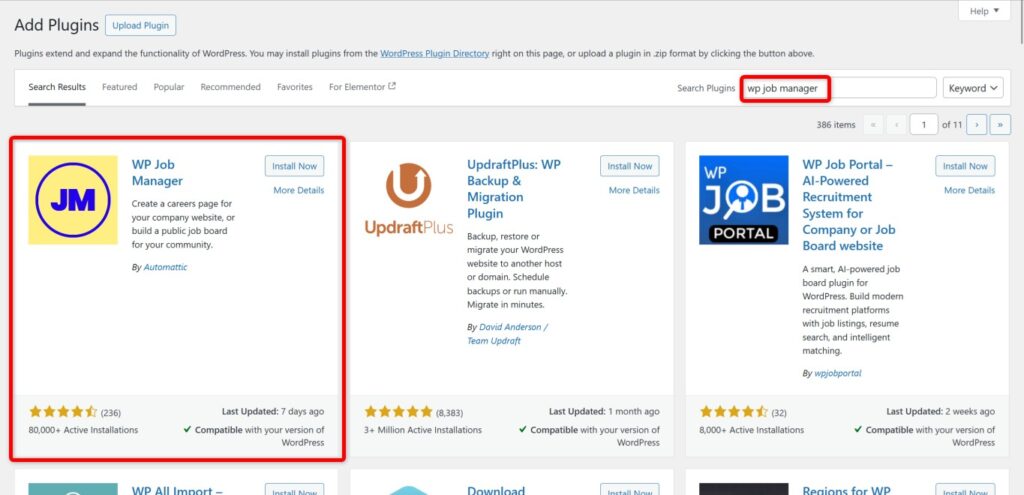
    1. Navigate to Dashboard > Plugins > Add New Plugin.
    2. Search for “WP Job Manager”.
    1. Click Install Now, then click the Activate button.
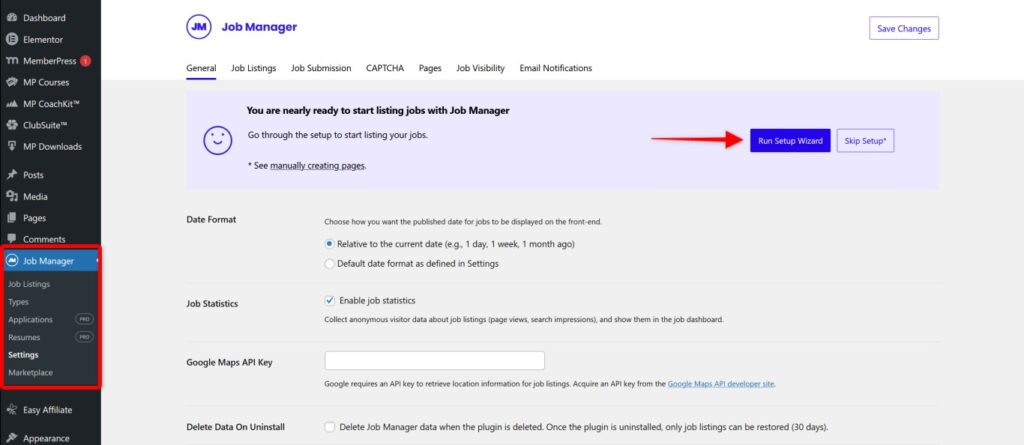
    2. Navigate to Dashboard > Job Manager > Settings and click the Start Setup button.

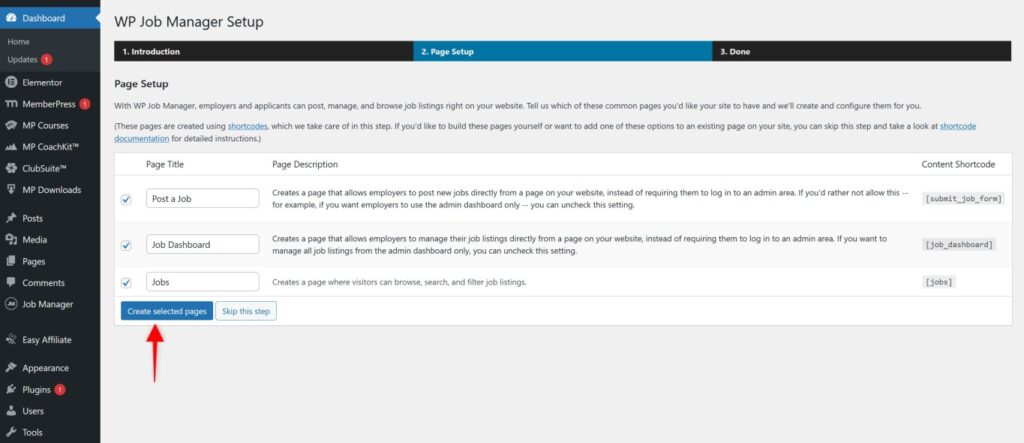
    The setup wizard will display the final configuration result before creating pages.

    1. Click the Create Selected Pages button. Setup is now complete.

    Three new pages will be created: Job DashboardJobs, and Post a Job.

    2) Configuring MemberPress Rules for WP Job Manager Pages

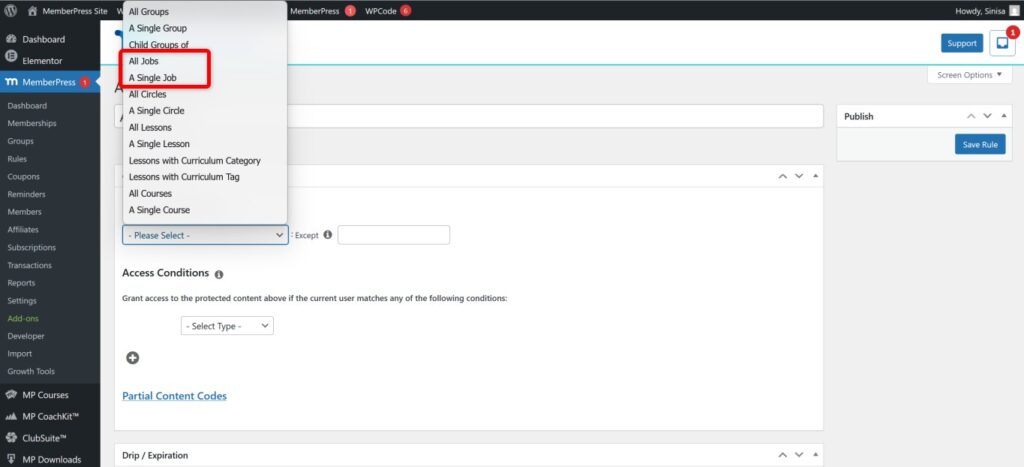
    After setup, MemberPress automatically detects the new WP Job Manager pages and makes them available as rule targets. This allows membership plans to control who can post jobs and who can browse or apply to listings.

    How to Test/Fix:

    These rules can be used to control access to Job Manager pages in the same way as standard WordPress posts and pages. The recommended membership structure is:

    • One membership plan that grants access to the Post a Job page, allowing members to submit job listings;
    • A separate membership plan that grants access to the Jobs page, allowing members to browse and apply to jobs.

    The Post a Job page is inaccessible to logged-out users by default. MemberPress rules add an additional layer of access control on top of this.

    3) Enabling Granular Access Control by Job Listing Category

    For more granular access control — such as restricting specific job categories to specific membership plans — job listing categories must first be enabled in WP Job Manager, and then exposed to MemberPress via a custom PHP snippet.

    How to Test/Fix:

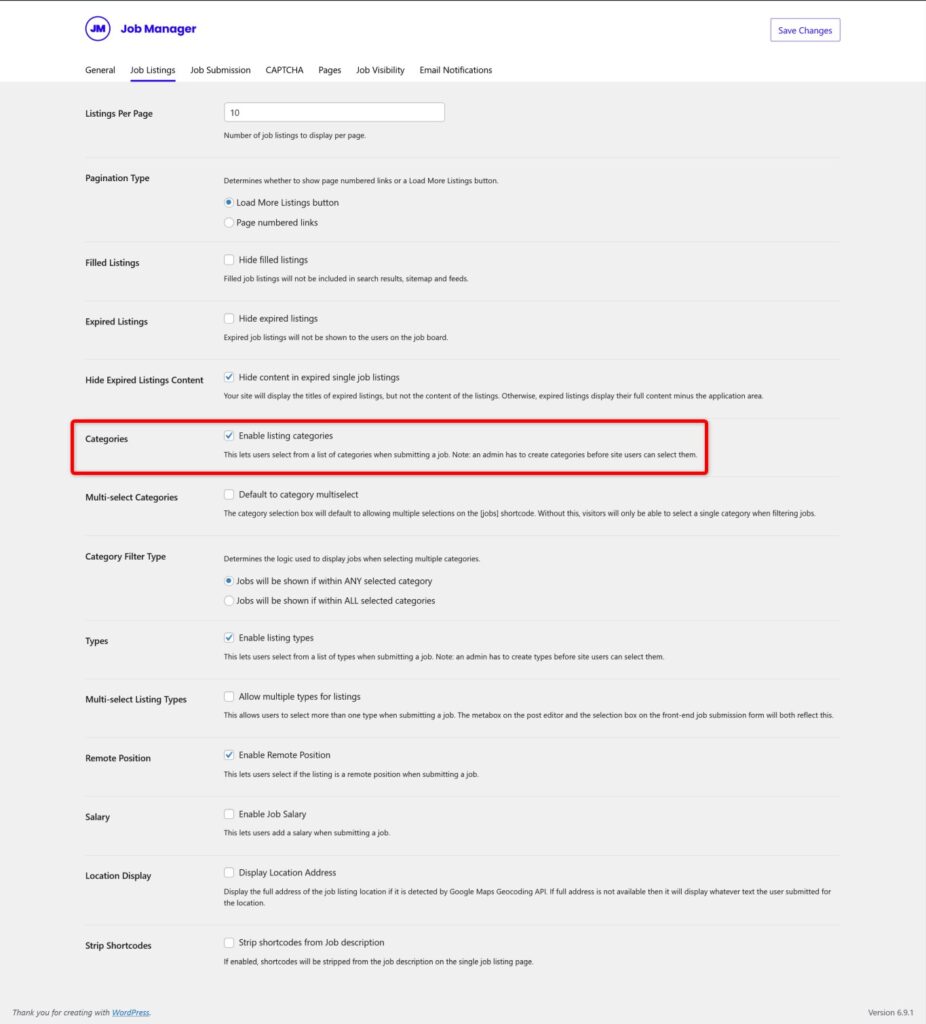
    1. Navigate to Dashboard > Job Manager > Settings and confirm that job listing categories are enabled.
    1. Add the following PHP snippet using the WPCode plugin (navigate to Dashboard > Code Snippets > Add Snippet, choose PHP Snippet, paste the code, and activate it).
    /**
     * MemberPress - Expose WP Job Manager taxonomies to MemberPress Rules.
     * Force job_listing_category and job_listing_type taxonomies to be public
     * so MemberPress can target them in access rules.
     */
    
    // Force job_listing_category taxonomy to be public.
    add_filter( 'register_taxonomy_job_listing_category_args', function ( $args ) {
        $args['public'] = true;
        return $args;
    } );
    
    // Force job_listing_type taxonomy to be public.
    add_filter( 'register_taxonomy_job_listing_type_args', function ( $args ) {
        $args['public'] = true;
        return $args;
    } );

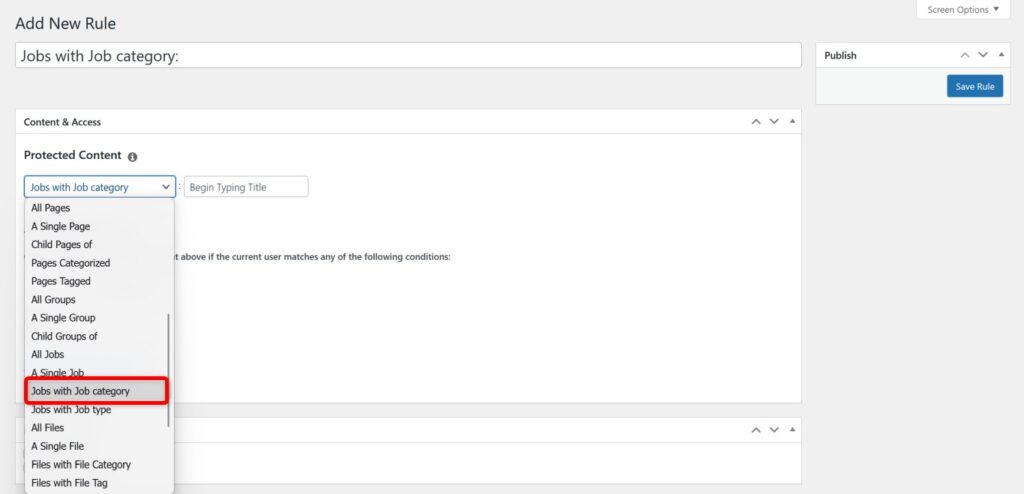
    Once the snippet is active, MemberPress Rules will display a new option for targeting job listing categories.

    1. Create the required MemberPress rules, targeting the desired job listing categories.
    2. Navigate to the Jobs page in Dashboard > Pages and click Edit.
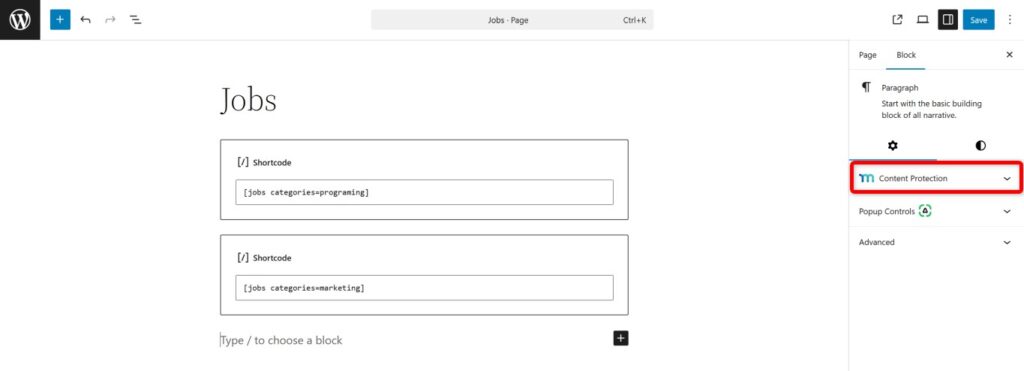
    3. Add one Shortcode block per job category using the following format:

    [jobs categories=categoryname]

    Replace categoryname with the actual category slug.

    1. Protect each shortcode block individually using MemberPress by applying the appropriate membership rule to each block.

    Each shortcode block on the Jobs page must be protected separately by the corresponding MemberPress rule. This allows different membership plans to see only the job categories they are entitled to access.

    The PHP snippet must remain active at all times. Deactivating it will remove job listing categories from MemberPress Rules and may break existing access restrictions.

    Public Facing Documentation / Additional References

    Public Facing Documentation

    Developer Documentation

  • How to Disable Membership Downgrades While Allowing Upgrades in MemberPress

    Summary

    This document covers how to prevent members from downgrading their membership while still allowing upgrades to higher-tier plans in MemberPress. The solution uses the mepr_can_you_buy_me_override and mepr_membership_cant_purchase_string filters to block downgrade purchases and display a custom restriction message.

    This is useful for sites where membership tiers are configured as an upgrade path group and the goal is to encourage upward progression through membership levels. Members attempting to downgrade will see a custom message, while upgrade purchases continue to function normally.

    Troubleshooting

    Implementing the Downgrade Restriction

    1) Members Can Purchase Lower-Tier Memberships Within an Upgrade Path Group

    By default, MemberPress does not prevent members from purchasing a lower-tier membership within the same upgrade path group. This allows members to effectively downgrade their plan, which may not be desirable for all membership site configurations.

    How to Test/Fix:

    The following code snippet hooks into MemberPress purchase logic to detect and block downgrade attempts. It uses the built-in is_downgrade_for() method to determine whether a given membership is a lower tier for the current user within their upgrade path group.

    Add the code using one of the two methods below.

    Method 1: Adding the Code via WPCode Plugin (Recommended)

    1. Navigate to Dashboard > Code Snippets > Add Snippet.
    2. Select Add Your Custom Code (New Snippet).
    3. Enter a descriptive title, such as “MemberPress – Disable Membership Downgrades”.
    4. Set the Code Type to PHP Snippet.
    5. Paste the following code into the code editor:
    // Block purchase when the product is a downgrade for the current user in an upgrade-path group.
    add_filter( 'mepr_can_you_buy_me_override', function ( $override, $product ) {
      if ( ! is_null( $override ) ) {
        return $override;
      }
    
      $user_id = get_current_user_id();
      if ( ! $user_id ) {
        return null;
      }
    
      // Block only if this product is a downgrade for the current user (same upgrade-path group, lower tier).
      if ( $product->is_downgrade_for( $user_id ) ) {
        return false;
      }
    
      return null;
    }, 10, 2 );
    
    // Show a specific message when purchase is blocked because it is a downgrade.
    add_filter( 'mepr_membership_cant_purchase_string', function ( $message, $product ) {
      $user_id = get_current_user_id();
      if ( $user_id && $product->is_downgrade_for( $user_id ) ) {
        return wpautop( __( 'Downgrading is not allowed. You may only upgrade to a higher tier in this group.', 'memberpress' ) );
      }
      return $message;
    }, 1, 2 );
    1. Set the Insert Method to Auto Insert and confirm the Location is set to Run Everywhere.
    2. Toggle the snippet to Active and click Save Snippet.

    Method 2: Adding the Code via Child Theme’s functions.php

    Warning: Always back up the site before editing the functions.php file. A syntax error in this file can cause a critical site error. This method is recommended only for users comfortable editing PHP files directly. Testing on a staging environment first is strongly advised.

    1. Access the site’s file manager via hosting control panel, or connect via SFTP using a client such as FileZilla.
    2. Navigate to wp-content/themes/[active-child-theme]/functions.php.
    3. Open the file for editing and paste the code snippet from Method 1 above at the end of the file, before the closing ?> tag (if present).
    4. Save the file and reload the site to confirm there are no errors.

    Verifying the Implementation

    2) Testing Must Be Done With a Subscriber Account

    Administrator accounts bypass MemberPress purchase restrictions by design. Testing with an admin account will not reflect the behavior experienced by regular members.

    How to Test/Fix:

    1. Create a test user account with the Subscriber role, or use an existing member account with an active higher-tier membership.
    2. Log in as that subscriber in a separate browser session or private/incognito window.
    3. Navigate to Account > Subscriptions and click the Change Plan link.
    4. Confirm that lower-tier memberships within the same upgrade path group are no longer shown in the plan selector.
    5. Attempt to access the lower-tier membership registration page directly via its URL.
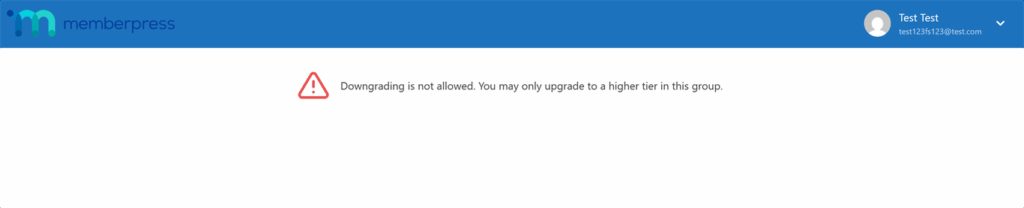
    6. Confirm the custom restriction message is displayed: “Downgrading is not allowed. You may only upgrade to a higher tier in this group.”

    Note: This solution applies only to memberships that are part of the same MemberPress upgrade path group. Memberships not configured within an upgrade path group are not affected by this code.

    Customizing the Restriction Message

    3) The Default Restriction Message Needs to Be Modified

    The message displayed to members attempting a downgrade can be customized to match the site’s terminology or branding requirements.

    How to Test/Fix:

    1. Locate the second filter in the code snippet, specifically the mepr_membership_cant_purchase_string filter.
    2. Find the following line within that filter:
    return wpautop( __( 'Downgrading is not allowed. You may only upgrade to a higher tier in this group.', 'memberpress' ) );
    1. Replace the message text between the single quotes with the preferred custom message.
    2. Save the snippet or file and test again with a subscriber account to confirm the updated message appears.

    Public Facing Documentation / Additional References

    Public Facing Documentation

    Developer Documentation

  • How to Bulk Opt-In Users for a MemberPress Directory

    Summary

    By default, users enrolled in a MemberPress Directory may need to manually opt in to appear in the directory listing. In some scenarios, such as site migrations or retroactive changes to directory opt-in settings, this manual step may be required for a large number of already-enrolled users.

    This document provides a PHP snippet that programmatically sets the opt_status to “opted_in” for all users enrolled in a specified directory. Users who have already opted in are automatically skipped to prevent duplicate processing.

    This solution is intended for use in edge cases not covered by standard MemberPress Directory settings. It is particularly relevant following site migrations or when a directory’s opt-in requirement is enabled after users have already enrolled.

    Troubleshooting

    Users Not Appearing in the Directory After Enrollment

    1) Opt-In Requirement Enabled After Users Already Enrolled

    If a directory’s opt-in requirement was enabled after users had already enrolled, those users will not appear in the directory until they manually opt in. Manually contacting each user to opt in is not practical for large member bases.

    How to Test/Fix:

    Use the bulk opt-in PHP snippet below to programmatically set all enrolled users’ opt-in status for the specified directory.

    2) Users Enrolled Before a Site Migration Are Not Opted In

    During site migrations, directory enrollment records may transfer without the associated opt-in status data. This results in enrolled users being absent from the directory listing on the migrated site.

    How to Test/Fix:

    Follow the procedure below to bulk-update the opt-in status for all enrolled users in the affected directory.

    Bulk Opt-In Procedure

    Important: This procedure modifies the site database. Always create a full database backup before proceeding. Test on a staging environment before applying changes to a live site.

    Step 1: Identify the Directory ID

    The Directory ID is required for the snippet. To find it:

    1. Navigate to Dashboard > MemberPress > Directories.
    2. Locate the specific directory where enrolled users are not appearing.
    3. Note the ID displayed in the directory list. This value will replace 123 in the snippet below.

    Step 2: Verify Current Opt-In Status (Optional)

    Before running the snippet, it can be helpful to confirm that affected users are not currently marked as “opted_in” in the database. This can be verified via phpMyAdmin or WP-CLI by querying the relevant enrollment records for the directory.

    Step 3: Add the Bulk Opt-In Snippet via WPCode

    The following PHP snippet iterates through all enrolled users in the specified directory and sets their opt_status to ‘opted_in’. Users already opted in are automatically skipped.

    Note: Replace the value 123 on the $directory_id line with the actual Directory ID obtained in Step 1 before executing the snippet.

    <?php
    /**
    * MemberPress: Bulk Opt-In Directory Users
    * * This code sets the opt_status to 'opted_in' for all users enrolled in a specific directory.
    */

    if (!defined('ABSPATH')) {
    require_once __DIR__ . '/wp-load.php';
    }

    // Change the directory ID on the line below
    $directory_id = 123;

    $enrollments = \memberpress\directory\models\Enrollment::get_by_directory($directory_id, false);

    $updated = 0;
    $skipped = 0;

    foreach ($enrollments as $enrollment) {
    if ($enrollment->opt_status === 'opted_in') {
    $skipped++;
    continue;
    }
    if (\memberpress\directory\models\Enrollment::set_opt_status(
    (int) $enrollment->user_id,
    (int) $enrollment->directory_id,
    'opted_in'
    )) {
    $updated++;
    }
    }

    echo sprintf(
    "Directory %d: %d set to opted_in, %d already opted_in.\n",
    $directory_id,
    $updated,
    $skipped
    );

    To add the snippet using the WPCode plugin:

    1. Navigate to Dashboard > Code Snippets > + Add Snippet.
    2. Select Add Your Custom Code (New Snippet).
    3. Enter a descriptive title, such as “MemberPress Bulk Directory Opt-In”.
    4. Set the Code Type to PHP Snippet.
    5. Paste the snippet into the code editor.
    6. Update the $directory_id value from 123 to the Directory ID obtained in Step 1.
    7. Under Insertion, set the method to Run Once to prevent repeated execution.
    8. Click Save Snippet, then toggle the snippet to Active.

    Step 4: Verify the Results

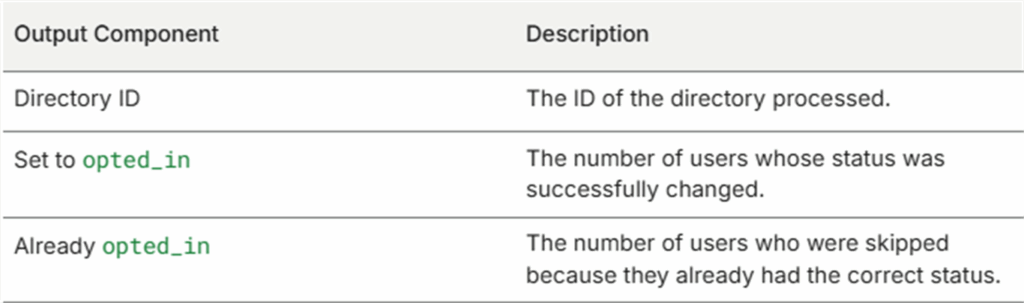
    After the snippet executes, a summary message confirms the outcome. The output format is:Directory [[DIRECTORY_ID]]: [[UPDATED_COUNT]] set to opted_in, [[SKIPPED_COUNT]] already opted_in.

    1. Check the output message to confirm the expected number of users were updated.
    2. Navigate to the frontend directory listing to verify that previously missing users are now appearing.
    3. Deactivate or delete the snippet in Dashboard > Code Snippets after confirming successful execution, since it is intended for one-time use.

    Note: This snippet only updates users who are already enrolled in the directory. Users who are not enrolled will not be affected. To enroll users in a directory, refer to the MemberPress Directory documentation.

    Public Facing Documentation / Additional References

    Public Facing Documentation

    Developer Documentation

  • Adding Breadcrumb Navigation to MemberPress Courses Using Custom Code

    Summary

    MemberPress Courses does not include breadcrumb navigation on single course pages by default. Breadcrumbs improve site navigation by showing users their current location within the course catalog, displayed in the format Courses > Course Name above the course content.

    This document provides a custom PHP snippet that adds a simple breadcrumb to all single course pages. It also includes optional CSS for basic styling and troubleshooting steps for the most common implementation issues.

    Troubleshooting

    Adding the PHP Snippet

    The snippet can be added using either the WPCode plugin or a child theme’s functions.php file.

    Option 1: Using the WPCode Plugin

    1. Navigate to Dashboard > Code Snippets > Add Snippet.
    2. Click Add Your Custom Code (New Snippet).
    3. Enter a descriptive title, such as “MPCS – Add Breadcrumb Navigation”.
    4. Set the Code Type to PHP Snippet.
    5. Paste the following code into the code editor:
    /**
     * MemberPress Courses - Add breadcrumbs on single course pages.
     *
     * Adds: Courses > Course Name
     */
    add_filter( 'the_content', function ( $content ) {
      if ( ! is_singular( 'mpcs-course' ) ) {
        return $content;
      }
    
      $courses_url = get_home_url( null, \memberpress\courses\helpers\Courses::get_permalink_base() );
      $course_name = get_the_title();
    
      $breadcrumb  = '<nav class="mpcs-breadcrumbs" aria-label="' . esc_attr__( 'Breadcrumb', 'memberpress-courses' ) . '">';
      $breadcrumb .= '<a href="' . esc_url( $courses_url ) . '">' . esc_html__( 'Courses', 'memberpress-courses' ) . '</a>';
      $breadcrumb .= ' <span class="mpcs-breadcrumb-sep" aria-hidden="true">&gt;</span> ';
      $breadcrumb .= '<span class="mpcs-breadcrumb-current" aria-current="page">' . esc_html( $course_name ) . '</span>';
      $breadcrumb .= '</nav>';
    
      return $breadcrumb . $content;
    }, 5 );
    1. Set the Insert Method to Auto Insert and the location to Run Everywhere.
    2. Toggle the snippet to Active and click Save Snippet.
    3. Visit a single course page to confirm the breadcrumb appears above the course content.

    Option 2: Using a Child Theme’s functions.php

    1. Navigate to Dashboard > Appearance > Theme File Editor.
    2. Select the child theme’s functions.php file from the file list on the right.
    3. Paste the code snippet from Option 1 at the end of the file, after the closing ?> tag if one is present (or simply at the bottom if none exists).
    4. Click Update File.
    5. Visit a single course page to confirm the breadcrumb appears above the course content.

    Editing the active theme’s functions.php directly is not recommended. Always use a child theme to prevent changes from being overwritten during theme updates.

    Adding Optional CSS Styling

    The breadcrumb renders without styling by default. The following CSS adds basic spacing and sizing. It can be added via Dashboard > Appearance > Customize > Additional CSS.

    .mpcs-breadcrumbs {
      margin-bottom: 1rem;
      font-size: 0.9em;
    }
    
    .mpcs-breadcrumbs .mpcs-breadcrumb-sep {
      margin: 0 0.35em;
      opacity: 0.7;
    }
    
    .mpcs-breadcrumbs .mpcs-breadcrumb-current {
      font-weight: 500;
    }

    Breadcrumb Does Not Display

    1) Snippet Is Not Active or Saved Incorrectly

    If the breadcrumb does not appear, the snippet may not be active or may have been saved with a syntax error.

    How to Test/Fix:

    1. Confirm the snippet is toggled to Active in WPCode, or that the code is present at the bottom of functions.php.
    2. Verify the page being tested is a single course page (post type mpcs-course).
    3. Temporarily deactivate other plugins to rule out a conflict with another plugin hooking into the_content filter.

    2) Caching Prevents the Breadcrumb from Appearing

    A server, plugin, or CDN cache may serve a cached version of the page that does not include the newly added breadcrumb.

    How to Test/Fix:

    1. Clear the cache in any active caching plugin (e.g., WP RocketW3 Total CacheLiteSpeed Cache).
    2. If using a CDN, purge the CDN cache for the affected course pages.
    3. Open the course page in a private or incognito browser window to bypass browser cache.
    4. If the breadcrumb now appears, confirm cache purge settings are configured to clear on content updates.

    Site Shows a Fatal Error After Adding the Snippet

    3) Syntax Error or Incorrect Paste Location

    A fatal PHP error typically results from a missing brace, a paste conflict with existing code in functions.php, or the snippet being added inside another function.

    How to Test/Fix:

    1. Disable the snippet immediately via WPCode, or remove the code from functions.php using SFTP or the hosting file manager.
    2. Re-paste the snippet carefully, ensuring it is placed outside any existing function declarations.
    3. Confirm there are no extra or missing curly braces { } or parentheses ( ).
    4. Save and re-test the course page.

    If the site becomes inaccessible due to a fatal error, use SFTP or the hosting provider’s file manager to remove the snippet from functions.php before proceeding

    Styling Conflicts With the Theme

    4) Theme CSS Overrides Breadcrumb Styles

    Some themes apply broad CSS rules that affect navigation elements, which may alter the breadcrumb’s appearance or positioning.

    How to Test/Fix:

    1. Temporarily remove the optional CSS from Additional CSS to determine if a theme conflict exists.
    2. Use the browser’s developer tools to inspect the .mpcs-breadcrumbs element and identify which CSS rules are being applied or overridden.
    3. Re-add only the minimal CSS overrides needed for .mpcs-breadcrumbs, using more specific selectors if required (e.g., .entry-content .mpcs-breadcrumbs).
    4. Test across multiple screen sizes to confirm responsive display.

    Public Facing Documentation / Additional References

    Public Facing Documentation

    Developer Documentation

  • How to Set Up a MemberPress Admin Email Notification for a Specific Membership Purchase or Upgrade

    Summary

    By default, MemberPress sends admin email notifications globally — meaning all configured admin addresses receive a notification whenever any membership is purchased or a subscription event occurs. There is no built-in setting to limit these global admin notifications to a single, specific membership.

    This document covers a custom code solution using the mepr-wp-mail-recipients filter hook that adds a separate admin email address triggered only when a specific membership is purchased or when a user upgrades to it. The solution relies on a unique keyword added to the per-membership admin email subject line to identify and route the notification correctly.

    This approach is appropriate when a site owner needs a specific team member, department, or third-party address notified for one membership only, without changing the global admin notification settings.

    Troubleshooting

    Setting Up the Per-Membership Admin Email Subject

    The code solution works by checking the subject line of outgoing admin emails. A unique keyword or phrase in the subject line identifies the target membership email. This keyword must be set inside the membership’s own email settings before the code is added. Follow the steps below.

    1. Navigate to Dashboard > MemberPress > Memberships and open the target membership for editing.
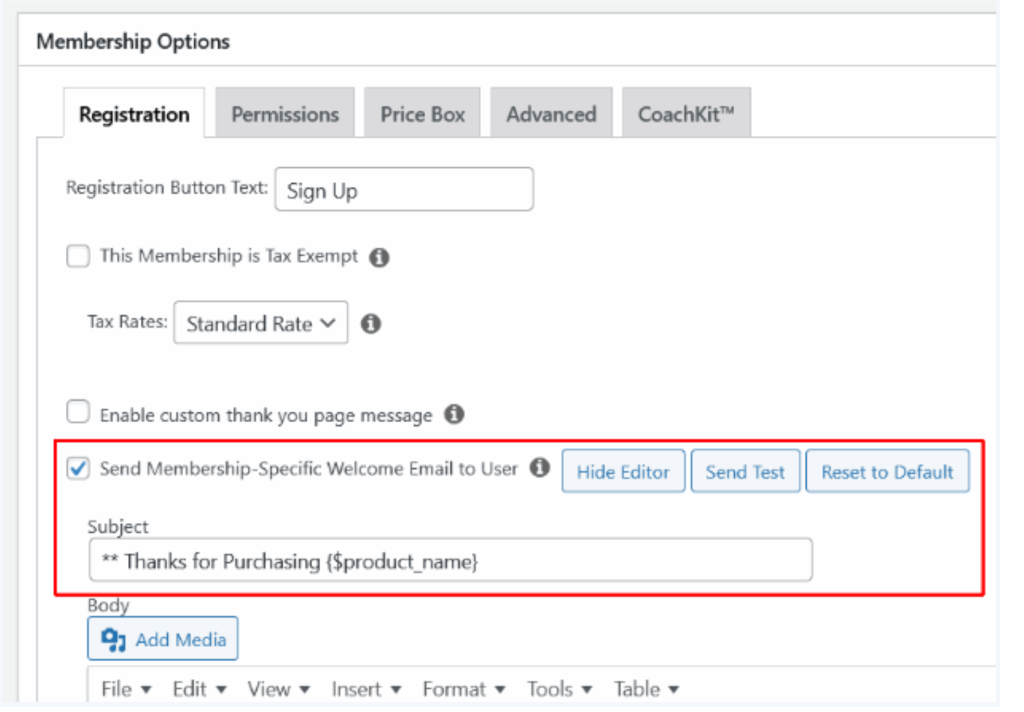
    2. Scroll down to the Membership Options metabox and click the Registration tab.
    3. Locate the Send Membership Specific Welcome Email to the User section and click Edit to expand the email template editor.
    4. Modify the Subject field to include a unique keyword or phrase that will not appear in any other admin email subject on the site. For example: “** New Signup – [[MEMBERSHIP_NAME]]”.
    5. Click Update to save the membership settings.

    The keyword added to the subject line must be unique across all admin email subjects on the site. If the same phrase appears in another membership’s email subject, the additional recipient will also be copied on those notifications. Always verify uniqueness before activating the code snippet.

    Adding the Custom Code Snippet

    The code below uses the mepr-wp-mail-recipients filter to intercept outgoing MemberPress emails. When the email subject matches the configured keyword, an additional recipient address is appended to the recipients list.

    /**
     * MemberPress - Add Extra Admin Email Recipient for a Specific Membership
     *
     * Adds an additional email address to admin notification recipients
     * when the outgoing email subject contains a specific keyword.
     * This allows targeted admin notifications for a single membership
     * purchase or upgrade without affecting global email settings.
     *
     * MODIFICATION: Replace 'new-admin@example.com' with the email address
     * that should receive the notification (line marked below).
     *
     * MODIFICATION: Replace '** New Signup' with the unique keyword or phrase
     * set in the membership's admin email Subject field (line marked below).
     */
    add_filter( 'mepr-wp-mail-recipients', function( $recipients, $subject, $message, $headers ) {
      // MODIFY THIS LINE: Replace the subject keyword to match the one set in the membership email Subject field.
      if ( strpos( $subject, '** New Signup' ) !== false ) {
        // MODIFY THIS LINE: Replace with the email address that should receive the notification.
        $recipients[] = 'new-admin@example.com';
      }
      return $recipients;
    }, 10, 4 );

    The snippet can be added using the WPCode plugin (recommended for non-developers) or by adding the code to the active child theme’s functions.php file. For the WPCode method, follow the steps below.

    1. Navigate to Dashboard > Code Snippets > Add New in the WordPress admin.
    2. Hover over the “Add Your Custom Code (New Snippet)” option and click Use Snippet.
    3. Enter a descriptive name for the snippet (for example, “MemberPress – Extra Admin Recipient for [Membership Name]”).
    4. Set the Code Type dropdown to PHP Snippet.
    5. Paste the code snippet from above into the code editor.
    6. Replace ‘new-admin@example.com’ with the target email address.
    7. Replace ‘** New Signup’ with the exact keyword set in the membership’s welcome email subject in the previous section.
    8. Set the Insert Method to Auto Insert and leave the Location set to Run Everywhere.
    9. Toggle the snippet status to Active and click Save Snippet.
    Welcome Email Subject

    Verifying the Setup

    After activating the snippet, verify the behavior using a test transaction before relying on it in a production environment.

    1. Navigate to Dashboard > MemberPress > Members and create a test user, or use an existing test account.
    2. Complete a test purchase or simulate a subscription upgrade for the target membership.
    3. Check the inbox of the additional recipient address to confirm the notification arrived.
    4. Check the inbox of the standard admin address to confirm the global notification was not disrupted.
    5. Verify that no other membership purchases triggered a notification to the additional recipient.

    If email delivery cannot be confirmed during testing, check whether an SMTP plugin is active and review its email logs.

    Common Issues and Fixes

    1) Additional Recipient Is Not Receiving the Notification

    The subject keyword in the code does not match the subject line configured in the membership email settings, or the membership email settings were not saved correctly.

    How to Test/Fix:

    1. Navigate to Dashboard > MemberPress > Memberships, open the target membership, and go to Membership Options > Registration tab.
    2. Click Edit on the relevant welcome email notification and copy the exact text from the Subject field.
    3. Open the code snippet in WPCode (Dashboard > Code Snippets) and verify that the keyword inside strpos( $subject, ‘…’ ) exactly matches the text from the subject field — including spacing, capitalization, and special characters.
    4. Save the snippet and repeat the test transaction.

    2) Additional Recipient Is Receiving Notifications for Other Memberships

    The keyword set in the subject line also appears in another membership’s admin email subject, causing the filter to match on multiple emails.

    How to Test/Fix:

    1. Navigate to Dashboard > MemberPress > Memberships > Registration tab and review the Welcome email subject lines for all other memberships.
    2. Update the keyword in the target membership’s email subject to a phrase that is not present in any other membership’s email subjects.
    3. Update the keyword in the code snippet to match the new subject text.
    4. Save both the membership settings and the code snippet, then retest.

    3) The Code Snippet Causes a PHP Error or Is Not Activating

    A syntax error in the snippet or an incompatible PHP version may prevent the snippet from activating. WPCode catches most syntax errors before activation, but conflicts with other filter hooks using the same priority can also cause unexpected behavior.

    How to Test/Fix:

    1. Open the snippet in WPCode and review the code for any missing brackets, quotation marks, or semicolons.
    2. Confirm the snippet status is set to Active and that the code type is set to PHP Snippet.
    3. If WPCode is not available, enable WordPress debug mode and check the debug log for PHP errors. Refer to the WordPress debug mode guide for instructions.
    4. If a conflict is suspected with another filter at priority 10, try changing the snippet’s priority value (the last parameter in add_filter) to 20 and retest.

    Public Facing Documentation / Additional References

    Public Facing Documentation

    Developer Documentation

  • How to Enable Subscription Plan Changes During the Prorated Period in MemberPress

    Summary

    By default, MemberPress allows customers to change their subscription plan once without contacting the support team. If a customer attempts to switch plans again while still in a prorated billing period, they will receive an error message instructing them to wait until the current billing cycle ends or to contact support.

    This document covers a workaround that enables customers to change their subscription plan multiple times during a prorated period, without requiring any support team intervention. The solution involves adding a single code snippet to the site using the WPCode plugin or a similar code management plugin.

    Troubleshooting

    Customer Cannot Change Subscription Plan During Prorated Period

    When a customer attempts to switch subscription plans more than once while still in a prorated billing period, MemberPress displays the following error message:

    “You cannot purchase this plan. If you are attempting to switch plans but have recently upgraded or downgraded, you must wait until your current billing period ends before switching plans again. If you need to switch plans sooner, please contact our support team, and we will be happy to help.”

    This is the expected MemberPress behavior. It is designed to prevent billing conflicts during active prorated periods. However, a filter is available to override this restriction and allow unlimited plan changes.

    Multiple Plan Changes Blocked During Prorated Period

    MemberPress restricts additional plan changes once a customer has already switched plans and a prorated trial period is active. This restriction requires customers to either wait for the billing cycle to end or contact the support team to make the change manually.

    How to Test/Fix:

    The mepr_allow_multiple_upgrades_downgrades filter can be used to remove this restriction. Adding the following code snippet to the site via the WPCode plugin (or a similar code management plugin) will allow customers to switch plans as many times as needed, even during a prorated period.

    // MemberPress: Allow multiple upgrades/downgrades even during prorated trial periods
    add_filter( 'mepr_allow_multiple_upgrades_downgrades', '__return_true' );

    To add the code snippet, follow the steps below:

    1. Install and activate the WPCode plugin if it is not already active on the site. Navigate to Dashboard > Plugins > Add New, search for “WPCode”, then click Install Now and Activate.
    2. Navigate to Dashboard > Code Snippets > Add Snippet.
    3. Click Add Your Custom Code (New Snippet).
    4. Enter a descriptive title in the Snippet Name field, such as “MemberPress – Allow Multiple Plan Changes During Prorated Period”.
    5. Set the Code Type to PHP Snippet.
    6. Paste the code snippet into the Code Preview field.
    7. Under Insertion, ensure the method is set to Auto Insert and the location is set to Run Everywhere.
    8. Toggle the snippet status to Active and click Save Snippet.

    For detailed instructions on adding code snippets to MemberPress, refer to the How to Add Custom Code Snippets in WPCode guide.

    Important: Never add or modify code directly in the MemberPress plugin files. Plugin updates will overwrite any direct changes. Always use the WPCode plugin or a child theme’s functions.php file to ensure the snippet persists after MemberPress updates.

    Note: Enabling this filter removes the built-in restriction on plan changes during prorated periods. This may result in more complex proration calculations for payment gateways. It is recommended to test this on a staging environment before deploying to production.

    Public Facing Documentation / Additional References

    Public Facing Documentation

    Developer Documentation